Matter access, teams and ethical walls
Who can open a matter, how to set access modes, give a team access, build or lift an ethical wall, approve access requests, delegate closing powers, and run the quarterly access review.
Last updated 2026-10-03
On this page
The idea#
Not everyone at the firm should see every matter. Urbanac Law controls this in layers: the access mode of each matter, the teams given access, ethical walls that keep named people or teams out, and a quarterly review of everyone's access.

Matter access#
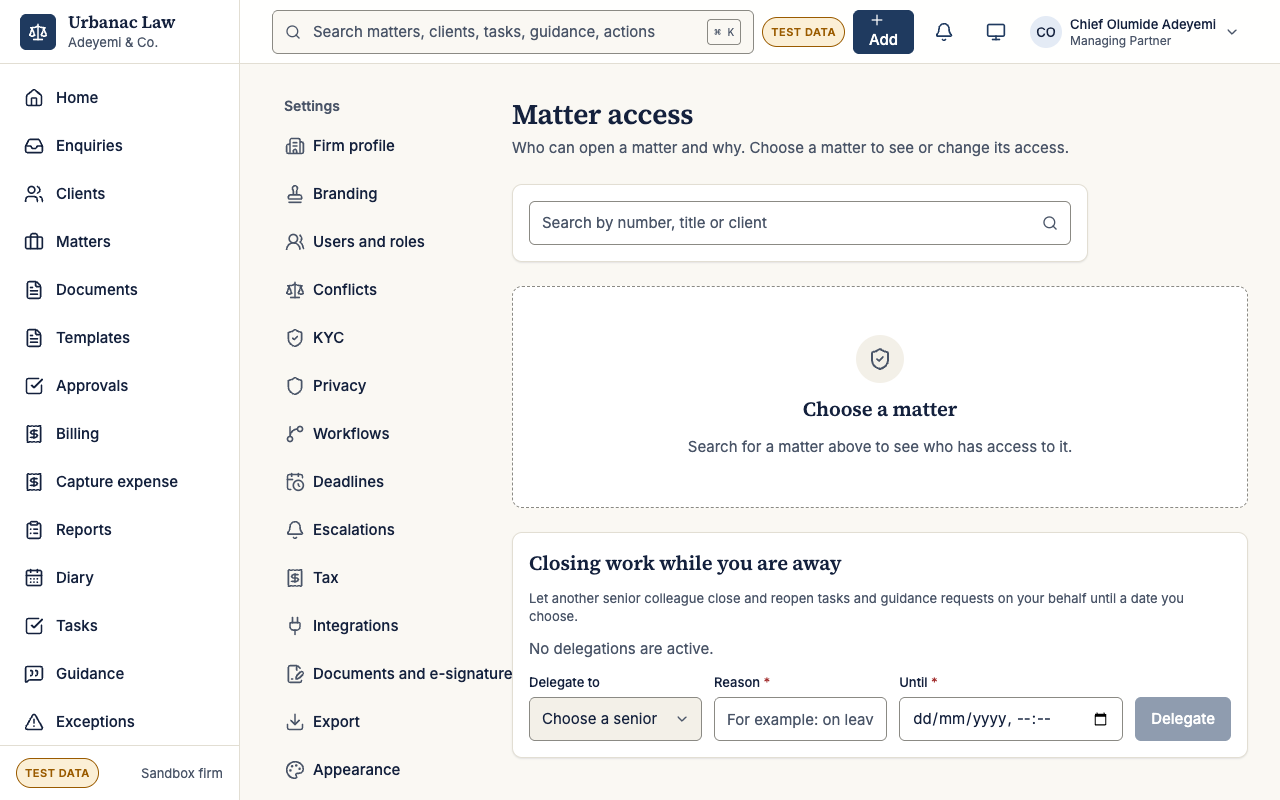
Open Settings, then Matter access (/settings/matter-access). Choose a matter in the picker.
Who may look: Managing Partner, Partners and the Operations Administrator. Who may change things: Managing Partner and Partners only. Everyone else sees a message that the page is not for their role.
Access mode#
The "Access mode" card shows the mode. Press Change mode, pick a new one, and write a reason.
| Mode | Who can open the matter |
|---|---|
| Standard | The assigned team. |
| Restricted | Named people only. |
| Highly restricted | Named people only, and adding a person needs partner approval. |
| Ethical wall | Everyone except the people and teams the wall blocks. |
Only the Managing Partner or the responsible partner can make a matter Highly restricted.
Teams with access#
Under "Teams with access" press Give access, and choose a team. Everyone in that team can then open the matter, unless a wall blocks them. Use Remove to take it back. People in the team are told when access starts or stops. Restricted and Highly restricted matters do not follow team access.
Ethical walls#
An ethical wall keeps a person or a team away from a matter, usually because of a conflict of interest.
- Under "Ethical walls" press Create wall.
- Choose one person or one team.
- Write the reason (at least 3 characters).
- Press the confirm button and type your PIN when asked.
The person is removed from the matter's staff list at once and is told that access was removed. The responsible partner cannot be walled off. Change the responsible partner first.
To end a wall, press Lift wall, give a reason, and confirm with your PIN. The person is told access was granted. Only the Managing Partner and Partners can create or lift walls.
Access requests#
On a Highly restricted matter, adding a person is a request:
- A partner presses Send request and gives a reason.
- The Managing Partner or the matter's responsible partner sees the request under "Access requests" and presses Approve or Decline, with a "Note for your decision".
The person who asked cannot approve their own request.
Delegating the power to close#
A senior going on leave can let another senior close their tasks and guidance requests for a time.
On the same Matter access page find "Closing work while you are away".
- Press Delegate.
- Choose "Delegate to". It must be a Senior Associate, Partner or Managing Partner.
- Write a Reason and set Until (an end date).
- Save.
This is a standing delegation: it covers all your items until that date. The colleague is told. Press End to stop it early. The Managing Partner can end any delegation. The delegation shows who you delegated to and until when.
The system also supports delegating a single task or a single guidance request, shown as "(one task)" or "(one guidance request)". The page itself only makes standing delegations.
Teams#
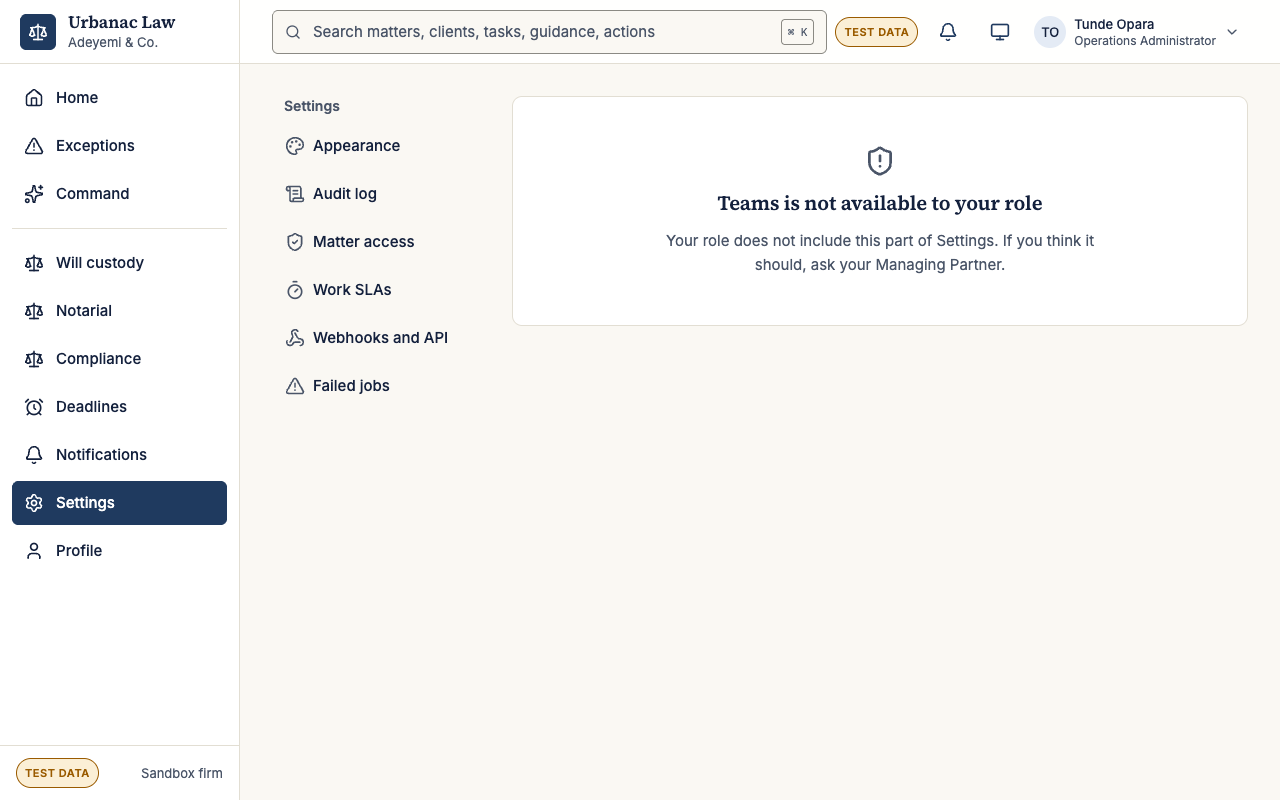
Open Settings, then Teams (/settings/teams). "Groups of colleagues. A team can be given access to a matter in one step."
Everyone on staff can see teams. Only the Managing Partner and the Operations Administrator can change them.
- Create team: give it a Name, a Kind (Practice team, Matter team or Support team) and, if you like, a Team lead.
- Add a member: pick the person, tick Make team lead if they lead it, and click Add. Click Remove beside a member to take them out.
- Rename changes the name and kind.
- Archive retires the team. Everyone in it leaves the team and any matter access the team was given is removed; the history stays in the audit trail. Confirm with Archive team or choose Keep the team to stop. Individual access people have on matters is not affected.
The quarterly access review#
Each quarter (January, April, July, October) the Managing Partner is reminded to confirm that everyone still needs their access.
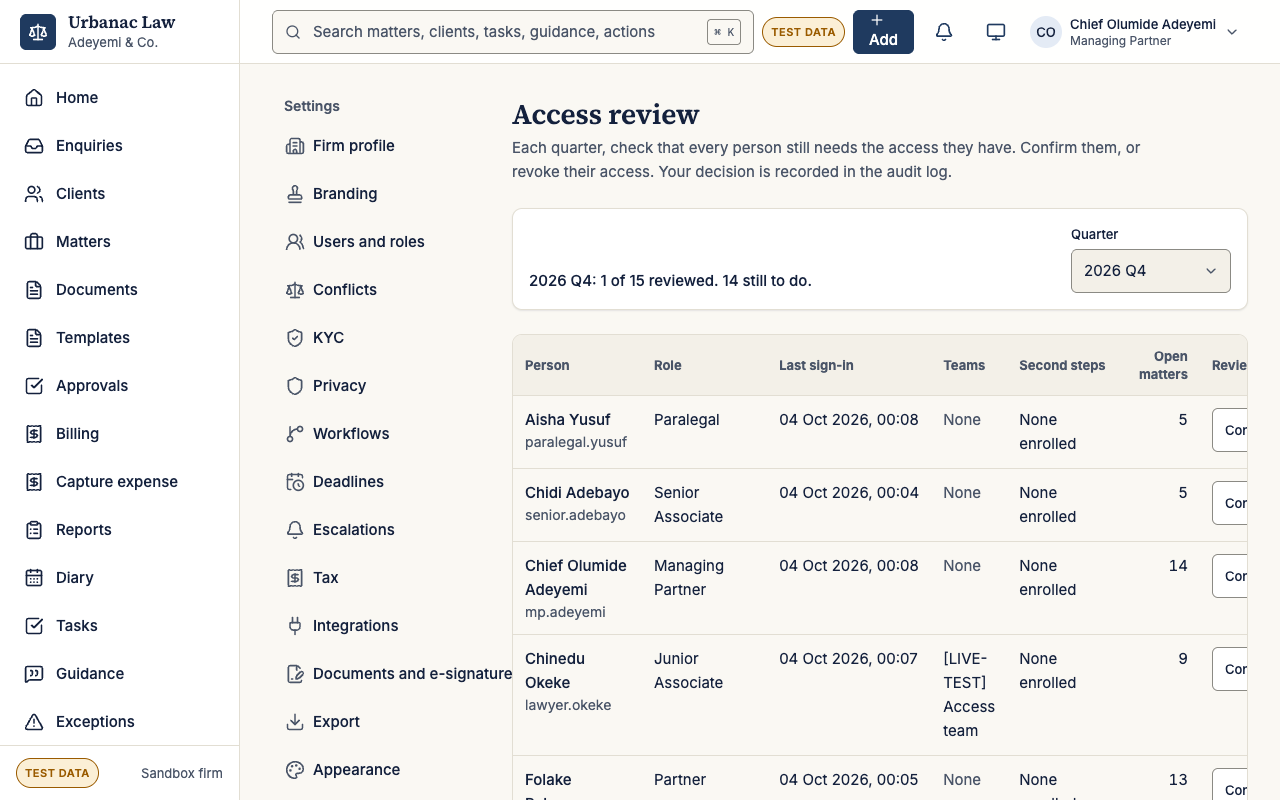
Open Settings, then Access review (/settings/access-review). The Managing Partner and the Auditor can view it. Only the Managing Partner can sign it off.
- Pick the "Quarter".
- The table lists each person: Person, Role, Last sign-in, Teams, Second steps, Open matters.
- For each person press Confirm (they still need access), or Revoke (they do not). A window opens: add a note (a reason is needed to revoke) and press Confirm access or Revoke access. Revoking turns the person's account off and signs them out.
- Type your PIN when asked.
If people are still waiting, a reminder says how many remain.
Something unclear or out of date? Tell your Operations Administrator, or go back to the manual home.