Team workload
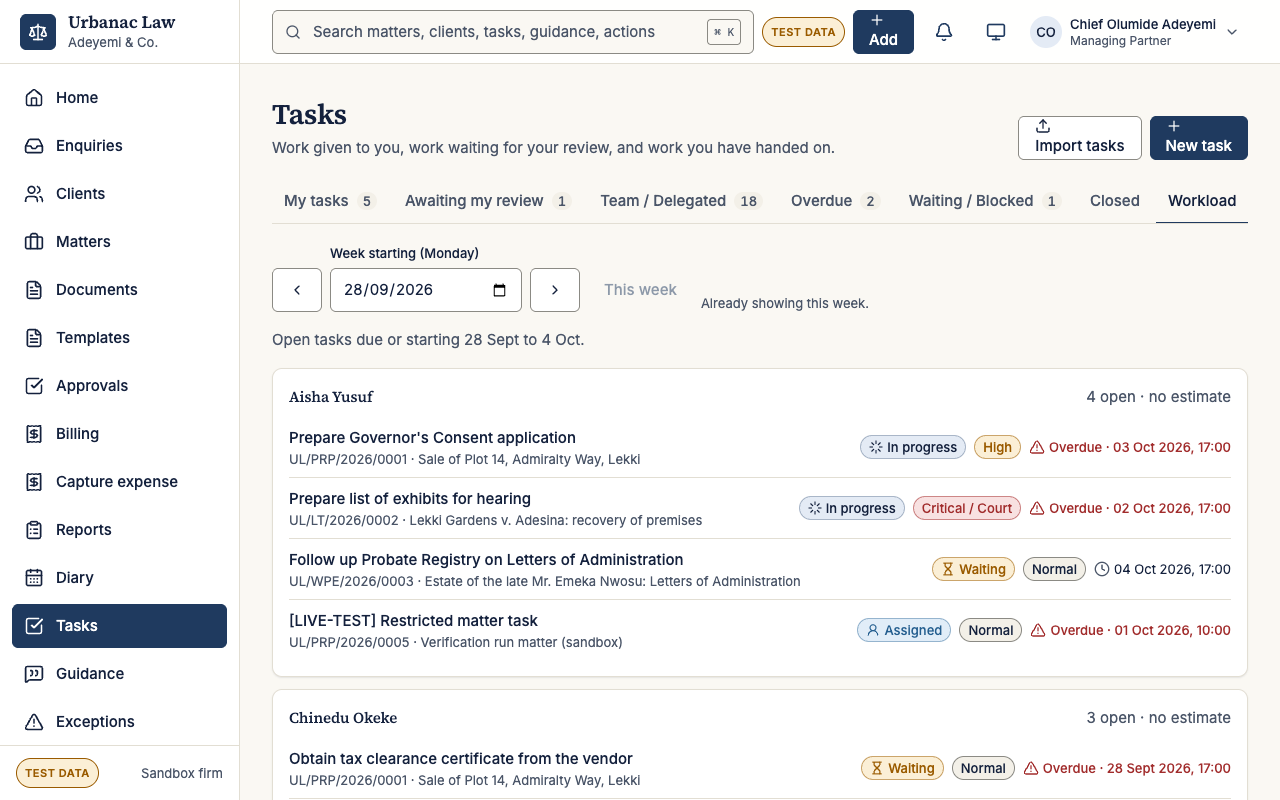
A week-by-week view of how many open tasks each person has, so seniors can balance the load.
Last updated 2026-10-03
What it is for#
The Workload tab answers one question: who is carrying how much this week? Use it before you give someone another task.
Who sees it#
Senior Associates, Partners and Managing Partners. Other roles do not see the tab.
Step by step#
- Open Tasks and choose the Workload tab.
- The page shows one week at a time under "Choose a week". Use Previous week, Next week or This week to move. You can also set "Week starting (Monday)".
- The text "Open tasks due or starting ..." tells you which week you are looking at.
- Each person is a row. It reads, for example, "4 open · 6.5 estimated" (the number of open tasks and the hours estimated for them), or "no estimate" if nobody has entered hours.
- Click a task under a person to open it.
Tasks that have nobody assigned appear under Unassigned. If nothing is due that week the page says "No open tasks this week".
Making it useful#
- The hours come from Estimated hours under Other settings when a task is made. If your team leaves it blank, you only see counts.
- For heavier reports, such as the staff capacity heat map, use Exceptions and reports.
Something unclear or out of date? Tell your Operations Administrator, or go back to the manual home.