Administrative Staff
What Administrative Staff see and can do, with the front-desk jobs: enquiries, client records, conflict searches, diary and receipts.
Last updated 2026-10-03
On this page
Who this role is#
Administrative Staff run the front of the firm: they capture enquiries, keep client contact records, run conflict searches, keep the diary and record payments received. You do not see privileged material, and you cannot close tasks. You see only the matters you are assigned to.
New here? Follow Getting started as Administrative Staff.
What you see on Home#
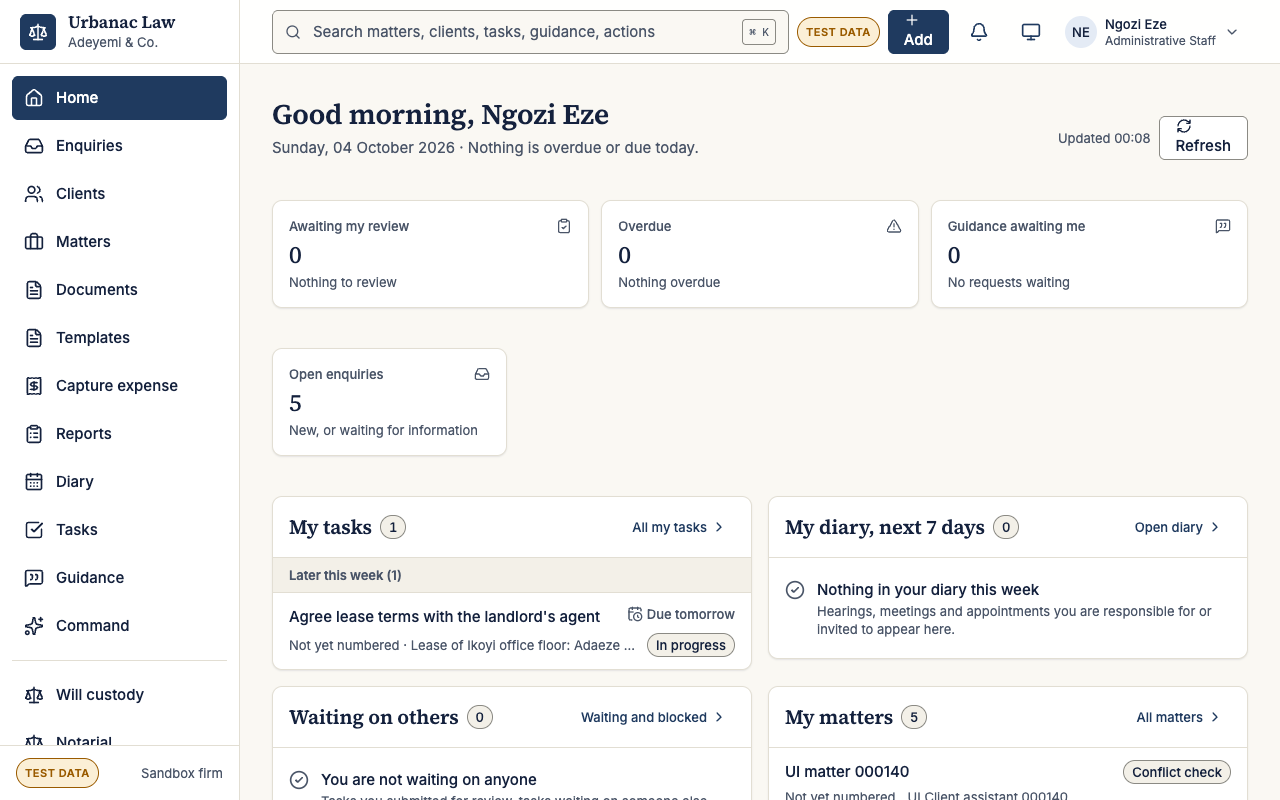
The Staff Home, with an extra tile: Open enquiries. Below it are My tasks, My diary, next 7 days, Waiting on others, My matters, Required uploads and Documents I worked on recently, plus the Awaiting my review, Overdue and Guidance awaiting me cards.
Your menu#
Home, Enquiries, Clients, Matters, Documents, Templates, Capture expense, Reports, Diary, Tasks, Guidance, Command, and under the extra items Will custody, Notarial, Deadlines, Notifications, Settings, Profile.
What you can do#
- Capture an enquiry, edit it and move it through its stages: Enquiries.
- Run a conflict search and read its hits (you cannot decide them): Conflicts.
- Create and edit people and organisations, and merge two records for the same person: Clients.
- Create a matter record ahead of opening (a partner opens it).
- Tick KYC checklist items.
- Upload documents, generate a draft from a template, create and update diary entries, add notes and log communications.
- Record a receipt and allocate it to invoices: Billing and expenses.
- Accept tasks, Start work, Submit for review, record time and expenses, raise a guidance request.
- Queue an email, SMS or WhatsApp message to a client, and create an online payment link for an issued invoice.
What you cannot do#
- Close a task, or assign or review tasks.
- Decide a conflict, make the client-acceptance decision, open a matter, or approve anything.
- Update matter details, add parties to a matter, draft documents, or request e-signatures (you can follow them).
- Reveal a masked NIN or BVN.
- Create invoices, quotes or credit notes, or see the Billing hub.
- See matters you are not assigned to.
When you will be asked for your PIN again#
Recording a receipt and allocating it does not ask. Adding or removing your own passkey, authenticator app or trusted device does: the box Confirm it is you opens; type your PIN and press Confirm.
When something is greyed out#
A greyed-out or missing button means your role does not include the step (for example Close task), you are not assigned to the matter, or the record is archived. Ask a lawyer on the matter to do it, or raise a guidance request.
Where to go next#
Enquiries · Clients · Conflicts · Diary and deadlines · Tasks
Something unclear or out of date? Tell your Operations Administrator, or go back to the manual home.