Managing Partner
What the Managing Partner sees, can do, and is asked to confirm, including firm settings, users and audit.
Last updated 2026-10-03
On this page
Who this role is#
The Managing Partner owns the firm's workspace. You see every matter, you decide who works in the firm and what they may do, and you are the only person who can change firm settings, sign-in security and users. The firm must always keep at least one active Managing Partner.
New here? Follow Getting started as a Managing Partner.
What you see on Home#
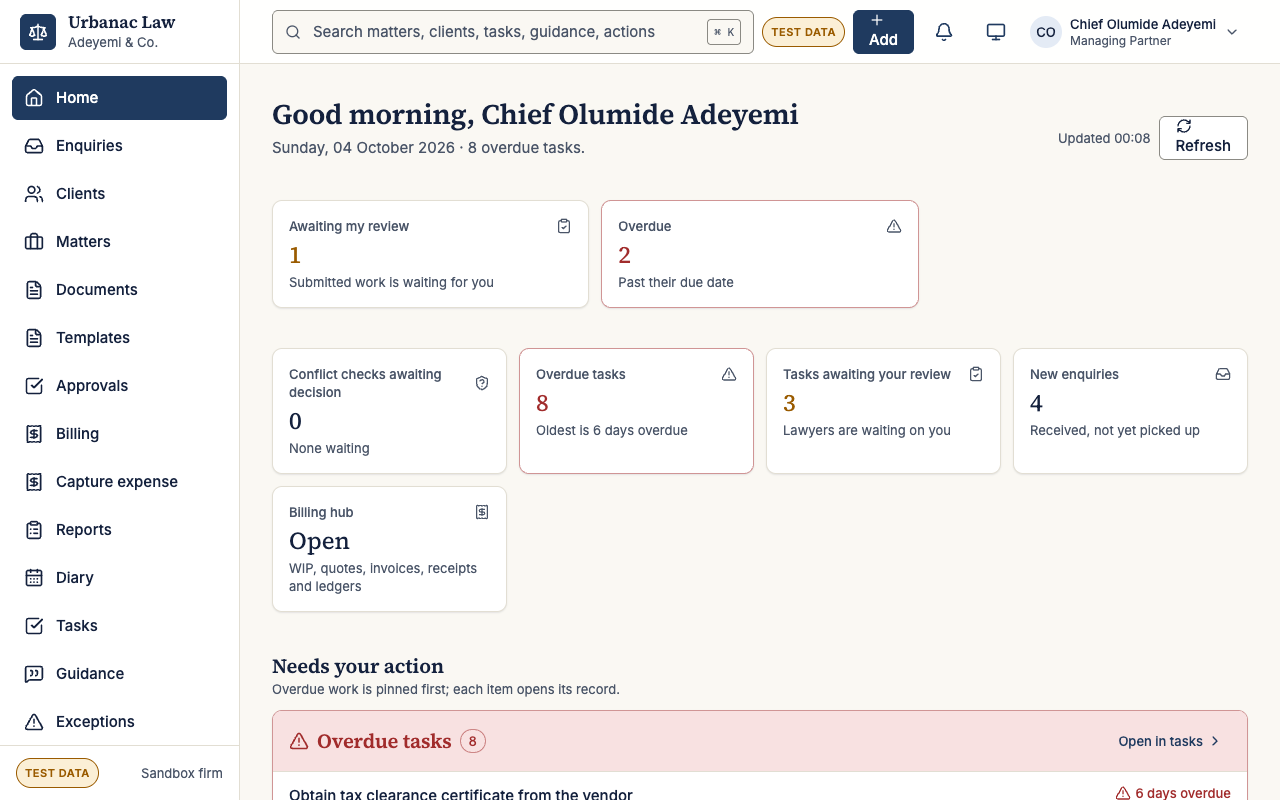
Home is the Partner Home. It shows, from top to bottom:
- Small cards for Awaiting my review, Overdue and Guidance awaiting me.
- Counters for Conflict checks awaiting decision, Overdue tasks, Tasks awaiting your review, New enquiries and Billing hub.
- Needs your action: overdue tasks, the conflict queue, documents awaiting approval, matters waiting to open, urgent overrides and matters awaiting partner review.
- Diary and deadlines for today and the next 7 days.
- Matters by practice area and matters opened in the last six months, then Recent activity.
Your menu#
Home, Enquiries, Clients, Matters, Documents, Templates, Approvals, Billing, Capture expense, Reports, Diary, Tasks, Guidance, Exceptions, Command. Under the extra items: Will custody, Notarial, Compliance, Deadlines, Notifications, Settings, Profile.
What you can do#
You can do everything a Partner can (see Partner), and in addition:
- Add people, change their role, issue a temporary PIN or unlock someone, deactivate or reactivate them: Settings and users.
- Change the firm profile, branding, workflows, deadlines, escalations, tax, Documents and e-signature and the other firm settings.
- Change the firm's sign-in rules (second step, trusted devices): Sign-in and two-factor.
- Reset a colleague's second sign-in step and sign them out of every device.
- Create and change teams, set work SLAs, run Failed jobs, and manage Webhooks and API: Integrations.
- Confirm or revoke each person's access in the quarterly Access review.
- Export the audit trail in tamper-evident form.
- Create or lift an ethical wall and set a matter's access mode.
What you cannot do#
- You cannot change your own role, and you cannot deactivate yourself.
- You cannot apply a stamp and seal unless your own user is marked as a registered seal holder, and you can only apply your own.
- You cannot overwrite a document locked as Executed Final.
- Nobody, including you, can edit or remove an audit entry.
When you will be asked for your PIN again#
Some actions ask you to type your PIN again ("step-up"). A box titled Confirm it is you opens; nothing happens until you press Confirm. If a second sign-in step is on for you, it asks for that too. The PIN check stays valid for 10 minutes (15 minutes for approving a final document). The actions are:
- change a role, sign someone out everywhere, reset someone's second step;
- change the firm's sign-in security policy;
- confirm or revoke access in the Access review;
- export the audit trail;
- approve a final document, apply your seal, bulk-export data, approve permanent deletion;
- issue an invoice, write off a balance, back-date a receipt, issue a credit note, transfer client money, sign off a reconciliation;
- create or lift an ethical wall;
- add or remove your own passkey, authenticator app or trusted device.
When a button is greyed out#
A greyed-out or missing button means the action is not open to you in that state. Common reasons: the matter is archived (read-only), a document is already Executed Final, a gate such as KYC has not passed, or you are the only active Managing Partner. Where the screen can give a reason, it is shown next to the button or in the message that appears when you press it.
Where to go next#
Something unclear or out of date? Tell your Operations Administrator, or go back to the manual home.