Exceptions and reports
The partner view of what is late or stuck, the operational and governance reports, and how to download CSV files and the audit trail.
Last updated 2026-10-03
On this page
What it is for#
Exceptions shows what is late or stuck across the firm, so a partner can chase it. Reports show how the firm is doing over time.
Who can open it#
Senior Associates, Partners, the Managing Partner, the Operations Administrator and the Auditor. Other roles see "Exceptions are for senior roles".
Three tabs: Exceptions, Operational, and Governance. Governance is for the Managing Partner, Partners and the Auditor only.
The Exceptions tab#
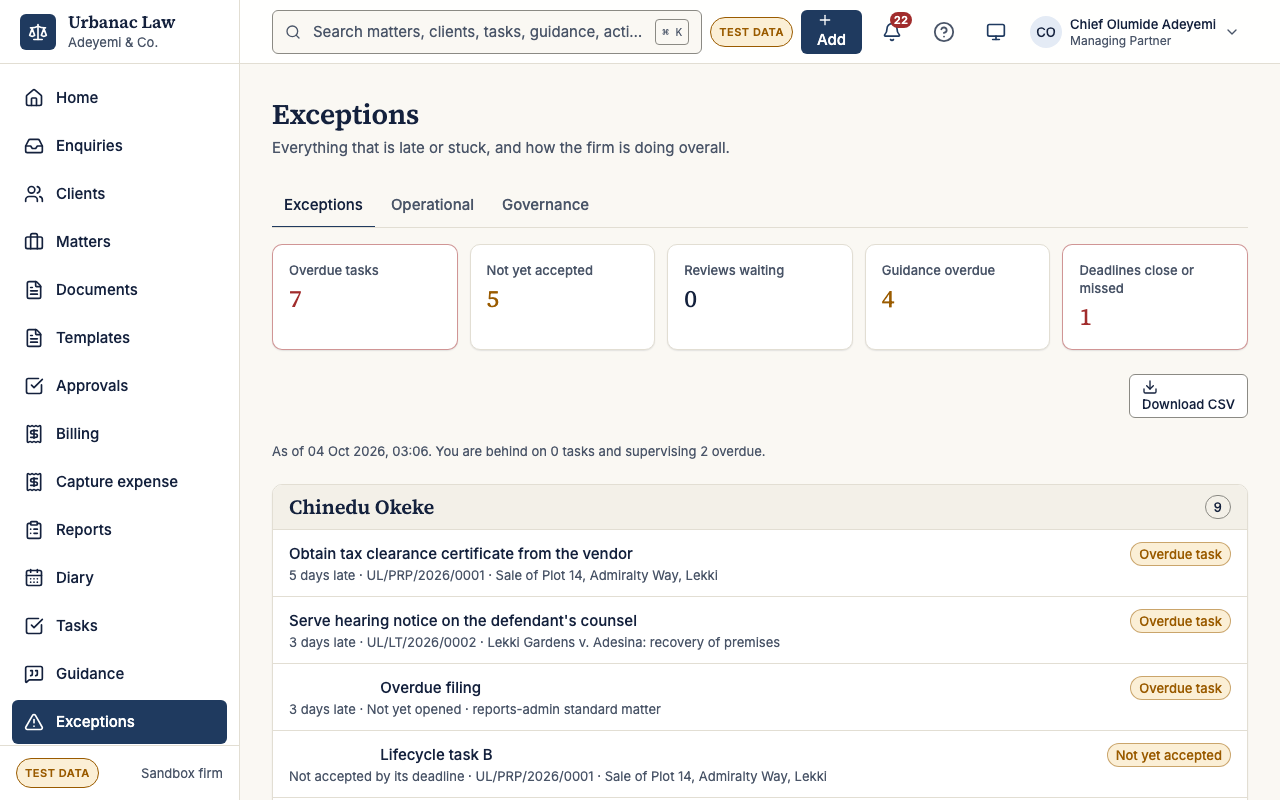
At the top are five counts: "Overdue tasks", "Not yet accepted", "Reviews waiting", "Guidance overdue", and "Deadlines close or missed". Below, a line reads, for example, "You are behind on 2 tasks and supervising 5 overdue."
The list is grouped by the person who has to act. Each item has a badge:
- Overdue task
- Not yet accepted
- Review waiting too long
- Blocked
- Guidance request
- Deadline close or missed
Items nobody owns appear under "Nobody assigned". Click an item to open it. If the page says "Nothing is late or stuck", you are clear.
Press Download CSV to save the list as exceptions.csv (columns: Who has to act, Kind, Item, Detail).
The Operational tab#
This shows the last 30 days in three cards:
- "Tasks, last 30 days": how many were created, overdue and reopened, and the count by status.
- "How fast work moves": average time to accept, submit and close.
- "Guidance requests": how many were sent, are "Still open" or were escalated, and the average time to acknowledge and to respond.
Below is "All operational reports". Pick a report, choose the Period (last 7, 30 or 90 days, or last 12 months), and press Download CSV. A file holds at most 500 rows. Reports include:
- My workload and overdue items
- Team workload distribution
- Staff capacity heatmap
- Tasks created, completed, returned and closed
- Average completion time by task type
- Rework rate by assignee and task type
- Guidance response time by senior
- Partner review backlog
- Overdue task rate
- Deadline compliance rate
- Matter activity timeline (choose a matter first)
The Governance tab#
This is about control and security, not speed. It shows:
- Who can see what: how many matters are in each access mode, how many ethical walls are active, and how many closure delegations are active.
- Last 30 days: access changes, role changes, denied attempts, document downloads, PIN re-checks and audit exports.
- A banner that says "The audit trail is intact", or warns that it failed its check.
"All governance reports" are: Permission-change report, Matter-access report, Ethical-wall report, Document-download report, Failed-login and security-event report, and Data-retention and legal-hold report. Each downloads as CSV.
Export the audit trail#
Only the Managing Partner and the Auditor see Export audit trail.
- Press Export audit trail.
- Type your PIN when "Confirm it is you" appears. See Profile and security settings.
- A file such as
audit-trail-2026-10-03-120-events.jsondownloads. It carries a fingerprint (SHA-256) and the result of the check that the chain is unbroken. - Press Download again if you need another copy.
Opening CSV files#
If a cell starts with =, +, - or @, the file adds a small mark in front so that Excel does not run it as a formula. This is expected.
Something unclear or out of date? Tell your Operations Administrator, or go back to the manual home.