Generation and review
Make a document from a template or with AI, check it, get a partner's approval, then stamp, seal and share it.
Last updated 2026-10-03
On this page
What this is for#
A document goes through a clear path: write it (from a template, a blank page or with AI help), check it for mistakes, have a partner approve it, then sign and send. The system never guesses a detail: anything not filled in stays as a blank for you to complete.
Who can use it#
- Generating a document from a template: anyone on the staff roles who is assigned to the matter.
- Starting a blank document or an AI draft, and sending one for e-signature: Managing Partner, Partner, Senior Associate and Junior Associate.
- Running the document check: any staff role assigned to the matter, but the check panel is for a lawyer or partner. Others see You cannot check this document.
- Approving a final document: Partners and the Managing Partner only. It asks you to type your PIN again if you have not signed in recently.
- Applying a stamp and seal: a Partner, Managing Partner, or a Senior or Junior Associate who holds a registered seal. Also asks for your PIN.
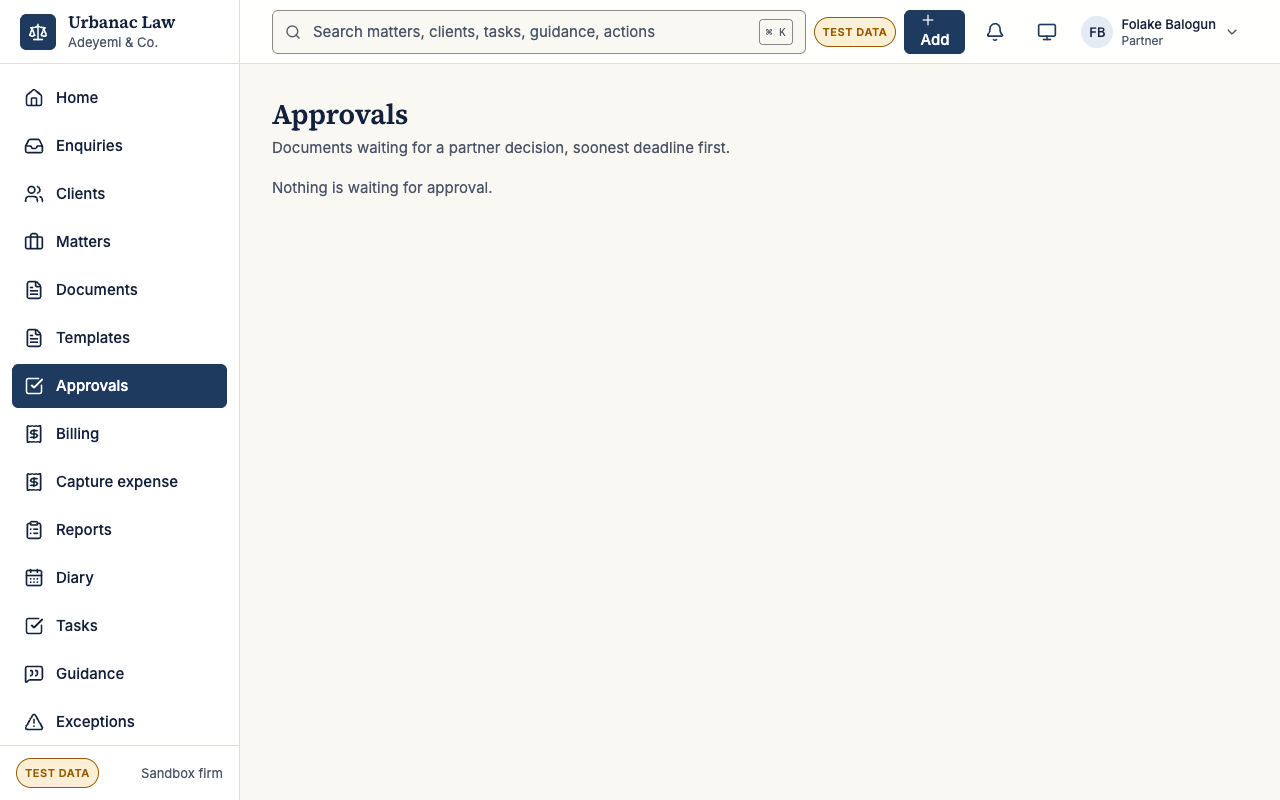
- Managing the approval queue (Approvals in the menu): Partners and the Managing Partner. Others see Approvals are for the partners.
Generate a document from a template#
- Open Templates and click Generate a document, or open a template and click Use this template, or open a matter's Documents tab and choose New document then From a firm template.
- On Generate a document, choose the Template (Choose an approved template) and the Matter. If there are no approved templates you see No approved templates yet; a partner must approve one first.
- People fill in from the matter: for each role such as landlord or tenant, pick From this matter…, Find a client, or Add someone new. For a new person fill in Full name, Email, Phone, Address, tick This is a company or organisation if it is one, and tick Add to client records if you want a client record made. If the person may already be on file you are asked Is this someone already on file? and can choose Use or No, create a new record.
- Fill in the Details. Amounts in naira are also written out in words in the document.
- Check the Checklist on the side, showing what is filled (3 of 5 filled) and Still needed.
- Read the Preview. Highlighted brackets are blanks still to fill. You may click Edit the wording to type directly into the preview, but the form is then locked and Back to the form discards your edits.
- Click Save as draft, or Save and check it to go straight to the check.
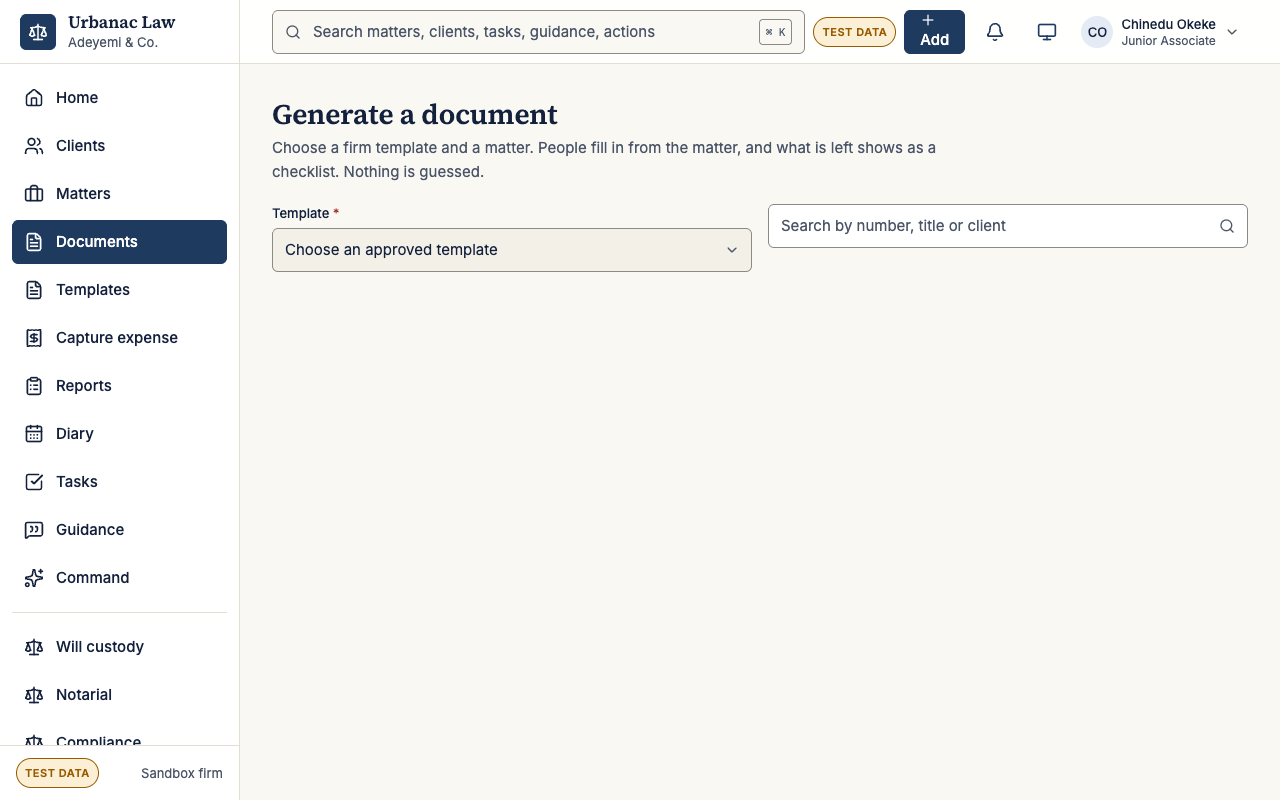
The new document opens in the document workspace with its origin recorded as a firm template.
Other ways to start#
On a matter's Documents tab, New document offers:
- From a firm template, as above. It also lists Usually needed for this kind of matter with ready-made shortcuts.
- From a blank page: give a Title and click Open the editor.
- Draft with AI: give a Title and describe What should it say?, then click Draft it. Names and numbers are hidden from the AI before it is asked, and restricted matters never use AI. The draft is labelled AI-generated draft and a partner must review it before it can be approved. If AI is not connected the option is unavailable.
Check a document#
- Open the document and go to the Check stage.
- Click Check this document. Tick Also ask the AI for advice if you want the optional AI suggestions (advisory only; it sees the document with names and numbers hidden).
- The findings are highlighted in the text. Each is one of: Blank left, Party name, Dates, Amounts, Words and figures, Cross-reference, Defined term, Spelling, Grammar or AI suggestion. They are grouped as Fix before sending, Please look at and For your judgement.
- For each finding choose Accept, Edit (type the Replacement wording and click Use this) or Reject.
- Click the button that reads Save with the number of decisions, or Finish check. Accepted changes become a new version and the check must run again.
Saving a new version cancels any earlier approval. The AI-assisted check can be switched off by the Managing Partner for the whole firm, and you can turn it off for a single document with Never use AI on this document.
Get a document approved#
- On the document drawer, find Partner approval.
- Write a Note for the partner and click Request partner approval. Its status shows Awaiting partner approval.
- A partner opens Approvals. Each line shows the matter, the version, who asked, and the deadline. Click Preview to read it.
- The partner clicks Approve, Request changes or Reject, with a Decision note where asked. The statuses are Approved, Changes requested and Rejected.
Approval is tied to the exact file. Approving binds to the current file hash. Any new version voids the approval. A voided approval shows Voided.
Stamp and seal#
The Stamp and seal panel is for approved documents.
- Open the document drawer and find Stamp and seal.
- Drag the Seal onto the page preview to where it should sit. The position is stored with the approved file hash.
- Add a Reason and, if your firm records physical stamps, the Physical stamp serial.
- Click Apply stamp and seal and enter your PIN if asked.
- Download sealed PDF produces the sealed copy. The stored file itself is not changed.
You see Stamp and seal recorded when it works. If you see Only an associate holding a registered seal may apply it, you are not a registered seal-holder. If you see A seal can only be applied to a partner-approved document, get approval first.
Share a document outside the firm#
In the drawer, Share links lets you give someone a temporary link.
- Click Create link, type a Recipient label (shown on the watermark, for example the recipient's firm), and click Create.
- Copy the link. It shows its expiry.
- Click Revoke to cancel it.
Only partner-approved documents can be shared this way. The AI assistant on the matter's Overview tab, AI help, can also search approved precedents and draft short passages on request, only when AI is connected.
Common problems#
- You cannot generate documents. Ask a colleague with access to the matter.
- A partner must approve this version first. Request approval, then return.
- Saved as version … Any earlier approval no longer applies to it. Expected. Ask for approval again.
- Preview unavailable. Check that you have chosen a template and a matter first.
- Not saved when generating: a required detail may be missing; the checklist shows what.
Something unclear or out of date? Tell your Operations Administrator, or go back to the manual home.