Home page, header and menus
What each role sees on the Home page, and how the top bar, search, main menu, More menu and phone menu work.
Last updated 2026-10-03
On this page
What this is for#
The Home page is the first screen after you sign in. It shows what needs you today, so you do not have to hunt through the menus. This page also explains the bar across the top of every screen and the menus you use to move around.
Which Home page you get#
Your role decides what you see.
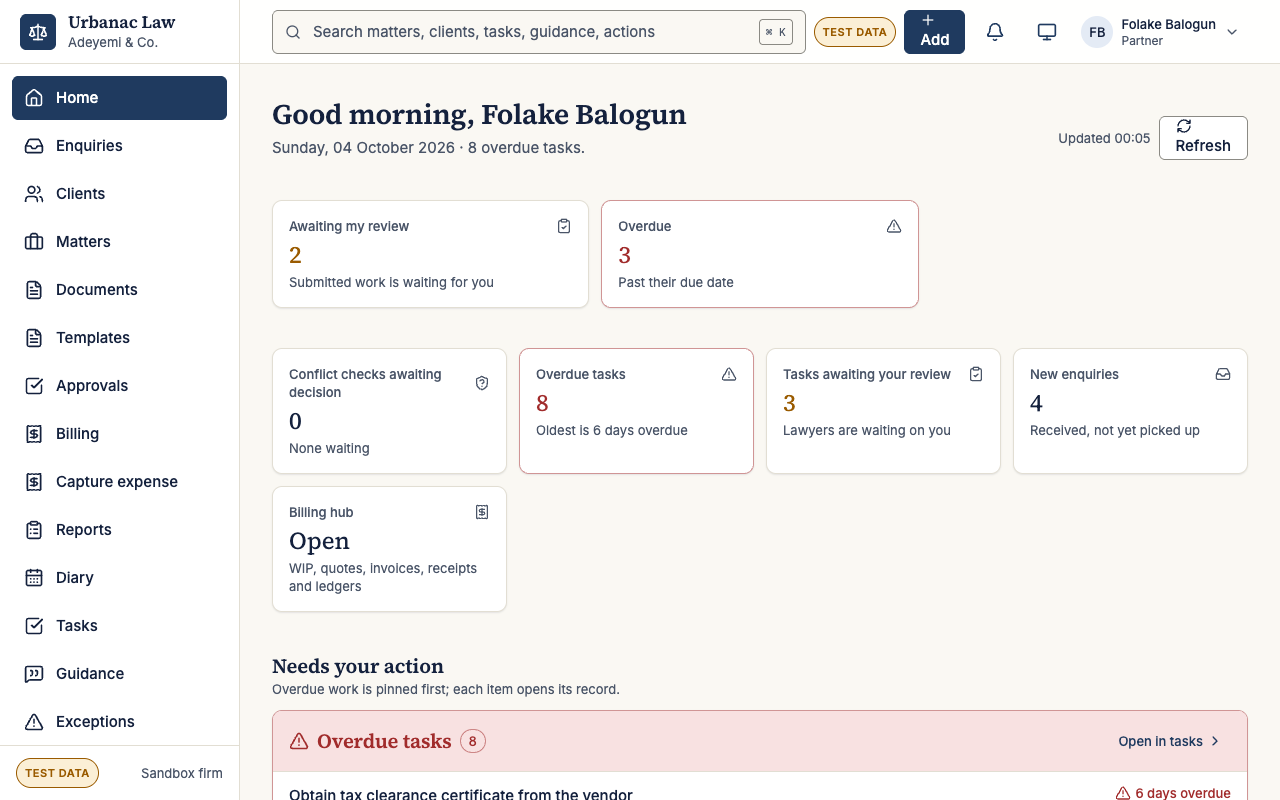
- Managing Partner and Partner get the partner Home page, built around decisions waiting for you.
- Senior Associate, Junior Associate, Paralegal and Administrative Staff get the staff Home page, built around your own tasks, diary and matters.
- Operations Administrator and Auditor do not have a Home page. If you open it you see Home with the message No home page for your role and a note to use the menu to open the area you work in. Nothing is broken: use the main menu instead.
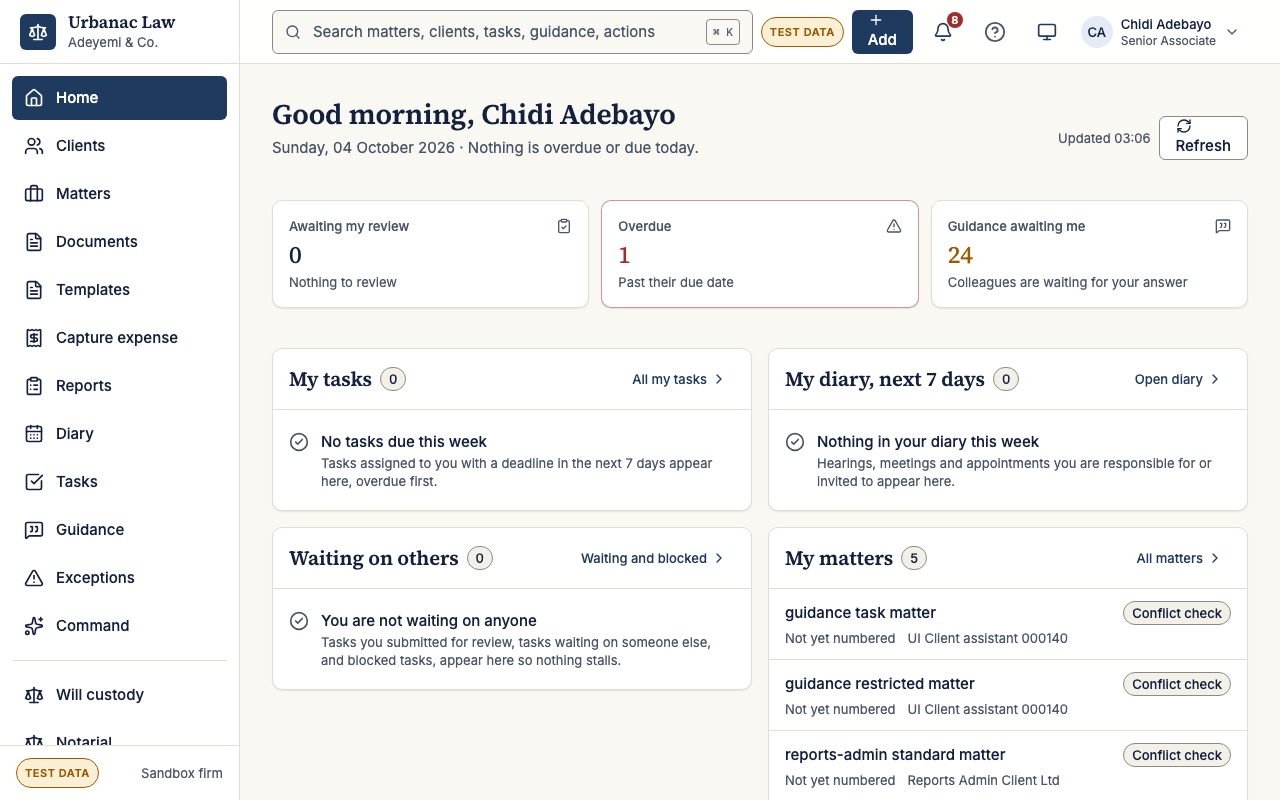
At the top of both Home pages you see a greeting such as "Good morning" with your name, today's date and a one-line summary (for example how many tasks are overdue). Click Refresh to reload now. The page also reloads itself every two minutes, and the small note beside the button says when it was last updated.
Cards that count work for you#
Near the top of both pages you may see small cards with a number. Each card opens the list behind the number.
- Awaiting my review: submitted tasks waiting for you to review.
- Overdue: tasks past their due date.
- Guidance awaiting me: guidance requests colleagues are waiting for you to answer.
Partner Home page#
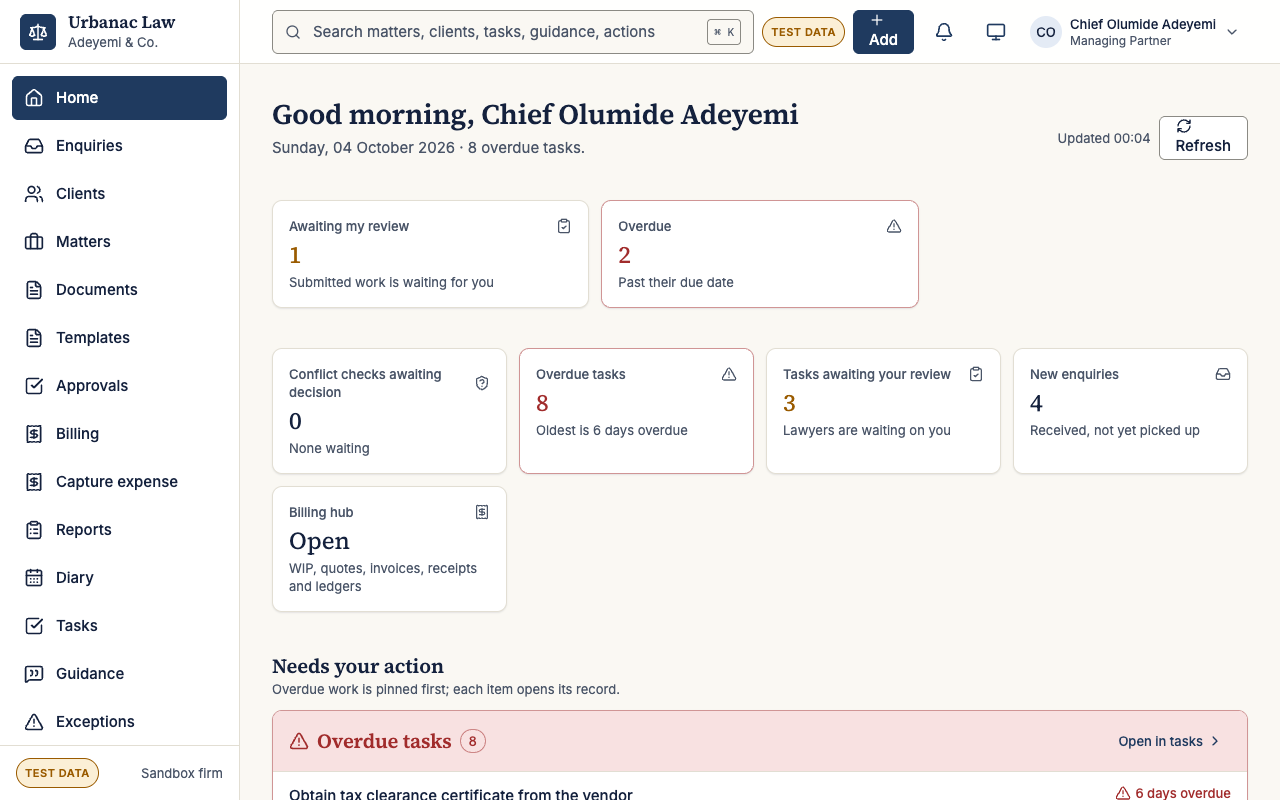
Below the cards you see a row of tiles: Conflict checks awaiting decision, Overdue tasks, Tasks awaiting your review, New enquiries and Billing hub. Click a tile to open the list behind it. A tile with nothing waiting says so, for example "None waiting".
Then the page is split into sections:
- Needs your action holds these boxes:
- Overdue tasks, oldest first, with who each task is assigned to.
- Conflict queue, with Open queue to decide them.
- Documents awaiting approval, drafts sent to you for approval, each showing its version.
- Matters waiting to open, either ready to open (all checks passed) or needing your acceptance decision.
- Urgent overrides, steps that were cleared urgently with a reason and an end date, shown until the missing item is supplied.
- Matters awaiting partner review.
- Diary and deadlines holds Today in the diary (with Open diary) and Task deadlines, next 7 days (with Open tasks).
- Matters holds Matters by practice area and Matters opened, last six months, with links to All matters.
- Recent activity lists the latest changes to matters, documents, conflicts, enquiries and clients. Click one to open the matter's timeline.
Staff Home page#
If you work on enquiries you also see an Open enquiries tile. The boxes are:
- My tasks, grouped as Overdue, Due today and Later this week. Click All my tasks for the full list.
- My diary, next 7 days, with Open diary.
- Waiting on others: tasks you submitted for review, tasks waiting on someone else and blocked tasks. Click Waiting and blocked for the list.
- My matters, the matters you are assigned to, most recently updated first, with All matters.
- Required uploads: client identity items (KYC) and client-action tasks that still need a file.
- Documents I worked on recently.
A row that you are not allowed to open is shown as plain text instead of a link.
The top bar#
The same bar is at the top of every screen.
- Search and commands: the wide box that says "Search matters, clients, tasks, guidance, actions". See below.
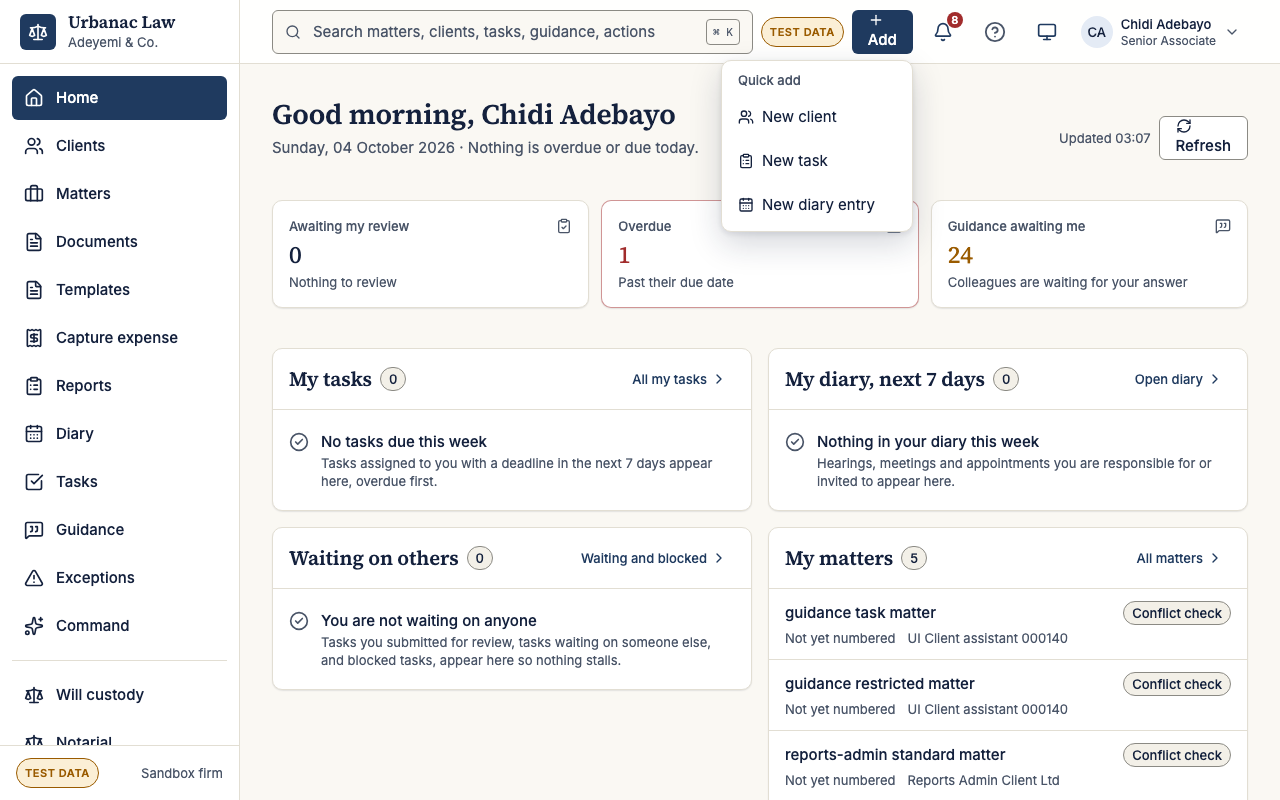
- Add (a plus sign; on a phone just the plus): a Quick add menu with New enquiry, New client, New matter, New task and New diary entry. You only see the ones your role may create.
- The bell: shows a red number when something is waiting. Click it to see your latest notifications and a Needs your attention list, click Mark all as read to clear the number, or click See all notifications and settings to open the full page. See Notifications.
- Help for this page (the question mark): opens this manual on the section for the page you are on, in a new tab.
- Colour mode (hidden on very small phones; use More there): choose Match my device, Light or Dark.
- Your name and picture: opens a menu with Profile and sessions, Settings and Sign out. See Your profile and sign-in security.
If your firm uses a test copy of the system you also see a TEST DATA badge, so nobody mistakes it for live records.
If your connection drops, a banner says You are offline. Changes cannot be saved until your connection returns.
Search and commands#
Click the search box, or press Ctrl+K (Cmd+K on a Mac). Press the same keys again to close it. Type two or more letters to find matters, clients and parties, enquiries, documents, tasks and guidance requests you may open. The same box also lists pages to Go to and the Actions (such as New task) you may use, filtered as you type. Use the up and down arrow keys and Enter to pick one. Full detail is in Searching. Ctrl+K or Cmd+K is the only keyboard shortcut in the app.
The main menu#
On a computer, the main menu is down the left. Each name only appears if your role may use it.
- Home, Enquiries, Clients, Matters, Documents, Templates, Approvals, Billing, Capture expense, Reports, Diary, Tasks, Guidance, Exceptions and Command.
- Under a divider at the bottom: Will custody, Notarial, Compliance, Deadlines, Notifications, Settings and Profile.
The page you are on is highlighted. Command opens the Command Centre, where you type an instruction in plain English and confirm the steps it prepares.
On a phone#
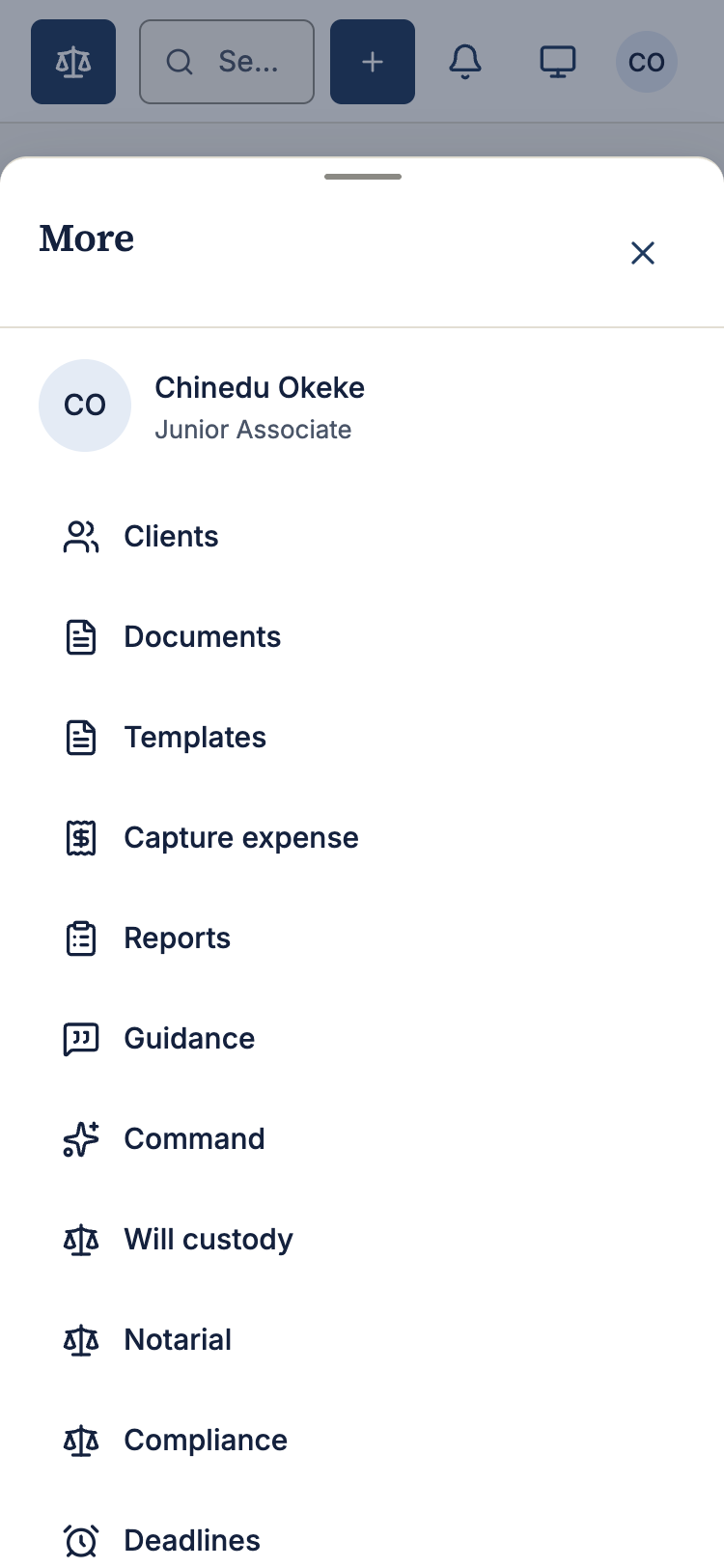
There is no side menu. A bar along the bottom shows Home, Matters, Diary, Tasks and More. Tap More to open the More panel:
- Your name and role at the top.
- Every other page you may use, including Command, Settings, Profile and Notifications.
- Colour mode with Device, Light and Dark.
- Sign out.
Tap the logo at the top left to go back to Home.
If a name is missing from the menu#
Your role does not include that area. Ask your Managing Partner or the Operations Administrator if you think you need it. If you type the address of a page you may not open, you see a message saying so rather than the page.
Something unclear or out of date? Tell your Operations Administrator, or go back to the manual home.