Getting started as a Senior Associate
A 10-minute path: sign in, secure your account, find your work and hand out your first task.
Last updated 2026-10-03
Sign in (minute 0). Type your email address or username in Email or username and the six-digit temporary PIN in PIN, then press Sign in.
Choose your own PIN (minute 1). On Choose your sign-in PIN, type the temporary PIN in Temporary PIN, then six digits of your own in New PIN and Confirm new PIN, and press Set PIN. Avoid runs such as 123456, repeated digits and dates people could guess.
Turn on your second sign-in step (minutes 2 to 4). Account menu, Profile and sessions, Sign-in security. Press Add a passkey or Add an authenticator app, then save your recovery codes with Copy codes or Print codes and press I have saved them.
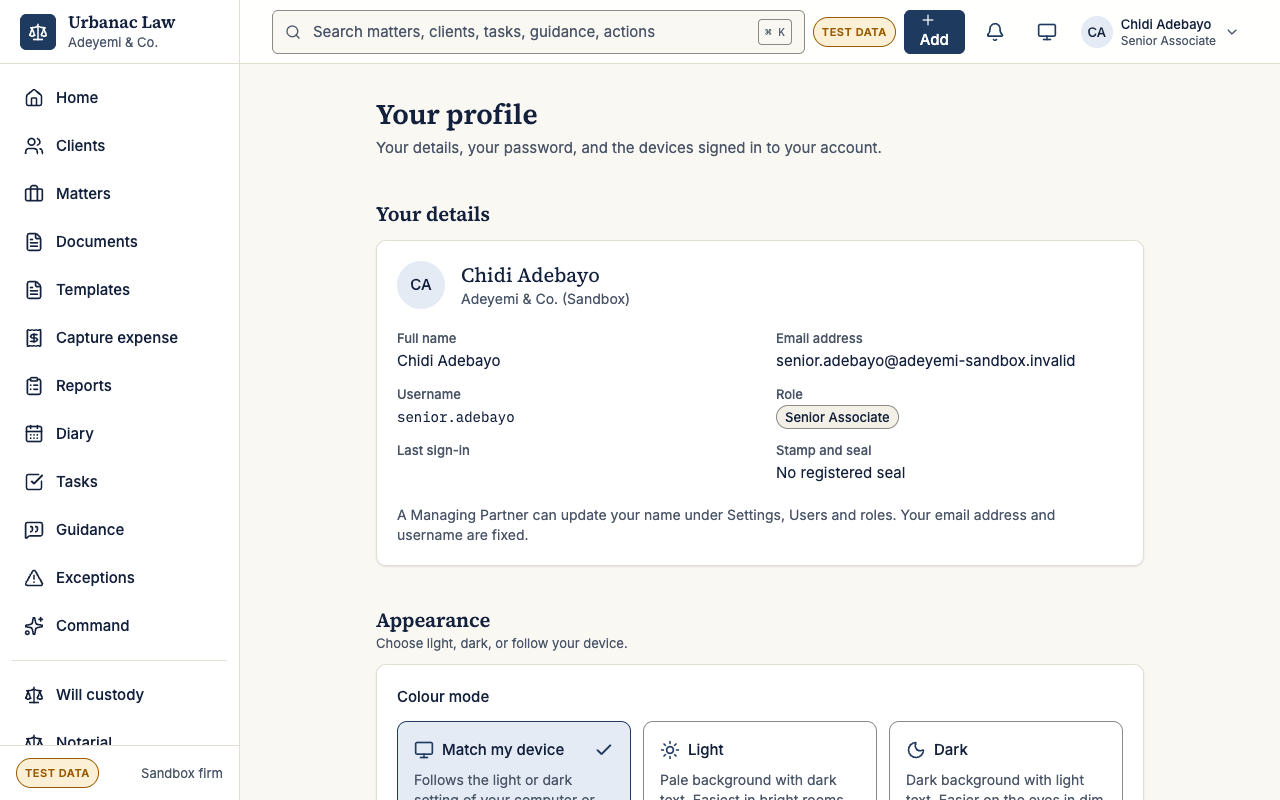
Sign-in security on the Profile page Find your work (minutes 5 to 6). Press Home. The cards Awaiting my review and Guidance awaiting me show what colleagues are waiting on; My tasks lists your own work, overdue first.
Hand out your first task (minutes 7 to 9). Press Tasks, then New task. Fill in Title, Matter, Type of task, Priority, Due date, Who will do the work, Senior owner and Instructions. Under How will we know it is done? write what finished looks like, or add a checklist item with Add checklist item. Press Send task. Use Save as draft if you are not ready.
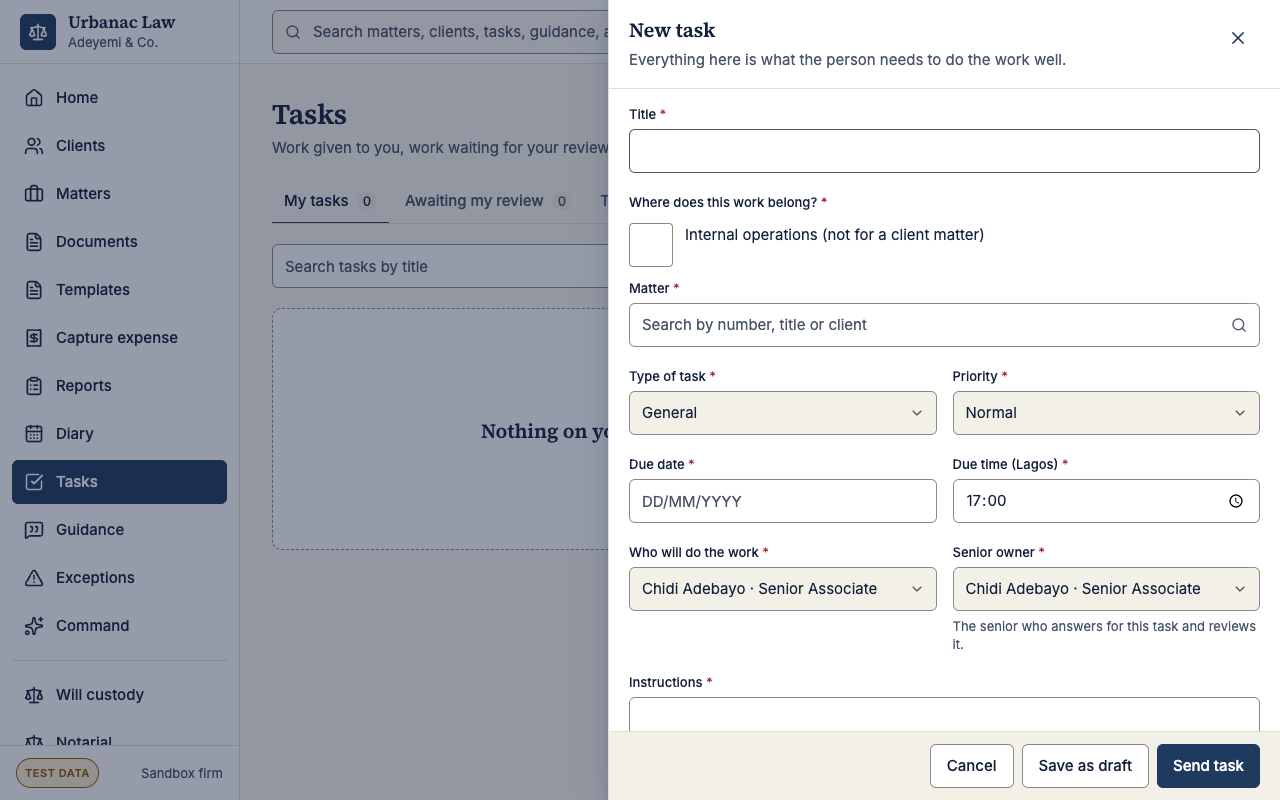
The New task panel See the team's load (minute 10). On Tasks, press the Workload tab, which shows each person's open tasks for the week.
When a colleague later presses Submit for review, the task appears under Awaiting my review. You press Approve or Return for rework, then Close task.
Something unclear or out of date? Tell your Operations Administrator, or go back to the manual home.