Notifications
The bell, the Notifications page, your preferences, quiet hours, the daily summary and what email, WhatsApp and SMS messages contain.
Last updated 2026-10-03
On this page
Where you are told#
Urbanac Law tells you about work in four places. The first is always on.
- In the app: the bell at the top of every page and the Notifications page.
- Email: on by default.
- WhatsApp: off by default, and only for critical alerts.
- SMS: off by default, and only for critical alerts about deadlines and overdue work.
Phone and browser alerts are set up in your profile (see the end of this page).
The bell#
The bell shows a number: unread notices plus live alerts. Click it to open a small panel titled "Notifications".
- Needs your attention lists live alerts that are true right now, such as overdue tasks.
- Mark all as read clears the unread notices.
- "See all notifications and settings" opens the full page.
During your quiet hours the bell says "Warnings and overdue items still show. Push is not sent."
The Notifications page#
Open Notifications from the menu. It has three tabs: Inbox, "Needs attention" and Preferences.
In Inbox, use the filter chips: All, Unread, Tasks, Guidance requests, Deadlines, "Matter access and documents", "Account security", and Other. Press Mark read on one notice, or Mark all as read. On "Needs attention" you can press Mark all as seen.
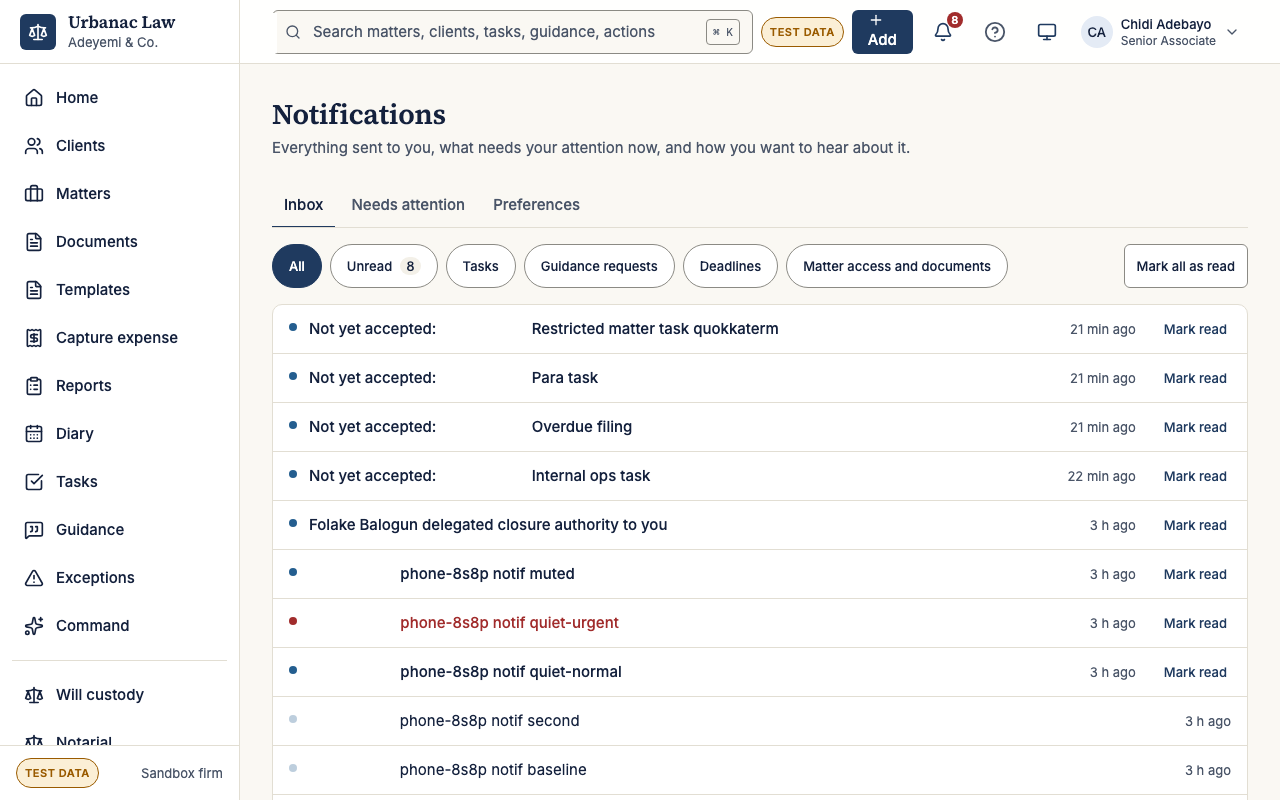
Click a notice to go straight to the task, request or deadline.
What triggers a notice#
Among others: a task was assigned, reassigned, blocked, submitted for your review, returned, approved, closed, reopened, overdue, or not accepted; a submitted task is waiting for review; you were mentioned; a guidance request was sent to you, answered, escalated, or closed; more information was requested; a critical deadline is approaching; a document was downloaded; matter access was granted or removed; the quarterly access review is due; a new sign-in to your account; and a change to a sign-in method.
Preferences#
Open Notifications, then Preferences.
Where we reach you#
For each channel (In-app, Email, WhatsApp, SMS) you see whether it is Connected or "Not connected", and a switch.
- In-app is always on.
- Email, WhatsApp and SMS can be switched On or Off. The switch cannot be used while a channel shows "Not connected".
- WhatsApp and SMS need a phone number on your profile.
- At first, In-app and Email are on, and WhatsApp and SMS are off.
Quiet hours and daily summary#
- Switch on "Hold ordinary notices during quiet hours", then choose From and Until. The starting times are 22:00 to 07:00 Lagos time (WAT).
- During quiet hours ordinary emails are held until the morning. Critical alerts are not held: an approaching critical deadline, an unacknowledged urgent guidance request, an unaccepted task, an overdue task, or an escalated guidance request.
- Switch on "Send me a daily summary" to get one note each morning with your open tasks, how many are overdue, and how many wait for your review. It is on by default.
What you hear about#
A list of events with a tick box for each, in groups. Use Turn all off or Turn all on on a group. A muted event still lands in your inbox; it just is not sent by email, WhatsApp or SMS.
Save#
Press Save settings. Press Undo changes to go back to what was saved, or "Use the firm defaults" to reset.
The neutral-text rule#
Email, WhatsApp and SMS messages never name a client or a matter, and never contain an instruction. They say only the kind of notice, for example "A task was assigned to you", plus a link. The link needs you to sign in. An email adds: "No case details are included in this message."
This protects client confidentiality if a phone is lost or a message is forwarded. The notice inside the app can show the task title, because you are signed in.
Phone and browser alerts#
Open Profile. Under "Phone and browser notifications" press "Turn on notifications on this device" to allow alerts on this phone or browser. Use "Turn off on this device" to stop them, and "Send a test notification" to check it works. The page shows Connected or Not connected for the device.
Quiet hours and which events you hear about are set under Notifications, then Preferences.
Something unclear or out of date? Tell your Operations Administrator, or go back to the manual home.