Tasks overview
What the Tasks page shows, what each tab means, and how a task moves from draft to closed.
Last updated 2026-10-03
On this page
What a task is#
A task is one piece of work given to one person, with a due date, instructions and a way to tell when it is finished. It can belong to a client matter, or it can be internal office work (for example "Renew the office printer contract").
Every task has:
- An assignee: the person who does the work.
- A senior owner: the senior colleague who answers for the task and reviews it.
- A status: where the task is today, for example Assigned or In progress.
Tasks are not the same as the diary or the Deadlines page. A task is work to be done; a deadline is a date that must not be missed, such as a court date.
Who can open the Tasks page#
The six staff roles can open Tasks: Managing Partner, Partner, Senior Associate, Junior Associate, Paralegal and Administrative Staff. Clients, the Auditor and the Operations Administrator do not have tasks. If you are one of them, the page says your role does not include tasks.
You only see a task if you are involved in it (assignee, senior owner, reviewer, collaborator, or the person who created it) or you are a partner who may see the matter. A draft is visible only to the person who made it, its senior owner and the partners.
The page#
The page is called Tasks. At the top right you may see two buttons:
- New task opens the form to make a task. See Creating and assigning tasks.
- Import tasks adds many tasks from a spreadsheet. See Importing tasks from a CSV file.
Under the heading is a search box, "Search tasks by title". Each list shows the first 100 tasks.
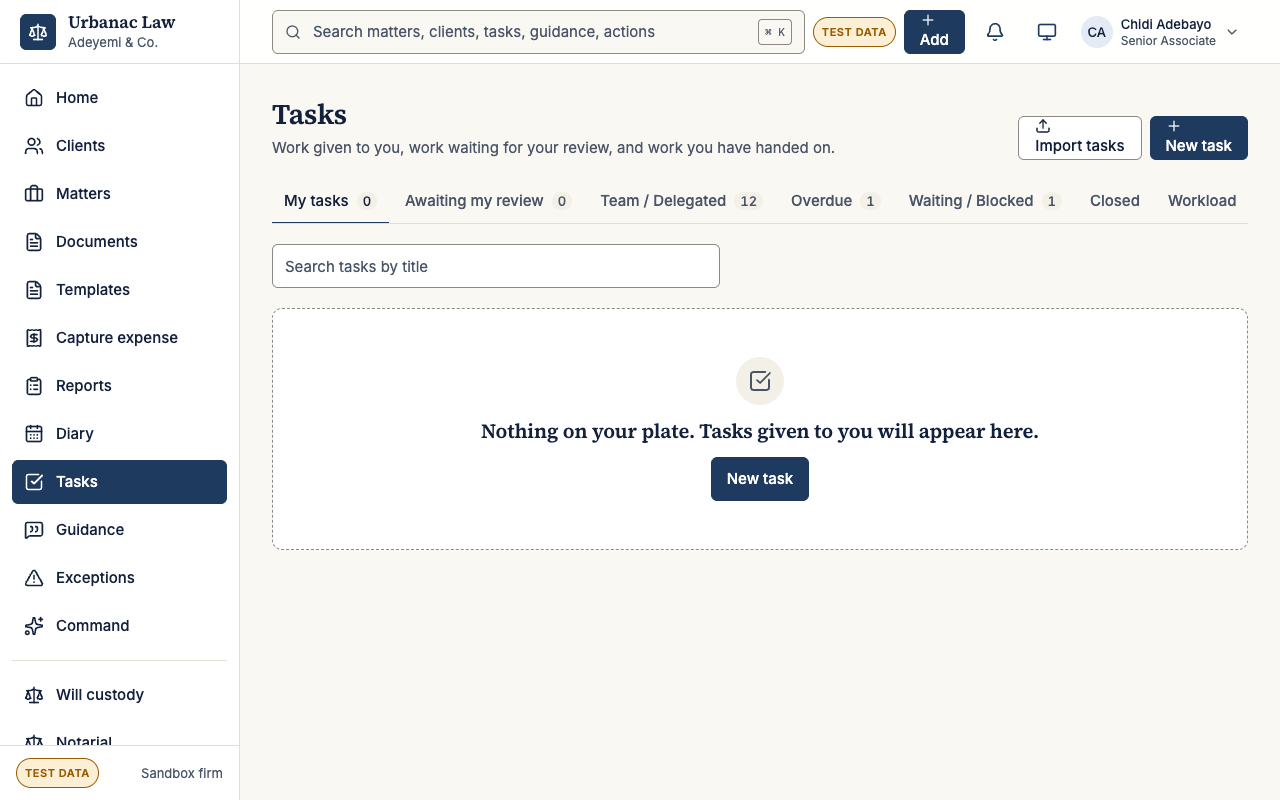
The tabs#
| Tab | What is in it |
|---|---|
| My tasks | Open work given to you. |
| Awaiting my review | Tasks that people have submitted and that you must review or close. |
| Team / Delegated | Open tasks you have given out to others. Drafts you saved are here too. |
| Overdue | Open tasks that are past their due time. |
| Waiting / Blocked | Tasks paused because the person is waiting on someone, or is stuck. |
| Closed | Tasks that were closed or cancelled. |
| Workload | A week-by-week view of who is carrying what. Senior roles only. See Team workload. |
A number next to a tab tells you how many tasks are in it. An empty tab explains itself, for example "Nothing on your plate. Tasks given to you will appear here." or "Nothing is overdue. Well done."
Each row shows the task name, its Status, Priority, who it is Assigned to and when it is Due. Click a row to open the task in a side panel. The address of the open task ends in ?task= followed by its number, so you can paste the link to a colleague.
Statuses#
A task is always in one of these states:
| Status | Meaning |
|---|---|
| Draft | Saved but not yet sent. Nobody is expected to act. |
| Assigned | Sent to the assignee, who has not yet said they accept it. |
| Accepted | The assignee has confirmed they will do it. |
| In progress | Work has started. |
| Blocked | The assignee is stuck and has said why. |
| Waiting | The assignee is waiting on the client, the registry or a third party. |
| Submitted for review | The assignee says the work is done and wants it checked. |
| Returned for rework | The reviewer sent it back with a note on what to change. |
| Approved, awaiting closure | The reviewer is happy; a senior can now close it. |
| Closed | Finished. |
| Reopened | A closed task was brought back for more work. |
| Reassigned | Handed to a new assignee. |
| Cancelled | Stopped. It will not be done. |

Priorities#
Low, Normal, High, Urgent and "Critical / Court". The priority sets how quickly the task must be accepted and reviewed. See SLAs and escalation.
Where to read next#
Something unclear or out of date? Tell your Operations Administrator, or go back to the manual home.