SLAs, reminders and escalation
How long work may wait before the system chases it, how to change the times, the escalation timeline, and what to do when a reminder fails to run.
Last updated 2026-10-03
On this page
What an SLA is here#
An SLA is the firm's promise to itself about speed: how fast a task must be accepted, finished and reviewed, depending on how urgent it is. When time runs out, the system reminds and then escalates. Nobody has to remember to chase.

The standard times#
These apply until the firm changes them.
| Priority | Accept within | Finish within | Review within |
|---|---|---|---|
| Critical / Court | 15 minutes | By the task's due time | 60 minutes |
| Urgent | 60 minutes | Same working day (17:00) | 240 minutes |
| High | 240 minutes | 2 business days | 1 business day |
| Normal | 24 hours | 5 business days | 2 business days |
| Low | 48 hours | 10 business days | 3 business days |
Accept times count straight through the clock (an hour is an hour, day or night). Finish and review times written as business days skip weekends and the firm's holidays (see Firm settings pages). A task's own due date, if it has one, is used instead of the finish time. All times are Lagos time.
Who can change them#
The Managing Partner and the Operations Administrator. Open Settings, then Work SLAs (/settings/work-sla). Everyone else sees a message that the page is not for their role.
Change the times#
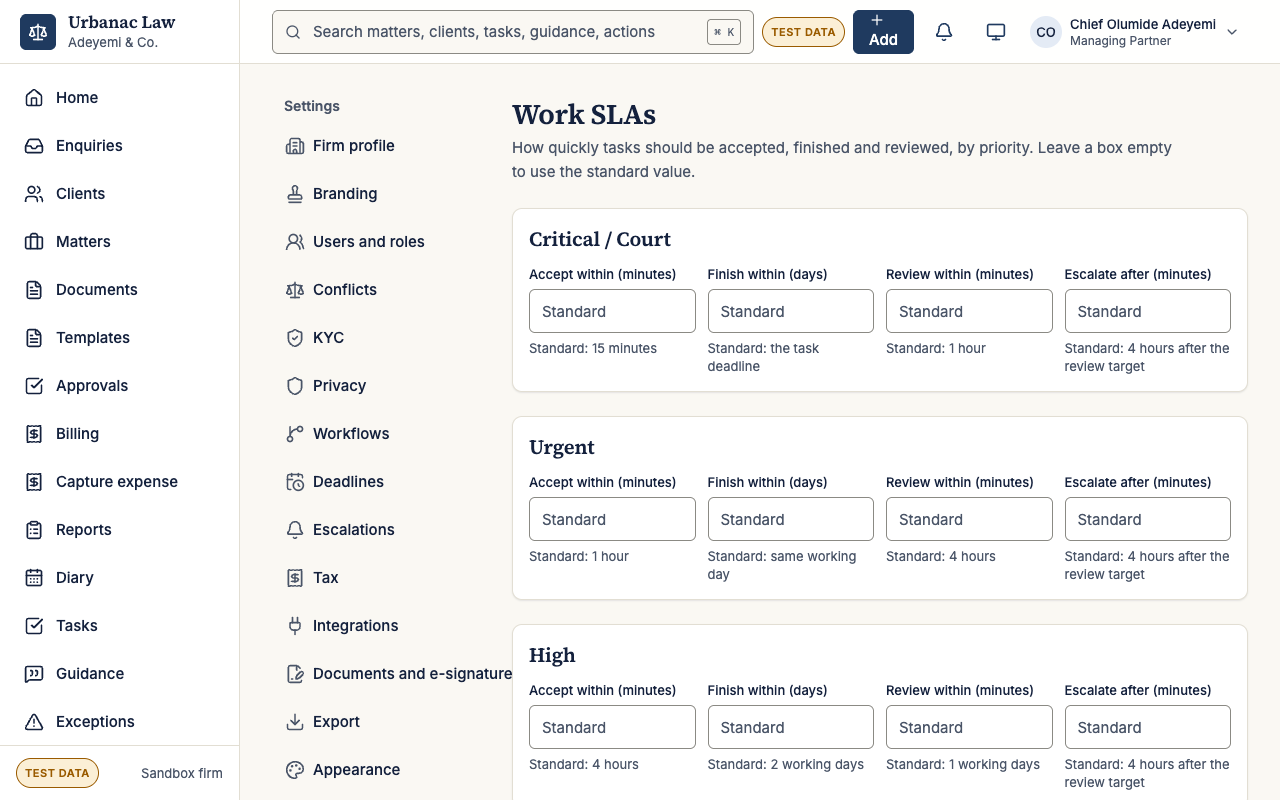
- For each priority, fill in Accept within (minutes), Finish within (days), Review within (minutes) and Escalate after (minutes). Leave a box blank to keep the standard value.
- To make exceptions, use the buttons "Add a team override" (a team that works faster or slower) or "Add a task type override" (for example Court tasks). Remove a row with Remove this row. An override beats the firm times for that team or type.
- Press Save SLA settings.
Reminders for critical work#
The section "Reminders for critical work" is fixed: 7 days, 72 hours, 24 hours and 4 hours before the due time. You cannot change it.
Test clock speed-up#
"Test clock speed-up" with the "Speed-up factor" box shrinks every clock so that a tester can see an escalation in minutes. It works only in the sandbox firm. A real firm cannot switch it on, and you should leave it alone. The system refuses it with "Compressed test clocks are only available in the sandbox firm."
The escalation timeline#
A task#
- Sent. The assignee is told. The clock to accept starts.
- Accept time runs out. If the status is still Assigned, the assignee and senior owner are told "Not yet accepted".
- Critical tasks only. If it is still not accepted 30 minutes after it was sent (15 minutes after the first warning), the responsible partner (or the Managing Partner) is told.
- Reminders (critical tasks): 7 days, 72 hours, 24 hours and 4 hours before the due time. Anyone can also pick their own reminders when making the task.
- Due time passes. The task is marked overdue. The assignee and senior owner are told.
- Submitted for review. When the review time runs out, the senior owner is told "Waiting for your review". Four hours later, the responsible partner is told "Review overdue, escalated".
A guidance request#
Only Urgent and Critical requests escalate by themselves. See Guidance, every action.
A deadline#
High and Critical deadlines send reminders at 7 days, 72 hours, 24 hours and 4 hours. A Critical deadline that is still not acknowledged 4 hours before reaches every Managing Partner. See Diary and deadlines.
Every automatic step is recorded in the audit log as done by "the system".
When a reminder fails#
Sometimes the system cannot run a scheduled check or reminder, for instance because of a temporary fault. These appear under Settings, then Failed jobs (/settings/failed-jobs): "Reminders and checks the system could not run."
The Managing Partner and the Operations Administrator can see the page. Each failed job has a kind, such as Task acceptance check, Task overdue notice, Review reminder, Deadline reminder, Guidance acknowledgement check or Daily summary.
- Run again tries it once more.
- Discard drops it. You must give a reason. Use this only if the reminder is no longer needed.
A "Coming up" section lists the next scheduled jobs.
Something unclear or out of date? Tell your Operations Administrator, or go back to the manual home.