Diary and deadlines
Keep court dates and meetings in the diary, see today's court list, and track deadlines with automatic reminders and escalation.
Last updated 2026-10-03
On this page
What this is for#
Three screens work together so nothing is missed:
- Diary: hearings, registry visits, consultations, filings and other dated entries, in a calendar.
- Court Today: a short list of today's court appearances, with space to record what happened.
- Deadlines: the dates that must not be missed (a court date, a filing, a limitation period). Each has an owner, automatic reminders and, if it is ignored, an escalation to the Managing Partner.
All times are Lagos time, 24-hour.
Who can use it#
- Staff roles can use the diary and Court Today. If your role does not include them you see a message to ask the Managing Partner.
- To add a diary entry to a matter you must be assigned to that matter. Personal entries (not linked to a matter) are always allowed.
- Deadlines are visible to anyone who can see tasks. Adding one needs permission to create tasks. The owner acknowledges and completes their own deadlines. The Managing Partner can acknowledge for the owner. Completing is for the owner, the responsible partner or the Managing Partner.
- The Auditor and the Operations Administrator do not use these screens.
Diary#
Open Diary.
- Use the buttons Previous period, Today and Next period to move around.
- Choose how to look at it: Day, Week, Month or Agenda (a plain list, handy on a phone).
- Switch between Mine and Team under Whose diary. The team view shows entries on matters you can see plus your own personal entries.
- Click any entry to open its panel. Drag an entry to move it; you see a message with Undo straight after.
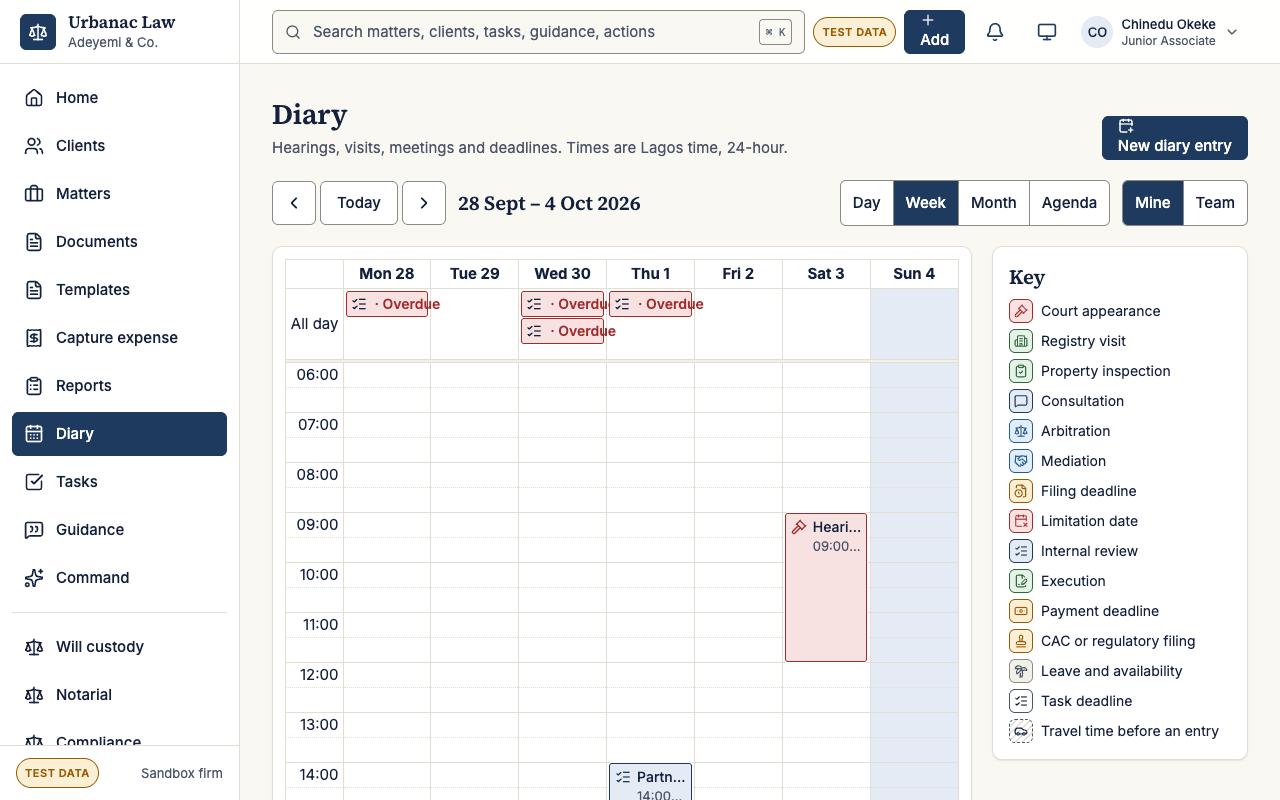
The key at the side explains the colours. Task deadlines show up automatically, marked Task deadline, and a hatched block marks Travel time before an entry. Click a task deadline to open the task.
Entry types#
Court appearance, Registry visit, Property inspection, Consultation, Arbitration, Mediation, Filing deadline, Limitation date, Internal review, Execution, Payment deadline, CAC or regulatory filing, and Leave and availability.
Add an entry#
- Click New diary entry.
- Choose the Type and give a Title.
- Choose the Matter (you must be assigned to it), or leave it as not linked to a matter for a personal entry. An entry stays on the matter it was created on.
- Set the dates. Tick All day if there is no start time. Otherwise fill Starts, Start time (24-hour), Ends and End time (24-hour). Type dates as DD/MM/YYYY and times as HH:mm, for example 09:30.
- Fill Location (a court name and room, for instance) or an Online meeting link.
- Choose the Responsible person and any Participants (up to 30).
- Add Travel time before (minutes) if the person must leave early; it is shown as a hatched block before the entry.
- Write Notes and click Add to diary.
Open, edit, record the outcome or cancel#
The entry panel shows the matter, location, online link (Join the meeting), responsible person, participants, travel time and notes.
- Edit changes details. Click Save changes.
- Record outcome: after the entry has happened, type What happened? (for example the result of a hearing, who attended, or the next step) and click Save outcome. Later it reads Update outcome.
- Cancel entry: type the Reason for cancelling (at least 3 characters). The entry leaves everyone's diary and the reason is kept in the audit record. Use Keep entry to go back.
Common diary messages#
- Diary entry not found or We could not find that diary entry. It may have been cancelled, or you may not have access.
- The end must not be before the start. Check the dates.
- Choose the type of entry. and Give the entry a title of at least 2 characters.
- You need to be assigned to the matter to add an entry to it. Ask a partner to assign you.
Court Today#
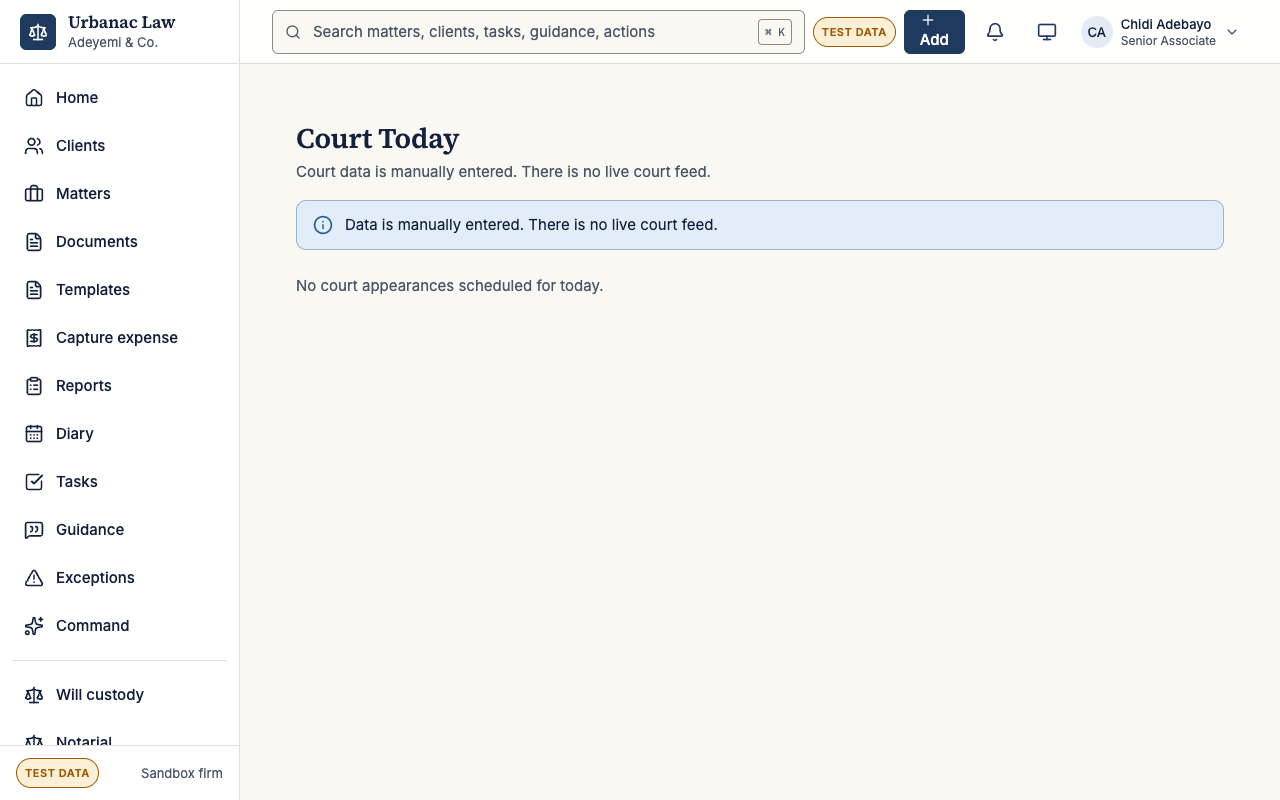
Court Today shows one day at a time: today unless you choose another Day (use Back to today to return). It says Data is manually entered. There is no live court feed. so check the court's own cause list too.
From the diary lists that day's court appearances: the time, court and judge, item number, the matter and the counsel on record. After a sitting click Record outcome, write What happened? and click Save outcome. The line then reads Outcome recorded with your note.
Cause list holds the court's list for the day, grouped by court and in item order:
- Click Paste a cause list, type the Court and, if you like, the Judge or division, and paste The list: one case per line, copied from the court's list. A number at the start of a line is kept as the item number; put counsel after a | if you want it recorded. Check the preview and click Add N items.
- The firm's own cases are found by their suit numbers (from each matter's Litigation record) and show Ours: with a link to the matter. Only people who may see that matter see the item.
- To add a single case, click Add an item and fill in the court, case, item number, counsel and, if it is one of the firm's, The firm's matter (optional).
- After the sitting click Record outcome on the item: choose the Outcome (Adjourned, Heard, Struck out, Dismissed, Concluded or Other), the Adjourned to date when adjourned, and any Orders made. For one of the firm's matters, leave Add the next date to the diary ticked to put the next appearance in the diary at 9:00 with you as counsel. Click Save outcome.
Deadlines#
Open Deadlines (the menu item may also reach it as the work deadlines screen). It is separate from the diary and from a task's due date.
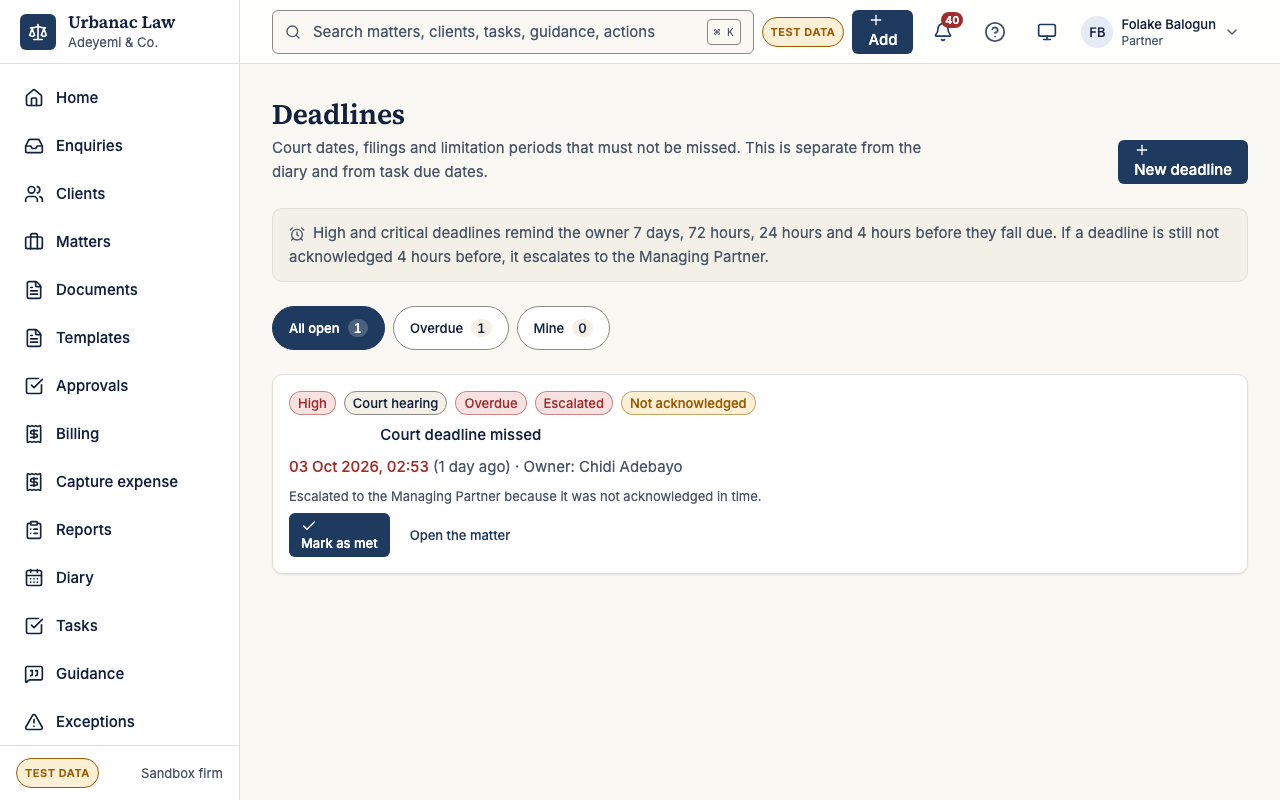
- Choose a list under Deadline views: All open, Overdue or Mine. Overdue ones are listed first.
- Each row shows the title, kind, when it falls due, the owner, and badges: Overdue, Escalated, Acknowledged or Not acknowledged. Links open the matter (Open the matter) or the task (Open the task).
Add a deadline#
- Click New deadline.
- Type What must happen (for example "File the defence") and choose the Kind of deadline: Court hearing, Limitation period, Filing deadline, Client response, Internal review or Other.
- Set Falls due (date and time, which must not already have passed).
- Choose How critical is it?:
- Normal: shown on the list. No automatic reminders.
- High: reminders 7 days, 72 hours, 24 hours and 4 hours before.
- Critical: the same reminders, and the Managing Partner is told if it is not acknowledged 4 hours before.
- Optionally choose the Matter (optional) and a Linked task (pick the matter first), and choose the Owner: the person who must make sure it is met.
- Click Add deadline. The owner is told straight away.
Reminders and escalation#
High and critical deadlines remind the owner 7 days, 72 hours, 24 hours and 4 hours before they fall due. If a deadline is still not acknowledged 4 hours before, it escalates to the Managing Partner, the row shows Escalated, and the text on the row explains: "Escalated to the Managing Partner because it was not acknowledged in time."

Acknowledge and complete#
- Acknowledge: the owner (or the Managing Partner for them) confirms they know about it. The row then shows Acknowledged. You see Deadline acknowledged.
- Mark as met: when the thing has been done. You see Deadline marked as met and it leaves the open list.
An acknowledged deadline still reminds you at the remaining times until it is met.
Messages#
- Give it a title of at least 3 characters.
- Choose the date and time it falls due.
- That time has already passed.
- Choose the matter first, then its task.
- Deadlines are not available to your role. Ask the Managing Partner.
- That did not go through. The reason follows; commonly you are not the owner.
Matter deadlines (calculated)#
Open a matter and its Deadlines tab for court and limitation periods worked out by rule.
- Under Work out a deadline, choose the Rule and set Counted from (the date the period starts from, such as the date of service).
- Click Work it out. The deadline shows the Due date in words, how it was worked out, and the Days not counted (weekends and the holidays counted under Settings, Deadlines).
- Each row shows whether a limitation period is verified or marked "limitation not yet verified". Treat the date as a calculation to confirm against the rules of court before relying on it.
No deadlines yet reads No deadlines on this matter.
Work reports on late items#
For everything late or stuck across the firm, partners and senior colleagues can use Exceptions; see Reports.
Something unclear or out of date? Tell your Operations Administrator, or go back to the manual home.