Junior Associate
What a Junior Associate sees and can do, why tasks are sent for review instead of closed, and how to ask a senior for guidance.
Last updated 2026-10-03
On this page
Who this role is#
A Junior Associate does legal work on assigned matters: drafting, research, filings, time recording. You send finished work to a senior for review, and you ask for help through a guidance request instead of waiting for a corridor answer. You see only the matters you are assigned to.
New here? Follow Getting started as a Junior Associate.
What you see on Home#
The Staff Home: the cards Awaiting my review, Overdue and Guidance awaiting me, then My tasks, My diary, next 7 days, Waiting on others, My matters, Required uploads and Documents I worked on recently.
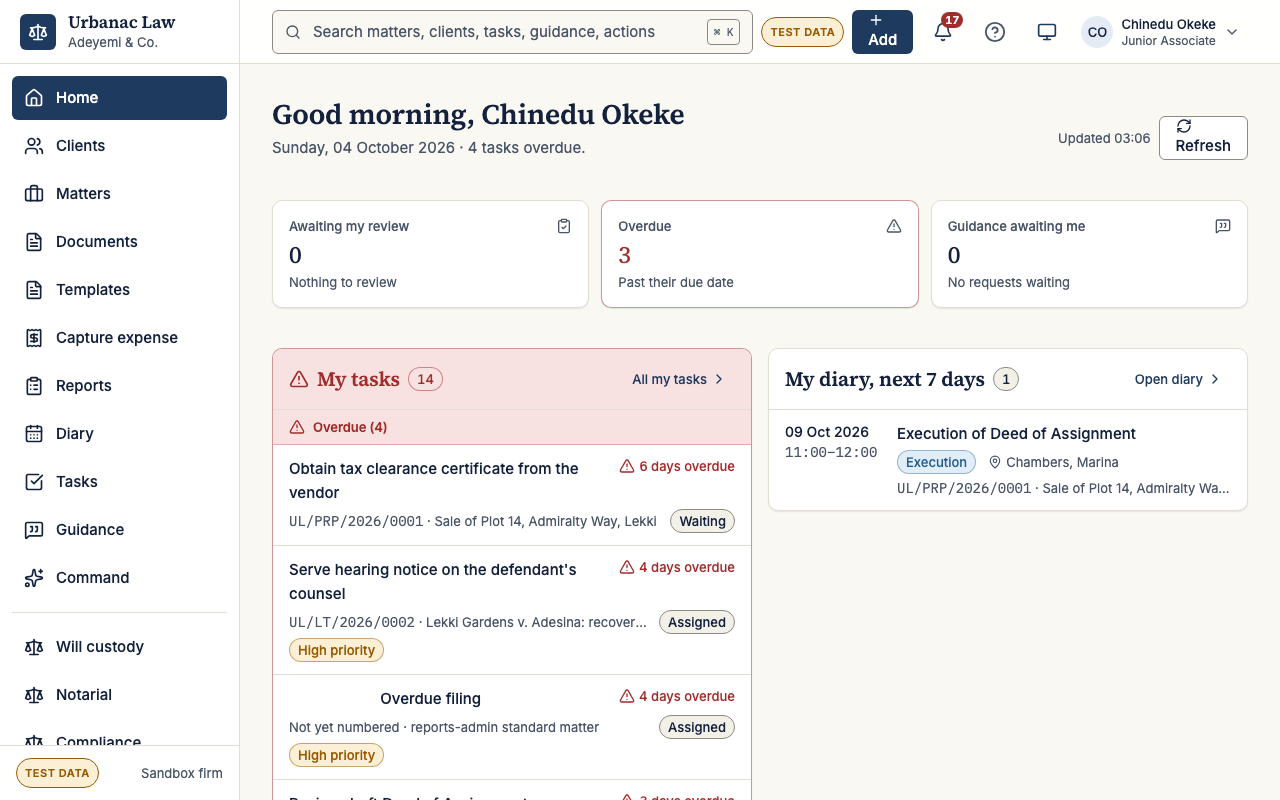
Your menu#
Home, Clients, Matters, Documents, Templates, Capture expense, Reports, Diary, Tasks, Guidance, Command, and under the extra items Will custody, Notarial, Deadlines, Notifications, Settings, Profile. You do not have Enquiries, Approvals, Billing or Exceptions.
What you can do#
- Receive tasks and Accept them, then Start work. Mark a task Waiting on someone or Mark as blocked with a reason. Finish with Submit for review.
- Create tasks on your matters, update them, add checklist items, attach documents and log time.
- Raise a guidance request to a senior with New request and confirm the answer when you have it.
- Update matter details, add parties, upload and draft documents, generate a document from a template, check a document for errors, send a document for e-signature, record time and expenses, add notes and log communications.
- Create client and party records, and reveal a masked NIN or BVN with a reason.
- Create and edit draft templates, and create draft quotes and invoices and submit them for approval.
- Apply your seal if your user is marked as a registered seal holder, and only to a document a partner has approved.
What you cannot do#
- Close a task: only a Managing Partner, Partner or Senior Associate (the task's senior owner or a delegate) can. You send the task for review instead, and the senior approves and closes it.
- Assign, reassign or cancel a task, return one for rework, or reopen a closed one.
- Answer, delegate, escalate or close a guidance request. You can raise one and confirm the answer.
- Decide conflicts, open matters, approve documents, templates, quotes, invoices or expenses.
- Issue invoices or see the Billing hub.
- Import tasks, see the Workload tab or the Exceptions view.
- See matters you are not assigned to, or any matter that has been restricted or walled off from you.
When you will be asked for your PIN again#
Applying your seal and adding or removing your own sign-in methods (passkey, authenticator app, trusted device) open the Confirm it is you box. Type your PIN and press Confirm.
When something is greyed out#
If Close task is missing on your task, that is by design: use Submit for review. If a button is greyed out on a matter, check that you are assigned to it and that it is not archived. If you cannot see a matter at all, a partner has restricted it: ask the responsible partner for access.
Where to go next#
Tasks · Guidance requests · Time · Documents and templates · E-signature
Something unclear or out of date? Tell your Operations Administrator, or go back to the manual home.