Importing tasks from a CSV file
Add many tasks at once from a spreadsheet, with the exact columns, the check-before-you-import step and the errors you may see.
Last updated 2026-10-03
When to use it#
Use the import when you have a long list of tasks, for example setting up a month of filing reminders for many matters. For one or two tasks, use New task instead.
Who can import#
Senior Associates, Partners and Managing Partners see the Import tasks button on the Tasks page. The Operations Administrator also has the right to import, but cannot open the Tasks page, so in practice cannot reach the button.
Prepare the file#
Save your spreadsheet as CSV (in Excel: File, Save As, "CSV (Comma delimited)"). The first row must be the column names below, spelled exactly like this:
| Column | What to put |
|---|---|
title |
The task name. Required. |
matter_reference |
The matter number. Leave blank for internal office work. |
type |
general, drafting, research, filing, court, review, client_follow_up, admin, signature or payment. |
priority |
low, normal, high, urgent or critical. |
due_date |
A date written year-month-day, for example 2026-12-31. Required. |
assignee_username |
The username of the person doing the work. Required. |
senior_owner_username |
The username of the senior who answers for it. |
instructions |
What to do. |
completion_criteria |
How we will know it is done. |
confidentiality |
internal, confidential, privileged, settlement_confidential or partner_only. |
Notes about the columns:
- The screen marks these as needed: title, type, priority, due_date, assignee_username, senior_owner_username, instructions and confidentiality. The system itself insists on only title, due_date and assignee_username in the header row. If you leave type, priority or confidentiality blank, they become general, normal and confidential. Fill in all of them to be safe.
- Capital letters do not matter in
type,priorityandconfidentiality. - Every imported task is sent straight away as Assigned, due at 17:00 Lagos time on the
due_date. - Each imported task gets one checklist item, "Complete and check the work".
- Up to 500 rows can be imported at one time, and the file can be up to 1 MB.
Step by step#
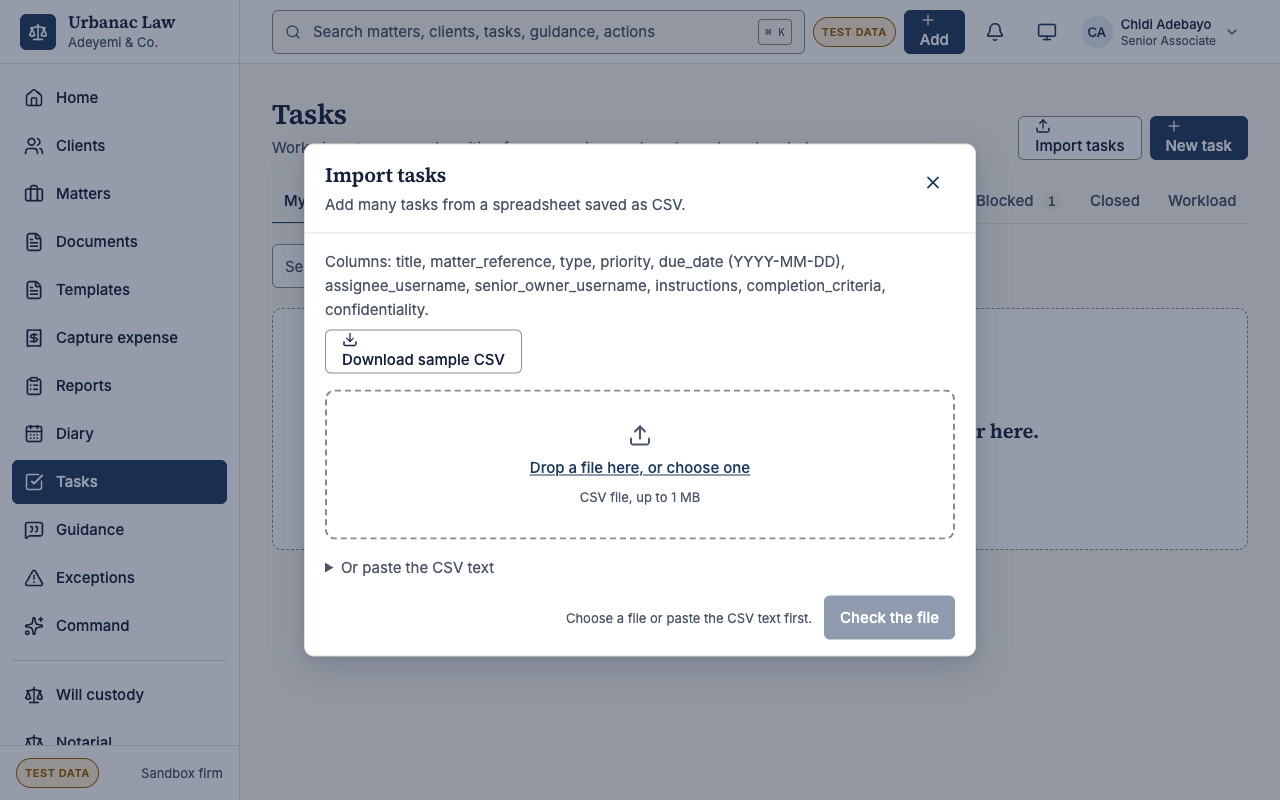
- On Tasks, press Import tasks. The window says "Add many tasks from a spreadsheet saved as CSV."
- If you want a template, press Download sample CSV.
- Drop your CSV file into the box, or paste the contents under "Or paste the CSV text".
- Press Check the file. This is a practice run. Nothing is created yet.
- Read the table. Each row has a number, the task name and a Result: either Ready, or a list of problems.
- Fix problems in your spreadsheet and check again, or press the Import button (it shows how many valid tasks will be imported) to import only the rows that are ready. Rows with problems are skipped, not imported.
Errors you may see#
| Message | What to do |
|---|---|
| due_date must look like 2026-12-31 | Write the date year-month-day, with dashes. |
| assignee_username "x" is not a user | Check the username spelling in Settings, Users and roles. |
| matter_reference "x" was not found | Check the matter number, or leave it blank for internal work. |
Something unclear or out of date? Tell your Operations Administrator, or go back to the manual home.