Creating and assigning tasks
How to make a task, save it as a draft, send it, and who is allowed to give work to whom.
Last updated 2026-10-03
On this page
Who can do what#
- Everyone on the staff can make a task and save it as a draft, or make one for themselves.
- Senior roles (Senior Associate, Partner, Managing Partner) can give a task to somebody else and send it.
- If you are a Junior Associate, Paralegal or Administrative Staff member, use Save as draft. Your senior owner sees the draft under Team / Delegated and sends it. If you press Send task yourself, the system may refuse it.
- A task can be given to any staff member except the Client, the Auditor and the Operations Administrator.
Make a task#
- Open Tasks and press New task. (You can also use the New task shortcut in the top bar.)
- Fill in the form. Only the Title is needed for a draft (at least 2 characters). To send it, you also need the fields marked below.
- Press Save as draft to keep it private, or Send task to hand it over now.
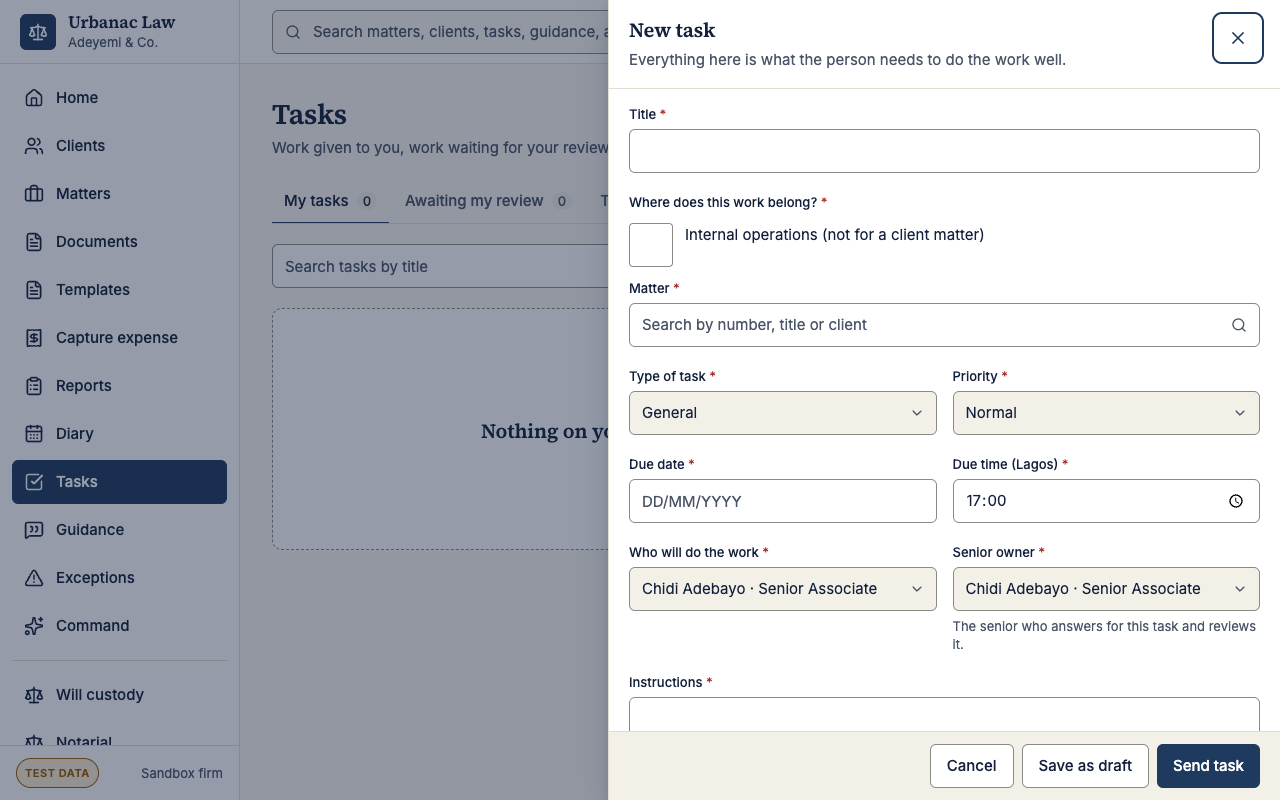
The fields#
| Field | What to put |
|---|---|
| Title | A short name for the work. |
| Internal operations (not for a client matter) | Tick this for office work. Then no matter is needed. |
| Matter | The client matter this belongs to. Search by number or name. |
| Type of task | General, Drafting, Research, Filing, Court, Review, Client follow-up, Administration, Signature or Payment. |
| Priority | Low, Normal, High, Urgent or "Critical / Court". |
| Due date and Due time (Lagos) | The time is Lagos time. It starts at 17:00. |
| Who will do the work | The assignee. It starts as you. |
| Senior owner | "The senior who answers for this task and reviews it." If you are senior, it starts as you; otherwise it is the matter's responsible partner. |
| Instructions | What the assignee must do, in plain words. |
| How will we know it is done? | The test for "finished". In the Edit task window the same box is called Done when. |
| Checklist | Steps to tick off. Press Add checklist item. Tick Required on steps that must be done before the work can be submitted. |
| Confidentiality | Internal, Confidential (the starting choice), Privileged, Settlement confidential, or Partners only. |
| Other people | Reviewers (up to 5), Collaborators (up to 10) and an optional Team. |
| Waits for another task | See Repeating tasks and tasks that wait for others. |
| Repeat | Same page as above. |
Other settings#
Open Other settings for the less common choices:
- Estimated hours, used by the workload view.
- Billing reference.
- Client-communication restriction, to stop anyone telling the client about this work.
- Approval requirement, which forces a separate Approve step before a task can be closed.
- Reminder schedule: pick up to six reminders for the assignee, from 7 days before the due time down to 1 hour before. This needs a due date.
What a task needs before it can be sent#
To press Send task, the task must have a matter (or be internal), a type, a priority, a due date and time, an assignee, a senior owner, instructions, a confidentiality level, and either "How will we know it is done?" or at least one checklist item. If something is missing, the system tells you which part.
After you send it#
The assignee is told straight away and the status becomes Assigned. The assignee must accept it. If they do not accept in time the system chases them, and for critical work it tells the responsible partner. See SLAs and escalation.
A draft that is not sent does nothing: nobody is told.
Change a task later#
Open the task and press Edit details. In the Edit task window change what you need and press Save changes. Only the person who set the task, its senior owner, or a partner can do this, and only until the task is closed.
To change the person doing the work, use Reassign (see Review and closing). To add a reviewer or helper after the fact, use the People section of the open task: choose Add as (Collaborator or Reviewer), pick the Person, and press Add.
Something unclear or out of date? Tell your Operations Administrator, or go back to the manual home.