Webhooks and API
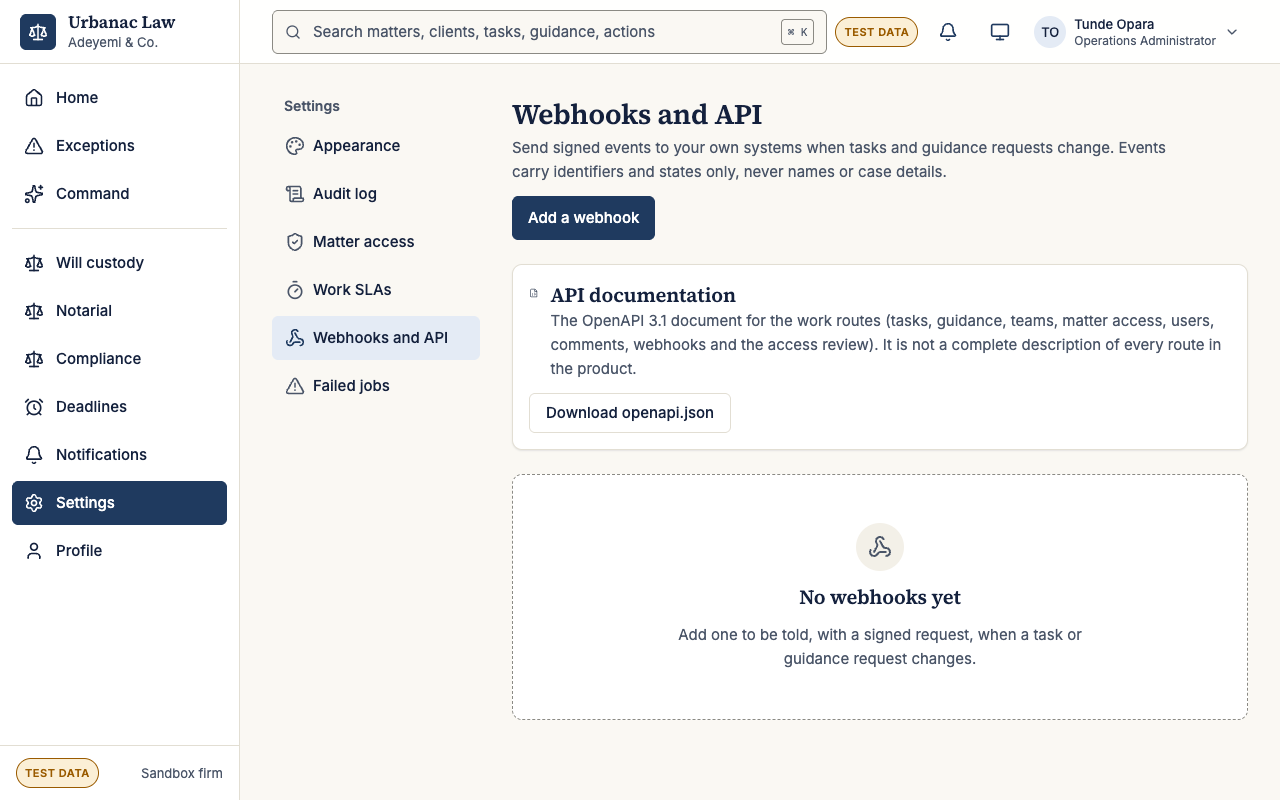
Send signed messages to your own systems when tasks and guidance requests change, check the delivery log, and download the API description.
Last updated 2026-10-03
On this page
What this is for#
A webhook tells another computer system, such as your own dashboard, the moment a task or guidance request changes. Most firms never need this. If you do not have someone technical to set it up, skip this page.
Messages carry identifiers and states only, never names or case details.
Who can use it#
The Managing Partner and the Operations Administrator. Others see "Webhooks are for the Managing Partner and Operations Administrator".
Add a webhook#
- Open Settings, then Webhooks and API (
/settings/webhooks). - Press Add a webhook.
- Give it a Name.
- Type the Address (it must be a public https address, for example https://example.com/hooks/urbanac).
- Under Events tick the changes you want: for tasks and for guidance requests.
- Leave Active on, and press Add webhook.
- A window titled "Copy your signing secret" shows a secret once. Copy it and press I have saved it. Your system uses it to check that each message really came from Urbanac Law.
Test, edit, check and delete#
Each webhook is a card with its address, status (Active or Paused), failures and last delivery.
- Send test sends a harmless test event and shows whether your system accepted it.
- Edit changes the name, address, events or whether it is active.
- Delivery log shows each attempt: when, which event, the Result (for example Delivered, "Failed, will retry", "Gave up"), tries and detail.
- Delete stops all messages. The log is kept for the audit.
The API description#
At the top, "API documentation" has a Download openapi.json button. The file describes the work routes (tasks, guidance, teams, matter access, users, comments, webhooks and the access review). It does not describe every part of the product.
Something unclear or out of date? Tell your Operations Administrator, or go back to the manual home.