Time
Record the time you spend on a matter or task so it can be billed and reported.
Last updated 2026-10-03
On this page
What this is for#
Time entries show what the firm spent on a matter. Billable time becomes unbilled work in progress (WIP) and can be put on an invoice. There is no separate Time menu item: you record time where the work is, on the matter or on the task.
Who can use it#
- Every staff role can record and see time on matters they are assigned to.
- Partners can see the WIP summary and the value of time across the firm in Billing and expenses.
- The Value column shows what the time is worth only if your role may see fee figures.
Record time on a matter#
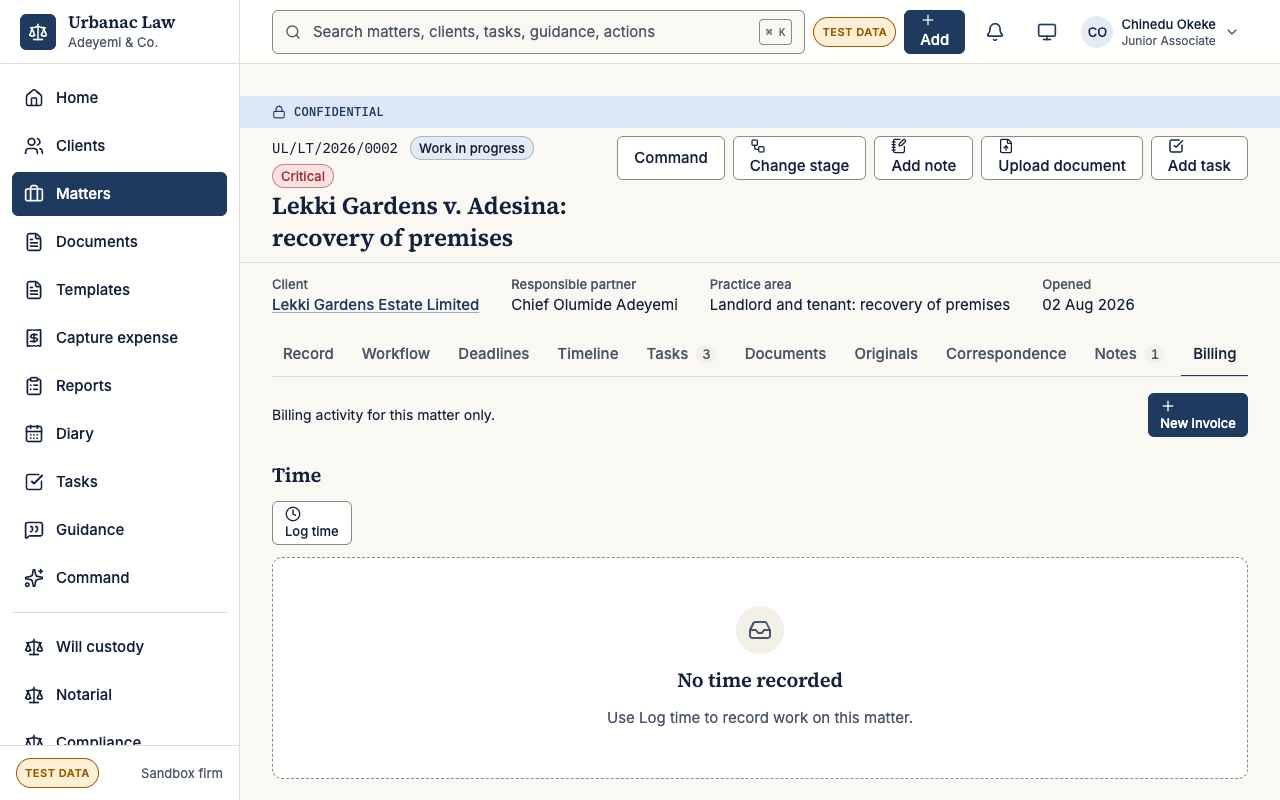
- Open the matter and go to the Billing tab. The Time section is at the top.
- Click Log time.
- Choose the Date worked.
- Enter Hours and Minutes. Time is recorded in 6-minute units and rounded up, so 7 minutes is recorded as 12. A single entry cannot exceed 60 hours.
- Describe the Work done. This is optional, but the text can appear on the invoice, so write it in a way a client would understand, for example "Perfecting search at Lagos Lands Registry".
- Leave Billable ticked if the client will pay for it. Untick it for work the firm absorbs.
- Click Save time. You see Time recorded.
The list shows Date, Time, Work done, Value and Non-billable where it applies. If nothing is recorded yet you see No time recorded; use Log time to add the first.
Record time on a task#
Open a task from Tasks. In Time spent:
- Enter the Minutes (a whole number from 1 to 1,440) and What was it for.
- Click Add time.
The section shows the total and, when an estimate was set, of an estimated amount. Time can be added by the person doing the task, or a collaborator, while the task is open. Time recorded without a note, for example when work was submitted, is labelled as recorded without a note.
What happens next#
- Billable time shows up as Unbilled WIP on the matter's Billing tab and under WIP in the billing hub, grouped by age (Current, 1–30 days, 31–60 days, 61–90 days, Over 90 days).
- A partner or senior lawyer bills it by creating an invoice for the matter and clicking Add under Unbilled work on this matter (see Billing and expenses). Once the invoice is issued the entry shows Billed and leaves the WIP.
- Time and activity totals appear in the Time and activity report (see Reports).
Common problems#
- Choose the date the work was done. The date is empty.
- Enter the time spent, in hours and minutes. Both hours and minutes are blank or zero.
- A single entry cannot exceed 60 hours. Split it across days.
- Enter whole minutes between 1 and 1,440. On a task, the number must be a whole number.
- Could not record the time. Nothing was changed. Try again; if it persists, tell your administrator.
- Archived matters are read-only, so time cannot be added to them.
Something unclear or out of date? Tell your Operations Administrator, or go back to the manual home.