Settings and users
Where the firm's settings live, who can change them, and how the Managing Partner adds people, changes roles, resets sign-in and reviews access.
Last updated 2026-10-03
On this page
Finding settings#
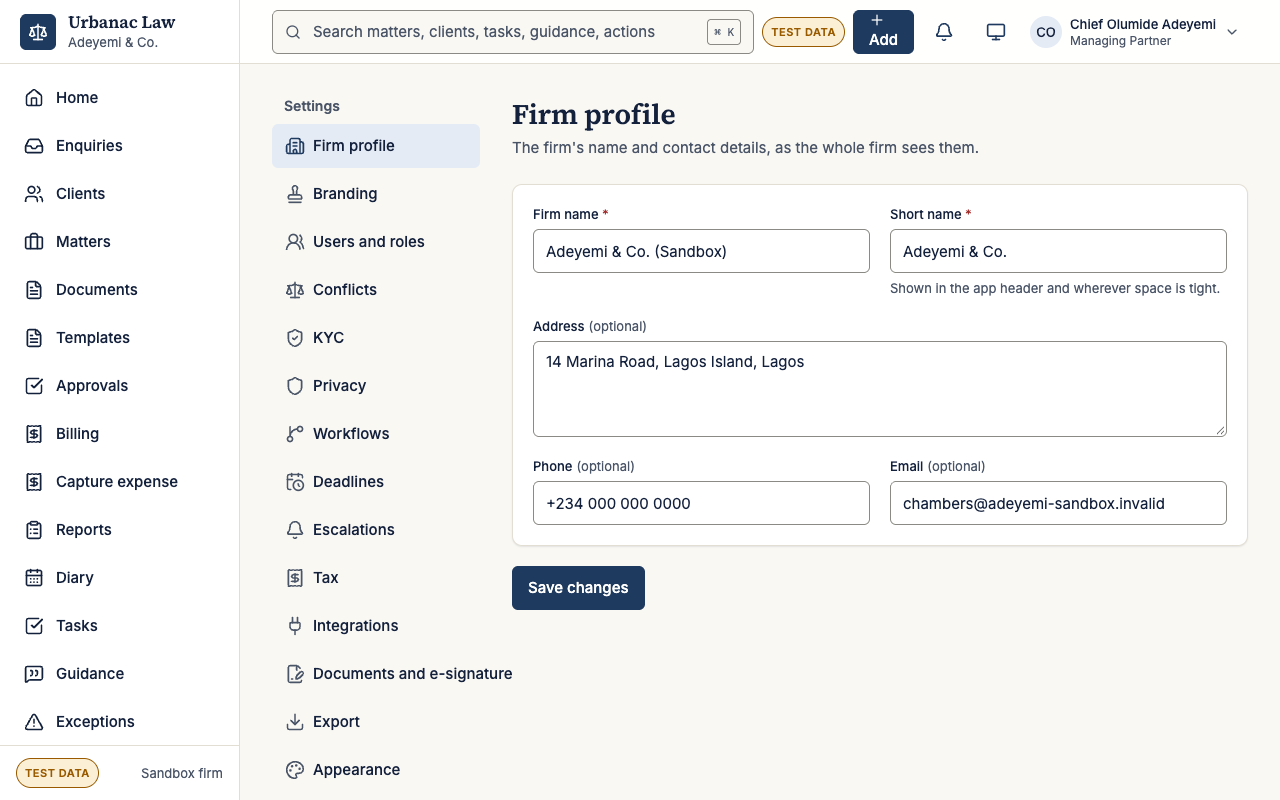
Choose Settings in the left menu. A list of sections appears; you only see the ones your role can open. Partners can read most firm sections but only the Managing Partner changes firm-wide settings. The Operations Administrator sees only the sections for their own work, such as Users and roles (read only), Audit log, Teams, Matter access, Work SLAs, Webhooks and API and Failed jobs. The Auditor sees Audit log and Access review. A greyed-out button means your role cannot do that action. The sections for the firm profile, branding, rules and lists are explained in Firm settings pages.
Main sections:
- Firm profile, Branding, Appearance.
- Users and roles, Teams, Matter access, Access review.
- Sign-in security, Audit log.
- Conflicts, KYC, Privacy, Workflows, Deadlines, Escalations, Tax, Documents and e-signature, Export.
- Work SLAs, Failed jobs, Integrations, Webhooks and API.
Users and roles#
The Managing Partner manages Users and roles. The Operations Administrator can open the list and use Reset second step and Sign out everywhere, but cannot add or change anyone.
Add a person#
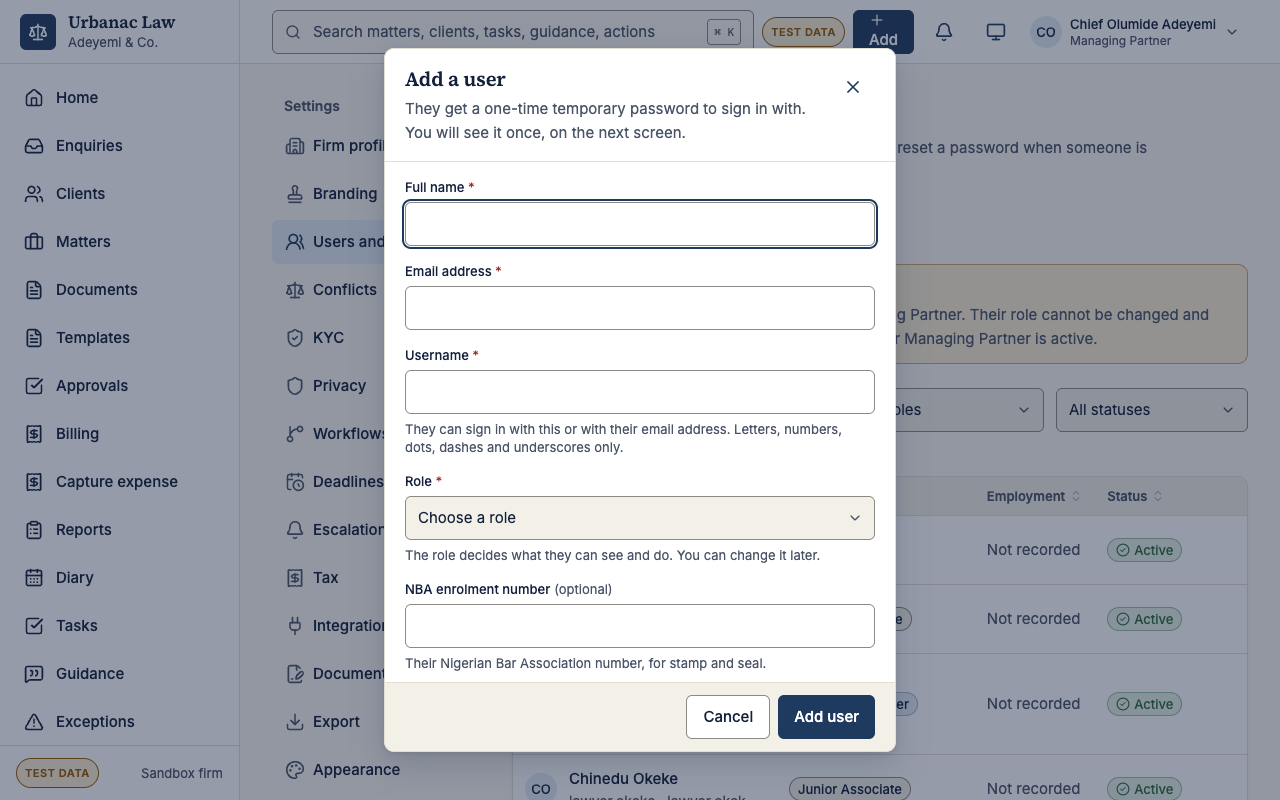
- Choose Add user.
- Fill in Full name, Email address, Username (they can sign in with it or with their email) and Role. Optional: NBA enrolment number (their Nigerian Bar Association number, used for stamp and seal), Job title and Employment type. Then choose Add user again.
- Your PIN may be requested once more (Confirm it is you).
- A six-digit temporary PIN is shown once. Pass it to the person safely, in person or by phone. It works for 72 hours, and only to choose their own PIN at first sign-in.
Change a role, deactivate, reset#
On each row, open the row menu:
- Edit details changes the full name, NBA enrolment number, Job title and Employment type, and the switch Holds a registered NBA seal.
- Change role changes what they can do. You can pick a standard role or one of your firm's own roles. The firm must always keep one active Managing Partner.
- Issue temporary PIN gives them a new temporary PIN, signs them out everywhere and clears any lock.
- Unlock sign-in appears when someone is locked out after wrong PINs.
- Reset second step removes their passkeys and authenticator so they can set up again. Use when a phone is lost and recovery codes are gone.
- Sign out everywhere ends all their sessions at once.
- Deactivate stops them signing in. Their past work and audit entries stay. A deactivated person's menu offers Reactivate instead.
Roles and permissions#
Settings, then Roles and permissions, shows what each role can do. Choose a role in Role to see its permissions, grouped by area. Partners and others with settings access can look; only the Managing Partner can change anything.
- Change a permission. Use the switch next to it. Given by the firm or Removed by the firm marks anything that differs from the standard. Switch it back to return to the standard. The change applies the next time each person in that role does something.
- Your firm's own roles. Choose New custom role, give it a Name, pick the standard role it is Based on, and switch permissions on or off. Then give it to people from Users and roles with Change role. Retire role removes it once nobody holds it.
- What cannot change. The Managing Partner always has every permission, and Managing Partner-only powers (adding users, changing roles and permissions) cannot be given to another role. Everyone keeps access to their own account. Whatever you switch on, people who are not partners still see only matters they are assigned to, and information barriers and confidentiality levels still apply.
Every change is recorded in the audit log.
Sign-in security policy#
Under Sign-in security the Managing Partner decides:
- whether a second step is required for everyone, and the date it starts;
- which methods are allowed (passkey, authenticator app, email code, text message);
- how long a trusted device is remembered.
Partners can read the policy but not change it. See Sign-in and two-factor.
Teams#
Under Teams the Managing Partner and the Operations Administrator group colleagues, for example Litigation or Property, and give a team access to a matter in one step. Everyone on staff can see the teams. See Access and ethical walls.
Access review#
Under Access review the Managing Partner goes through every user with their role, last sign-in and matters, and confirms or revokes. Do it every quarter. The result is recorded in the audit log.
Work SLAs and failed jobs#
The Operations Administrator sets how quickly tasks, reviews and guidance should be handled under Work SLAs, and watches Failed jobs for emails or syncs that did not go through.
Related#
Something unclear or out of date? Tell your Operations Administrator, or go back to the manual home.