Profile and security settings
The detailed screens for your sign-in methods, recovery codes and trusted devices, the firm's sign-in policy, and the PIN prompt that appears for sensitive actions.
Last updated 2026-10-03
On this page
This page covers the screens in detail. For the big picture of why there is a second step, and how to sign in, read Signing in and the second step.
Your profile#
Open Profile from the menu (or "Profile and sessions" in the search). The page is "Your profile". It has these sections: "Your details", "Appearance", "Phone and browser notifications", "Your sign-in PIN", "Your sign-in methods", and "Where you are signed in".
Your sign-in PIN#
- Under "Your sign-in PIN" type your Current PIN, then six digits of your own in New PIN and Confirm new PIN. Runs such as 123456, repeated digits and common PINs are refused.
- Press Change PIN.
If you have forgotten your PIN, a Managing Partner issues a temporary one from Users and roles.
Where you are signed in#
The sessions list shows each device. Press "Sign out this device" on any you do not recognise.
The Sign-in security panel#
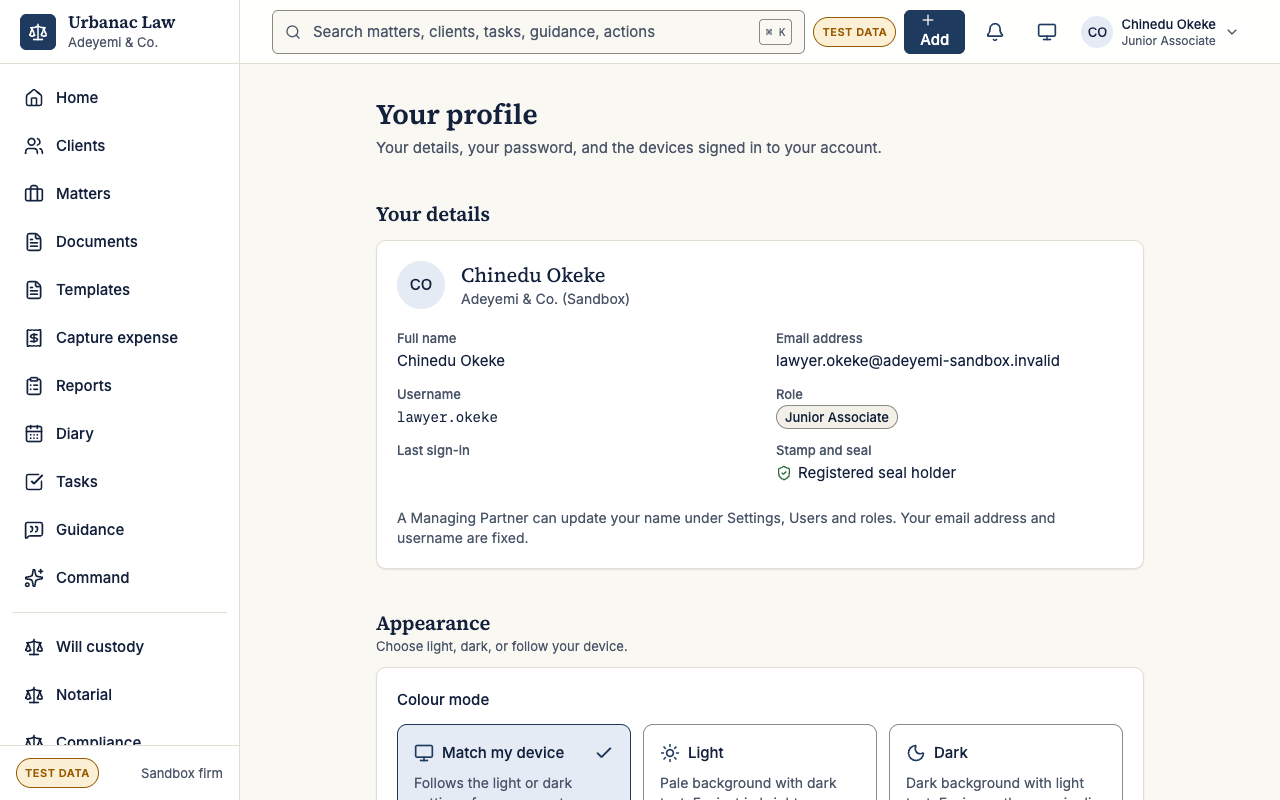
This is where you manage your own second step. It needs the right to manage your own sign-in methods, which every signed-in person has.
Second step when you sign in#
The panel "Second step when you sign in" lists the methods you have set up. Each can be removed with Remove.
Add a passkey
- Optionally type a name, such as "Office laptop".
- Press Add a passkey.
- Follow your device's prompt: Face ID, fingerprint or the device's lock.
Add an authenticator app
- Press Add an authenticator app.
- In your app (Google Authenticator, Microsoft Authenticator or Authy), scan the picture, or type the setup key.
- Type the "6 digit code" the app shows and press Turn on.
Your phone number#
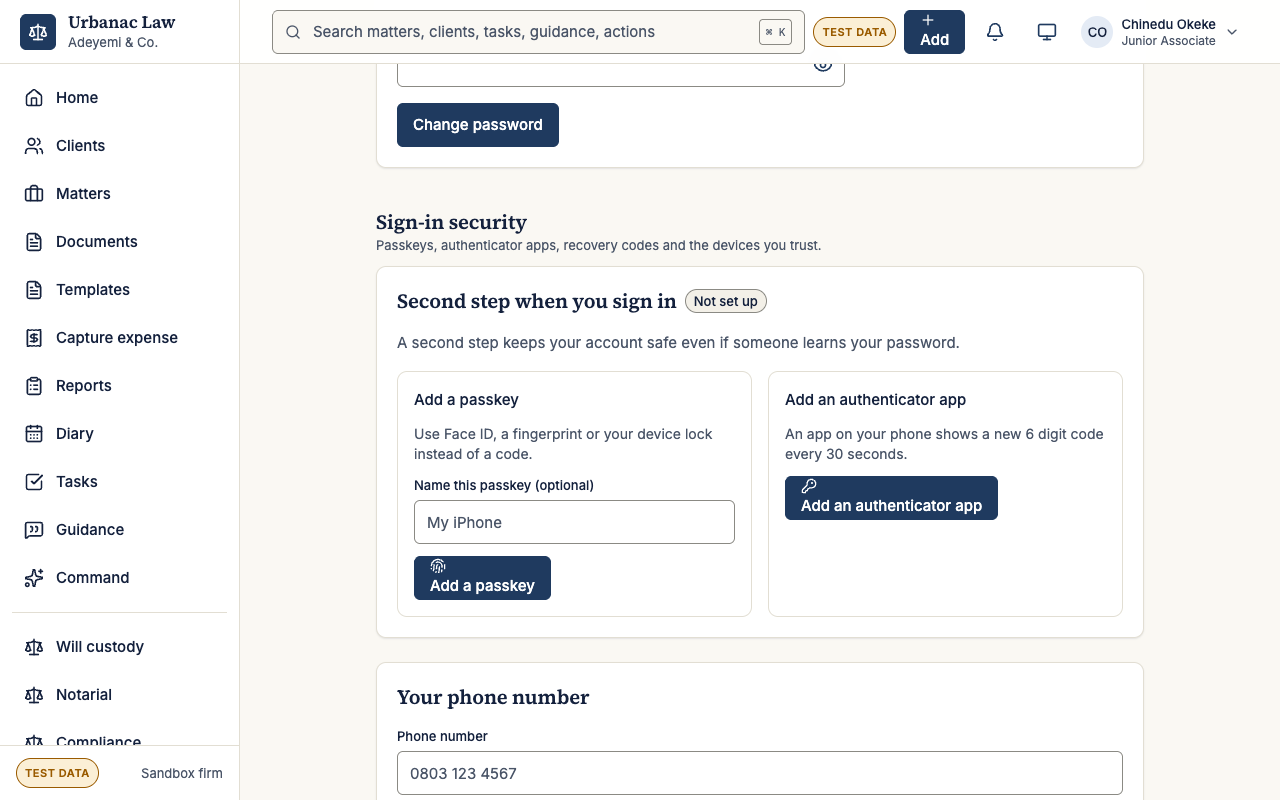
Type your number and press Save phone number. It is used for text message codes if your firm turns them on, and for WhatsApp and SMS alerts.
Recovery codes#
Recovery codes are ten one-time codes. They let you in if you lose your phone. The panel shows "N left".
- When you add your first method, a window "Save your recovery codes" shows the codes once. Press Copy codes or Print codes, keep them somewhere safe and offline, then press I have saved them.
- Press Make new recovery codes at any time. The old ones stop working.
Trusted devices#
When you tick "Trust this device" at sign-in, the device is listed here with how long it stays trusted: "Valid until ... or N more sign-ins". Press Remove to forget one, or Remove all. Remove a device that is lost or shared.
Email codes#
Getting a code by email is a firm setting, not a setting on your profile. If your firm turns it on, you will be offered it at sign-in.
Firm policy: Settings, Sign-in security#
The Managing Partner sets how everyone signs in. Partners can see the page. Everyone else is told the page is for the partners.
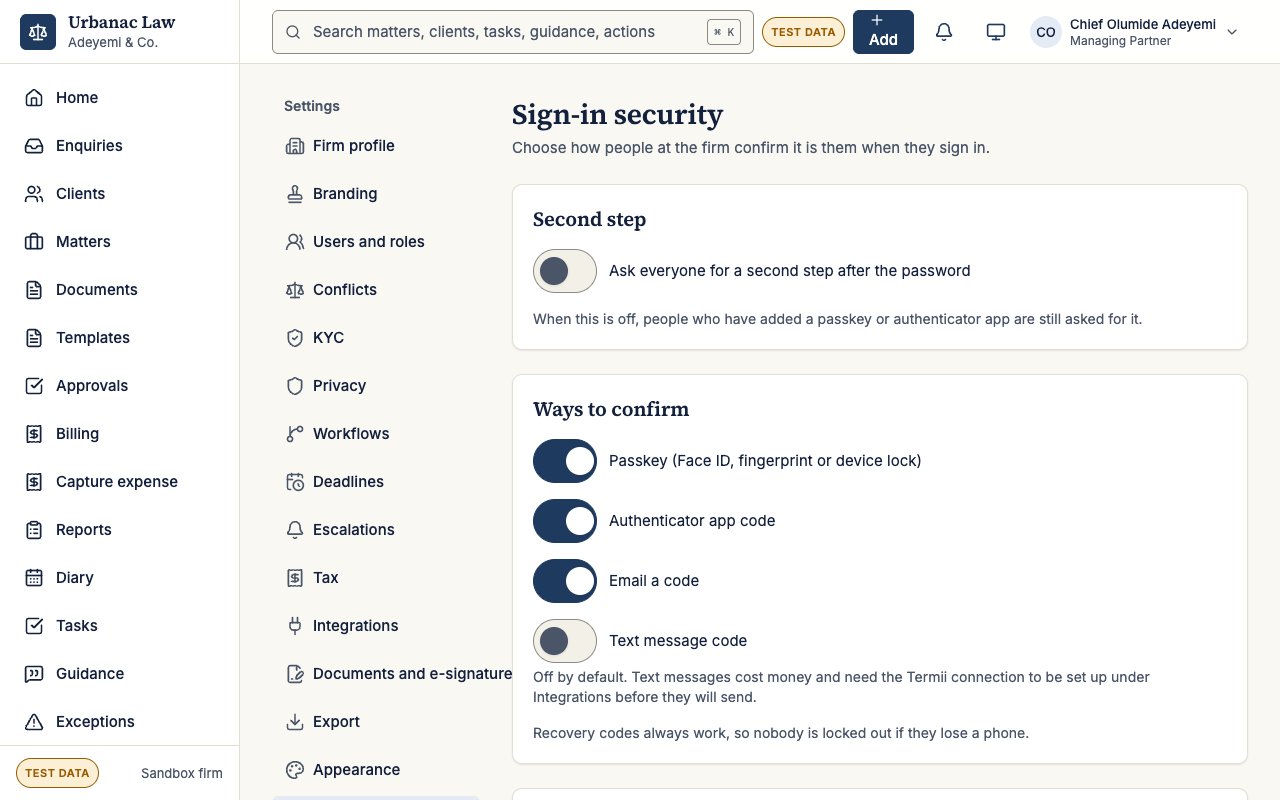
Open Settings, then Sign-in security (/settings/security). The page has "Choose how people at the firm confirm it is them when they sign in."
Second step#
The switch "Ask everyone for a second step after the PIN" makes the second step compulsory.
Ways to confirm#
Tick which ways are allowed:
- Passkey (Face ID, fingerprint or device lock)
- Authenticator app code
- Email a code
- Text message code
Text message codes are off at first, and need the Termii text service to be connected under Settings, Integrations. Recovery codes always work. At least one of Passkey, Authenticator app and Email must stay on.
Trusted devices#
Turn trusted devices on or off. Set "Trust for how many days" (1 to 30; a new firm starts at 14) and "Trust for how many sign-ins" (1 to 100; starts at 20).
Alerts#
"Tell people about new sign-ins to their account" sends a notice each time someone signs in from a new place.
Save#
Press Save changes, or Undo changes. Only the Managing Partner can save. You will be asked for your PIN.
The PIN prompt ("step-up")#
Some actions are important enough that the system asks for your PIN again, even while you are signed in. A window called "Confirm it is you" opens.
- Type your PIN.
- Press Confirm, or Cancel to stop.
- If the firm needs a second step, the system asks for it next.
After you confirm, you are not asked again for 10 minutes. You will see this for exporting the audit trail, creating or lifting ethical walls, signing off the access review, changing the sign-in policy, resetting someone's second step, signing someone out of all devices, and some money actions.
Helping a colleague#
If a colleague is locked out of their second step, the Managing Partner or Operations Administrator can reset it, or sign them out of all devices, from the user's page. Both need a PIN prompt.
Something unclear or out of date? Tell your Operations Administrator, or go back to the manual home.