Billing and expenses
Quotes, invoices, receipts, client money, expenses, petty cash and reconciliation, and what the client sees in the portal.
Last updated 2026-11-27
On this page
What this is for#
The Billing hub is where the firm turns work into money and keeps a clean record of it: unbilled work in progress, quotes, invoices, receipts, expenses, petty cash, client-money ledgers and the monthly reconciliation. All amounts are in naira unless an invoice is raised in another currency.
Who can use it#
What you see depends on your role. Tabs you cannot use are simply not shown, and a role with none of them sees "Your role does not include the billing hub."
- WIP, Petty cash, Client ledgers, Reconciliation and Receipts: Managing Partner and Partners.
- Quotes and Invoices: Managing Partner, Partners, Senior Associates and Junior Associates (on matters they are assigned to).
- Expenses: every staff role (on matters they are assigned to). Only partners can approve an expense.
- Issue an invoice, Write off a balance and Record WHT: partners only, and some of them ask for your PIN again.
- Capture expense (the mobile-friendly screen): every staff role that can record expenses.
- The client sees their own invoices, receipts and statement in the portal.
The billing hub#
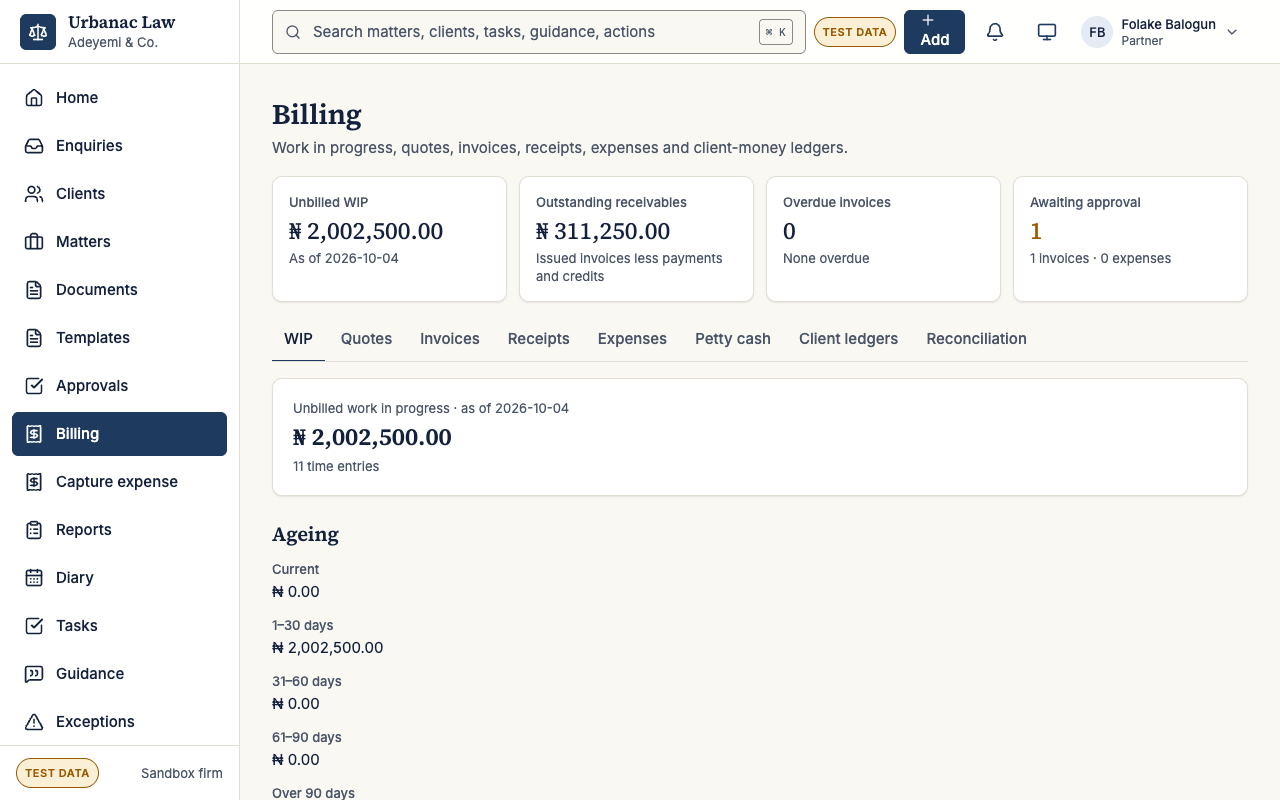
Open Billing. A strip of figures sits at the top for partners:
- Unbilled WIP
- Outstanding receivables (issued invoices less payments and credits)
- Overdue invoices
- Awaiting approval (invoices and expenses)
The tabs underneath are WIP, Quotes, Invoices, Receipts, Expenses, Petty cash, Client ledgers and Reconciliation.
WIP#
Unbilled work in progress shows the value of recorded billable time not yet invoiced, with an ageing table: Current, 1–30 days, 31–60 days, 61–90 days and Over 90 days. If there is none it says No unbilled WIP. Record time as described in Time.
Quotes#
A quote tells the client what the work will cost before they instruct the firm.
- Click New quote.
- Choose the Client (and optionally the Matter), describe the Scope, Deliverables, Professional fees, Disbursements, Tax (VAT), Valid until, Payment terms and Assumptions. The Quote total updates as you type.
- Click Save draft, or Save and submit to send it for approval.
On the list: Submit sends a draft for approval, a partner clicks Approve, and Mark sent records that it went to the client. Accepted quotes can become the matter's fee arrangement.
Invoices#
- Click New invoice (or New invoice on the matter's Billing tab).
- Choose the Matter, an optional Due date, and the Currency (NGN, USD, GBP or EUR). For a foreign currency enter how many naira buy one unit (the field is labelled for example NGN per 1 USD) and the Rate source such as CBN.
- Under Unbilled work on this matter you see the matter's recorded time and approved expenses that are not yet billed. Click Add on one, or Add all, to turn them into lines: time becomes a professional fee (with who did it, the date and how long), an expense becomes a disbursement with no VAT (untick No VAT on this line if VAT should apply). You can reword a line or change its price. Each piece of time or expense can be on one invoice at a time; once it is on a draft it stops being offered for other invoices.
- Add any other lines under Line items with Add line. Each line has a Type, Quantity, Description and Unit price. Subtotal, Tax and Total update as you type. Remove line deletes one (a removed time or expense line goes back to the unbilled list).
- Click Save draft or Save and submit.
An invoice moves through these steps, each with its own button on the Invoices list:
- Draft: click Submit to send it for approval.
- Awaiting approval: a partner clicks Approve.
- Approved: a partner clicks Issue. The invoice gets its number and can no longer be edited. The time and expenses on it are marked billed, so they leave the unbilled work in progress; the matter's time list shows them as Billed.
- Issued, Partially paid, Overdue or Disputed: further actions are Pay link, Email pay link, Record WHT and Write off.
- Cancel is available only before the invoice is issued.
Other buttons:
- PDF downloads the invoice on letterhead or plain paper: the firm's details and the invoice number, date, due date and status at the top, who it is for and the matter, the lines with amounts lined up on the right, subtotal, VAT and total due, and how to pay (bank accounts and payment terms from Settings, Billing profile). A draft says DRAFT: not yet issued across the top. Letterhead adds the logo and the footer on every page; plain paper prints neither.
- Void (an issued invoice with nothing paid) cancels it with a credit note. Its time and expenses become unbilled again so they can go on a corrected invoice.
- Pay link creates an online payment link for the client; Email pay link emails it. If the client has no email address you see Client has no email address; copy the link instead.
- Record WHT records that the client deducted withholding tax. Type the certificate reference when asked.
- Write off removes an outstanding balance the firm will not collect. It asks for a reason ("Reason for write-off (required):") and a partner's PIN.
Receipts#
Receipts lists payments received with number, status, kind, amount, received date, method and matter. A receipt saved as a draft shows a Record button; click it to make it official. PDF downloads a receipt.
Record a receipt: choose the Client, the Amount, the Currency the money arrived in, the Date received, Method and Kind (Office payment, or Client money linked to a matter), then Save draft and Record it once the money has cleared.
Allocate a receipt to an invoice: choose the recorded Receipt and the Invoice (only issued invoices not yet paid are offered), and enter the Amount in the invoice's currency. If the receipt and the invoice are in different currencies (for example naira received against a dollar invoice), also enter the Rate the money was converted at, labelled for example NGN per 1 USD; the form shows how much it takes from the receipt. The ledger keeps each currency separate and records the conversion at that rate.
Expenses#
The Expenses tab lists money spent for a matter: payee, category, amount, date and status. An expense captured on Capture expense arrives as Submitted, and a partner clicks Approve. An approved expense marked recoverable is offered when an invoice is built for its matter, and shows Billed once that invoice is issued.
Capture an expense in the field#
Open Capture expense on your phone, for instance at the Lagos Lands Registry where signal is poor.
- Choose the Matter (the list is saved on the device after you have used the app online once).
- Enter Paid to, Date, Amount (naira) and Category. Tick Recoverable from the client if it will be re-billed.
- Add a Receipt reference and a Receipt photo. The photo is reduced in size on the device.
- Click Save on this device.
Entries sit under Captured on this device with a status of Waiting, Synced or Rejected, and are sent when you are online. Use Sync now to send them at once, Edit or Delete one that has not gone, and Clear synced entries to tidy up. A refused entry is kept for you to fix: edit it and save again to resend. If your device cannot store entries you see This device cannot store entries.
Petty cash#
Petty cash tracks small cash floats given to staff. Open float: choose the Holder, enter the Opening float (NGN). For each float, record a Movement: Advance (more cash given out) or Retirement (receipts handed back), with the Amount (NGN) and a Note, then click Record.
Client ledgers#
Choose a Client to see Office receivable (what they owe) and Client money on account, split by matter. Click Download statement for a statement of account. If no client-money balances exist it says so.
Reconciliation#
The monthly three-way check of the client bank statement, the client ledger totals and the cash book.
- Fill the Period (YYYY-MM-01) and the three amounts: Bank statement (minor), Client ledgers (minor) and Cash book (minor). The amounts are in kobo, so ₦1,250.50 is 125050. Use ledger snapshot fills the ledger figure for you.
- Add Notes and click Save reconciliation.
- A record whose three figures agree can be signed off with Sign off by a partner. A variance is shown if they do not agree.
Billing on a matter#
The matter's Billing tab shows only that matter: Unbilled WIP with an ageing summary, Invoices, Expenses, Statement of account and time (each entry says Unbilled, Billed or Not billed). Open firm billing hub goes to the full hub.
The statement lists invoices, credit notes, payments and write-offs with a running balance, and Download statement prints it on letterhead or plain paper. A payment received without a matter shows on the matter it was applied to. Money received into the client account is shown as Held: it is the client's money, so it does not reduce what is owed until it is applied to an invoice. A voided invoice stays on the statement with the credit note that cancelled it. Each currency has its own balance; naira and dollars are never added together.
What the client sees in the portal#
A client signs in to the portal and opens Billing. They see three tabs: Invoices, Receipts and Statement, and can use Show this matter to look at one matter at a time. Issued invoices show Pay now where an online payment is possible. Written-off balances show as Written off. The client only sees issued invoices and recorded payments.
What is not on screen yet#
Bank reconciliation is in naira only. Client money is transferred to an invoice only in the invoice's own currency.
Common problems#
- Choose the matter this invoice belongs to. An invoice needs a matter.
- Every line needs a description. and Enter an amount for every line.
- Add at least one line.
- Enter the NGN rate and where it came from, for example CBN. A foreign-currency invoice needs both.
- Choose the client this quote is for., Describe the scope of work. and Set a validity date.
- No payment link. The invoice may not be in a state that can be paid online, or payment is not connected.
- Matter list not loaded. Connect once to download the matter list before capturing offline.
- Choose the matter., Enter who was paid., and Enter the amount in naira, for example 12500 or 12,500.50. on the capture screen.
Something unclear or out of date? Tell your Operations Administrator, or go back to the manual home.