Documents and templates
File, scan, version, classify and lock documents on a matter, and keep the firm's library of approved templates.
Last updated 2026-11-25
On this page
- What this is for
- Who can use it
- The document vault
- Upload a document to a matter
- Upload several files at once
- Processing after upload
- Scan a paper page
- Folders
- Classification
- The document drawer
- Statuses
- Correct an executed document
- The full document workspace
- Templates
- Make a new template
- Open a template
- Clause library
- Common problems
What this is for#
Every document belongs to a matter. The firm keeps each file safely, remembers every version, fingerprints it so tampering shows, and records who opened or downloaded it. Templates are firm-approved wording that documents are made from; they are covered in the second half of this page. Making a document from a template and getting it approved is in Generation and review.
Who can use it#
- Everyone on the staff roles can see documents on matters they are assigned to, and upload them. Partners can see every matter's documents unless a matter is restricted or walled off.
- Changing a document's folder, classification or status is for the Managing Partner, Partner, Senior Associate and Junior Associate.
- Locking a document as Executed Final is for partners.
- You only see documents up to your clearance. A document with a classification above yours is hidden, or opens with a message that your clearance does not cover it.
- Writing and editing templates is for the Managing Partner, Partner, Senior Associate and Junior Associate. Approving or retiring a template is for partners.
The document vault#
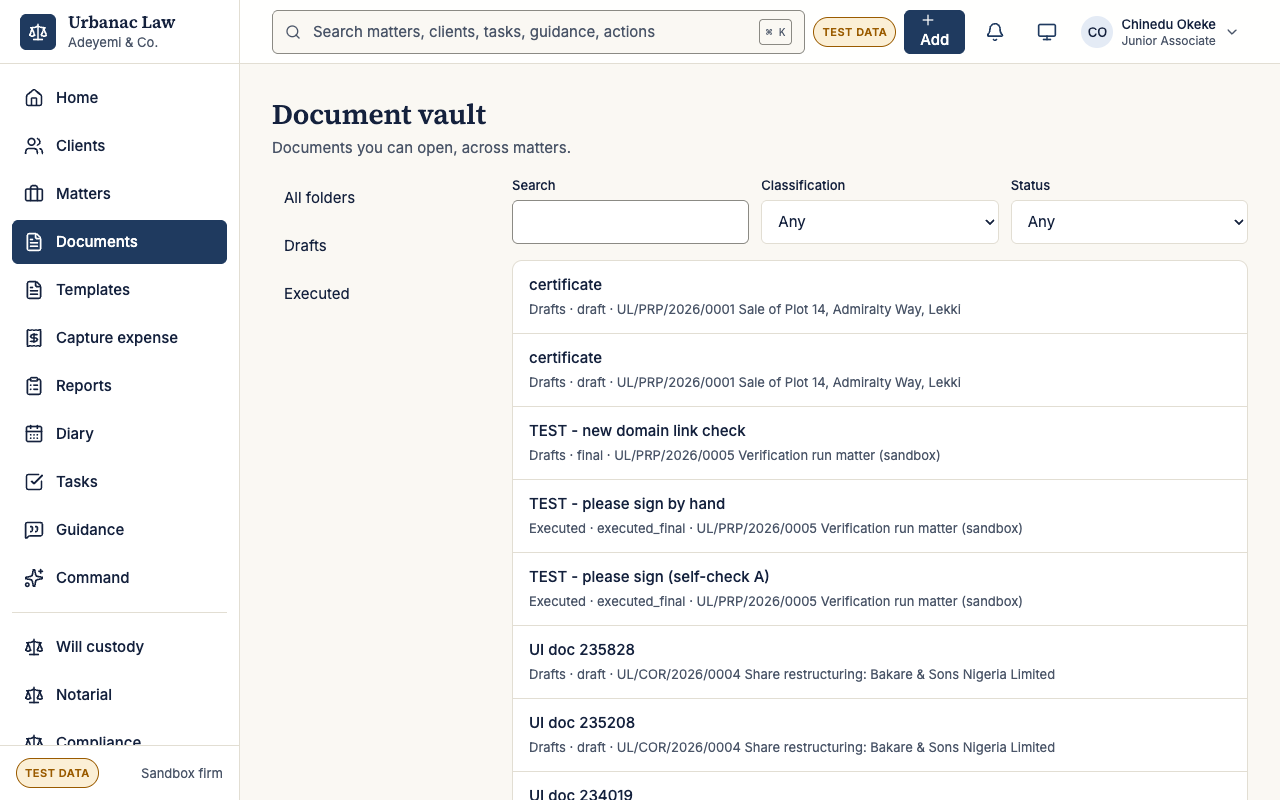
Documents lists documents you may open, across all matters.
- Choose a folder in the left list (All folders, or one such as Drafts, Executed, Court filings, Registry filings).
- Type in Search documents. Search looks at titles, file names and the words inside the files themselves (text is read from PDFs, scans and photos a few minutes after upload). Results come best match first, with a short passage around the words found, highlighted. Put words in quotes to find an exact phrase; put a minus sign before a word to leave it out.
- Narrow with Matter, File type, Status, Classification, Processing and the Changed from / Changed to dates. Clear filters resets them.
- Click a document to open it on its matter, in the document drawer.
- To file several things at once, click Upload files (see below).
You only ever see, and only ever find, documents you are allowed to open.
Upload a document to a matter#
- Open the matter and go to the Documents tab (or click Upload document in Matter actions).
- In Upload a document, drop a file in Drop a file here, or choose one or more.
- Give a Title, choose the Folder, the Classification (up to your own clearance) and the Origin (Uploaded file, Staff draft or External precedent). Add a Note for version 1 if useful.
- Click Upload. A progress bar shows. Keep the window open; large files upload in resumable parts.
If the same file is already filed somewhere you can see, a warning names the document and its matter. You can still upload it.
Every upload is stored securely, given a SHA-256 fingerprint and recorded in the audit log. Programs and scripts (such as .exe or .js) are refused. A matter document can be very large (up to 500 MB, unless your firm's administrator has set a lower limit). Template uploads are limited to 5 MB.
Upload several files at once#
Drop several files into Upload a document on a matter, or click Upload files in the document vault and choose the matter.
- Choose the Folder and Classification for the whole batch. Each file becomes its own document, titled from its file name.
- Before anything is sent, each file is checked against what is already filed. A copy already filed is flagged (Already filed as …) and left out unless you tick Upload it anyway. The same file twice in one batch is only uploaded once.
- Click Upload N files. Each file shows its progress and then Uploaded, Left out or Not uploaded with the reason. A file that fails does not stop the rest.
Processing after upload#
Each file is checked for viruses, then its text is read so search can find words inside it. While this runs, the document shows Checking for viruses or Reading text for search. A file the virus check rejects shows Rejected by virus check and cannot be opened; upload a clean copy as a new version. If search does not find words you can see in a file, open it in the drawer and click Read the text again.
Administrators can click Repair search in the document vault to rebuild the search index from every document. Nothing else changes.
Scan a paper page#
Use Scan a page on the Documents tab, usually from a phone. Take a clear photo of the page. The page is straightened, trimmed and compressed automatically, so there is no need to crop first. Only PNG and JPEG images are accepted.
Folders#
Documents are filed in folders: Client and KYC, Engagement, Correspondence, Drafts, Executed, Court filings, Registry filings, Evidence and exhibits, Financial, Internal notes, Partner-only and Archive. Pick All folders to see every folder, or a single folder from the Folder filter.
Classification#
Every document carries a classification that decides who can open it. From lowest to highest: General, INTERNAL, CONFIDENTIAL, IDENTITY DATA, PRIVILEGED, SETTLEMENT CONFIDENTIAL, SEALED ESTATE, PARTNER ONLY. By default partners see all of them, Senior Associates up to SETTLEMENT CONFIDENTIAL, Junior Associates up to PRIVILEGED, and Paralegals and Administrative Staff up to IDENTITY DATA. A coloured band on the document shows its level. You can only set a classification up to your own clearance. See Security and privacy.
The document drawer#
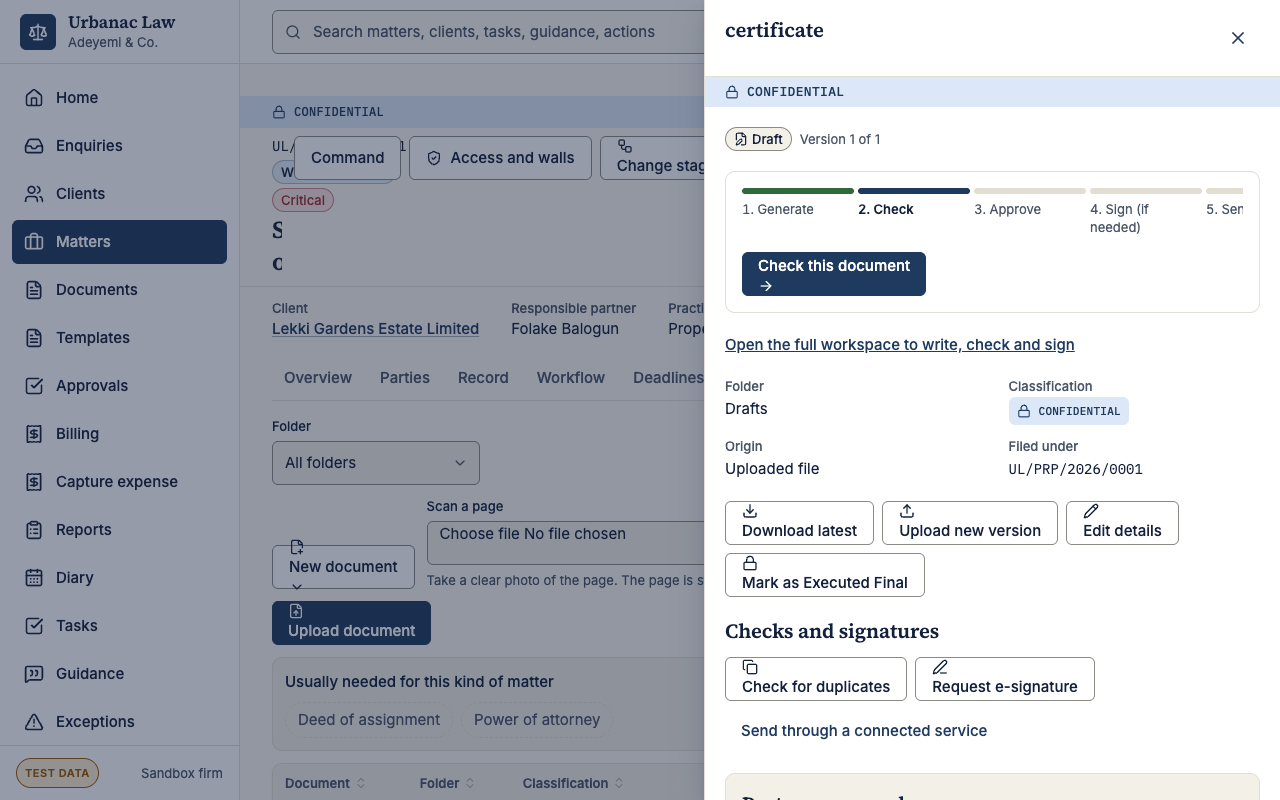
Click a document in a matter's Documents tab to open the drawer. It shows the title, status badge, folder, classification, origin, version and where it is filed.
- Download latest downloads the newest version. Each download is logged.
- Upload new version: drop the file, say What changed, and click Upload version. The new file becomes the next version number and sets the document back to Draft. Earlier versions are kept.
- Edit details: change Title, Folder, Status (Draft or Final) and Classification, then click Save details.
- Mark as Executed Final locks the version. Confirm with Lock as Executed Final. It moves to the Executed folder and can never be changed, replaced or unlocked, even by a partner.
- Preview: reads the file inside the app. For long files only the first part is shown; download to read it all.
- Export as Word (.docx) and Export as PDF/A produce a copy of a chosen version.
- Check for duplicates looks for identical files, or the same name and size, on the same matter. Matches on other matters are counted only, not shown.
- Compare: pick an Earlier and a Later version to see Added and Removed text. Only text-based files can be compared.
- Versions lists every version with its Download, its SHA-256 fingerprint and a mark for the Current one.
- Access history shows who viewed or downloaded the file and when.
- Document comments are internal remarks for the team.
- A partner can also use Request partner approval, Apply stamp and seal and share links, covered in Generation and review.
Statuses#
- Draft: work in progress.
- Final: the team treats it as finished, but it can still be revised.
- Executed Final: signed and permanent. Locked.
- Superseded: replaced by a correcting record.
Correct an executed document#
An Executed Final document cannot be overwritten. Click Supersede on the Documents tab, explain Why is this being corrected?, and click Open correcting record. The original stays locked and a new draft is opened that records which document it corrects.
The full document workspace#
Click the document's title to open its own page. Its stage bar reads Write, Check, Sign, Send, Details. Write is the editor for documents created in the app: it offers Title, Clause heading, Bullet, Bold, Italic, Insert blank, Insert a clause… and Save as version. An uploaded Word or PDF file cannot be edited in the browser; upload a new version instead. A signed, locked document says This document is signed and locked.
The Details tab shows the origin, classification, folder, version and fingerprint, plus a switch Never use AI on this document. Restricted documents never use AI at all.
Templates#
Open Templates to see the firm's library. Each entry shows its name, code, version and whether it is Draft, Waiting for a partner, Approved or Retired.
- Use Find a template (name or code) to search.
- Click Use to start a document from an approved template (see Generation and review), or click the name to open it.
- Add sample templates adds training samples, marked Sample, not for use. They cannot be approved.
Make a new template#
- Click New template. If your role cannot, you see You cannot make templates.
- Choose how to bring the wording in: Paste wording, Write it here, Upload a file (Word .docx, OpenDocument .odt, rich text .rtf or plain text .txt, up to 5 MB) or Google Docs (once a partner has connected Google under Settings, Integrations).
- Type the Template name (for example Residential tenancy agreement) and the Wording. In the editor, start a line with "# " for a title or "## " for a clause heading.
- Blanks such as [Landlord Name], [●] or {{rent}} are found for you. Tick the blanks to turn into fields (Tick all or Tick none), and click Save and confirm details.
The template is saved as a draft and cannot be used until a partner approves it.
Open a template#
The template page has three tabs: Wording, Details to fill in and Versions, plus an Approval box.
- Wording: edit the text. Insert a clause… drops in approved wording from the clause library. Save makes a new version and takes the template out of use until it is approved again; documents already made are unaffected.
- Details to fill in: confirm the People in the document (give each a Role such as landlord, Plural, At least and At most) and the Details (a Label, Type, Required and Help for the person filling it in). Types are text, date, amount in naira, address, choice (one Choices line per option), yes or no, and person. Click Confirm these details.
- Versions: the history.
Approval steps:
- The author clicks Send to a partner for approval. If there are unconverted blanks it says "Convert the loose blanks on the Wording tab, then try again."
- A partner clicks Approve for the whole firm, Return to draft, or later Retire this template.
- Once approved, everyone can start documents from it.
Clause library#
At the bottom of Templates, Clause library holds saved wording. Add one with Clause title and Approved wording, then Save clause.
Common problems#
- No documents match. Clear Search, Classification or Status.
- Choose a file to upload. You clicked upload with no file.
- Give the document a title. The title is required.
- An Executed Final document can never be overwritten. Use Supersede.
- Your clearance does not cover this classification. Ask a partner to adjust the classification or give you access.
- This file cannot be edited here. Only documents written in the app or made from a template can be edited in the browser.
- SAMPLE - not for use. A sample template cannot be approved; copy its text into a new template.
Something unclear or out of date? Tell your Operations Administrator, or go back to the manual home.