Review and closing a task
Submit work for review, return it, approve it, close it with a note, and reopen, reassign or cancel a task. Includes who may do each.
Last updated 2026-10-03
On this page
The idea#
Nobody marks their own work as finished. The person doing the task submits it, a senior reviews it, and a senior who is allowed to close it does so, with a short note that stays on the record.
Who is who#
- The assignee is the person doing the work.
- The reviewer is a partner or Managing Partner, a Senior Associate who is a named reviewer on the task, or anyone who may close it.
- The closer is a Managing Partner or Partner. A Senior Associate can close only when they are the task's senior owner, a delegate of the senior owner, or the responsible partner of the matter. Junior Associates, Paralegals and Administrative Staff can never close tasks.
- The manager is the closer, or a senior who created the task or owns it.
Who can do each action#
| Button | Who | Needs a reason? |
|---|---|---|
| Send task | The manager | No |
| Accept | The assignee | No |
| Start work | The assignee or the manager | No |
| Mark as blocked | The assignee or the manager | Yes |
| Waiting on someone | The assignee or the manager | Yes |
| Submit for review | The assignee only | Needs confirmations |
| Return for rework | The reviewer | Yes |
| Approve | The reviewer | No (feedback is optional) |
| Close task | The closer | Closing note |
| Reopen | The closer | Yes |
| Reassign | The manager | Yes |
| Cancel task | The manager | Yes |
If you are not allowed to do an action you simply do not see its button.
Submit for review (assignee)#
- Open the task and press Submit for review.
- Under "Please confirm each of these", tick the boxes that are true:
- I have finished every required checklist item. (This ticks itself when every required step is done.)
- The deliverables are attached, or there are none.
- Nothing else is holding this up.
- The files and notes keep the right level of confidentiality.
- Write in "What is still outstanding?" if anything is left. If a required step is not ticked, "Note for the reviewer" must be filled in.
- Optionally add "Time spent (minutes)".
- Press Submit for review. The senior owner and any named reviewers are told.
The task is now Submitted for review. You can no longer change it. If it waits for another task that is not closed, you must explain in "What is still outstanding?" (see Repeating tasks and tasks that wait for others).
Review (reviewer)#
Open Tasks, then Awaiting my review. Look at the checklist, deliverables and comments, then choose one.
Return for rework#
Press Return for rework. In "What needs to change?" say clearly what to fix. The task goes back to the assignee as Returned for rework, with a banner. The assignee presses Start work, fixes it and submits again.
Approve#
Press Approve. You may write "Feedback". Tick "The deliverables are accepted" if they are. The task becomes Approved, awaiting closure, and a senior can close it.
If the task has an Approval requirement set, Approve is the only way forward; Close task is not offered until you have approved. Trying to close earlier gives the message "This task needs an explicit approval".
Close a task (closer)#
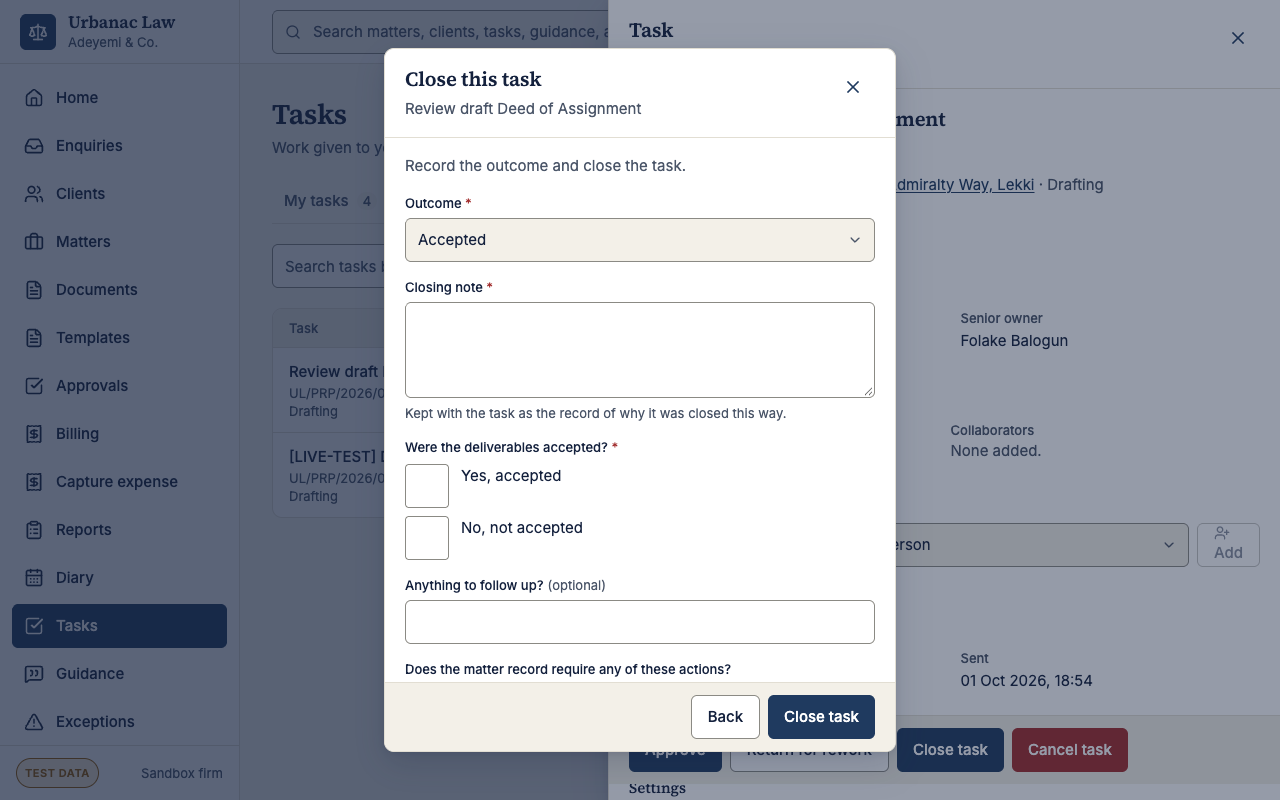
- Press Close task.
- Choose the Outcome: Accepted, "Accepted, with notes", Rejected, Cancelled, or "No further action needed".
- Write the Closing note. This is required.
- Answer "Were the deliverables accepted?" with "Yes, accepted" or "No, not accepted".
- Write anything in "Anything to follow up?".
- In "Does the matter record require any of these actions?" tick any that apply: Filing, Client communication, Billing, Diary action.
- Press Close task.
The task moves to Closed. If it was a repeating task and the outcome was not Rejected, the next one is made automatically (see the recurrence page).
A task can be closed from Submitted for review or from Approved, awaiting closure.
Reopen#
A closer can press Reopen on a closed or cancelled task. They must answer "Why is it being reopened?". The task returns to the assignee as Reopened.
Reassign#
A manager can press Reassign on an open task that is being worked on. Choose the "New assignee" and answer "Why is it being reassigned?". The new person is told; they must accept again. The old assignee is also told.
Cancel#
A manager can press Cancel task on any open task, including a draft. Answer "Why is it being cancelled?". A cancelled task goes to the Closed tab and can be reopened.
When you are away#
A Senior Associate, Partner or Managing Partner who owns tasks can hand closing powers to another senior while away. See Matter access, ethical walls and delegation.
Something unclear or out of date? Tell your Operations Administrator, or go back to the manual home.