Senior Associate
What a Senior Associate sees and can do, including assigning, reviewing and closing work, and what is left to partners.
Last updated 2026-10-03
On this page
Who this role is#
A Senior Associate does legal work on the matters they are assigned to, and also supervises junior colleagues: you give out tasks, review what comes back, answer their guidance requests and close the work you own. You do not see matters you are not assigned to (unless you are in a team that has been given access).
New here? Follow Getting started as a Senior Associate.
What you see on Home#
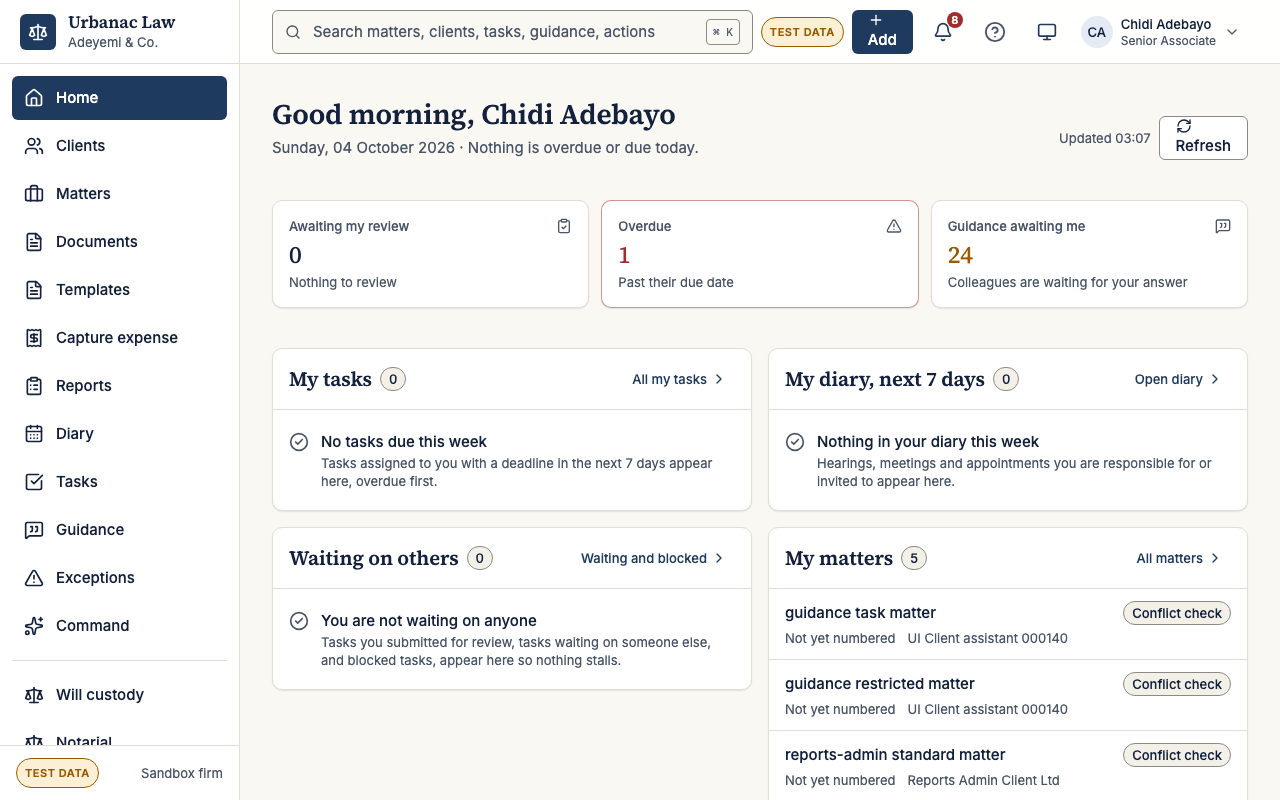
The Staff Home. At the top are the small cards Awaiting my review, Overdue and Guidance awaiting me. Below them: My tasks (overdue first, then due today, then later this week), My diary, next 7 days, Waiting on others, My matters, Required uploads and Documents I worked on recently.
Your menu#
Home, Clients, Matters, Documents, Templates, Capture expense, Reports, Diary, Tasks, Guidance, Exceptions, Command, and under the extra items Will custody, Notarial, Deadlines, Notifications, Settings, Profile. You do not have Enquiries, Approvals, Billing or Compliance.
What you can do#
- Tasks: create, update, assign, reassign or cancel a task; accept the work junior colleagues submit; return it for rework; Approve it; Close task when you are the senior owner, a delegate, or a partner; Reopen with a reason. Open the Workload tab to see how much each person has. Import many tasks with Import tasks (CSV).
- Guidance: you are one of the people who can receive guidance requests. Acknowledge, answer, hand on, escalate to a partner, then close or reopen them.
- Delegation: your role is allowed to hand its closing authority to another senior while you are away. The screen for this (Closing work while you are away) sits on the Matter access page in Settings, and that page is listed only for partners today, so ask a partner to set up a delegation for you.
- Reports: operational reports and the Exceptions view.
- Matter work on assigned matters: update details, add parties, upload and draft documents, generate documents, request e-signatures, record time and expenses, write notes and log communications.
- Money: create and submit quotes and invoices for approval, create credit notes, record receipts and allocate them. You cannot see the Billing hub, ledgers or reconciliations.
- Reveal a masked NIN or BVN, with a reason.
- Apply your seal, but only if your user is marked as a registered seal holder and only to a document a partner has approved.
What you cannot do#
- Decide conflicts or the client-acceptance decision, open a matter, or approve a final document: those are partners'.
- Issue an invoice, write off a balance, approve a quote or expense.
- Create enquiries, merge client records, or see matters you are not assigned to.
- Change firm settings, users or roles. In Settings you only see pages meant for everyone, such as Teams (a read-only list for you) and Appearance.
When you will be asked for your PIN again#
Applying your seal, and adding or removing your own passkey, authenticator app or trusted device, open the Confirm it is you box. Type your PIN and press Confirm; it stays valid for 10 minutes.
When something is greyed out#
The button is greyed out or missing when you are not assigned to the matter, when the matter is archived, when the task is in a state where the step is not available (for example you cannot Close task until it is approved), or when you are not the senior owner or a delegate. For example, the Close task button for a task owned by someone else is absent: ask the owner or a partner.
Where to go next#
Tasks · Guidance requests · Notifications · Diary and deadlines · Reports
Something unclear or out of date? Tell your Operations Administrator, or go back to the manual home.