E-signature
Send an approved PDF for electronic signature, follow each signer, and keep the signed copy and certificate.
Last updated 2026-11-25
On this page
What this is for#
E-signature lets clients and other parties sign a document from their phone or computer without coming to the office. Each signer gets a private link, confirms a one-time code, and signs. When everyone has signed, the firm gets the signed copy and a certificate of completion, both filed to the matter.

Who can use it#
- Send a request, void, resend or remind: Managing Partner, Partner, Senior Associate and Junior Associate assigned to the matter.
- See requests and progress: any staff role assigned to the matter, including Paralegal and Administrative Staff.
- The document must already be approved by a partner (see Generation and review), and it must be a PDF.
Signing is built in: no outside e-signature service is used, and nothing leaves the firm's system except the messages carrying each signer's private link and code.
Before you send#
The request window checks these for you and tells you what is wrong:
- A partner must approve this version first. Only an approved document can go out for signature.
- This needs to be a PDF. Documents made in the editor are saved as PDF automatically. Upload or export a PDF version first.
- A request is already in progress. Void it from the tracker before starting a new one.
- The system reads the document's title. A will, codicil or similar testamentary document cannot be signed electronically, because a will must be signed in front of witnesses. The window says so and tells you to use the signed paper copy and upload it to the matter. For documents that transfer an interest in land the window warns that wet-ink signing is recommended; you must tick I have confirmed with counsel that an electronic signature is acceptable here. to continue.
Send a signing request#
- Open the document and go to the Sign stage (or click Request e-signature from the document's tools).
- In Request e-signature, under Who signs?, tick the people already recorded on the matter, or add someone with Add someone else. For each signer give Name, Email, optional Phone, and Order if the signing must go one after another. Remove takes a signer off.
- Under Where do they sign? drag each coloured box to where that person signs on the last page, or select a box and use the arrow keys. A signature is added only inside its box.
- Choose Link valid for a number of days. The usual period is suggested.
- Tick Sign one after another, in the order above if the order matters. Tick the text-message option to also text the link. It says SMS not connected if the firm has not set up text messages.
- Write a Message to the signers. It is shown in the email and on the signing page.
- Open Read the document that will be sent to check it.
- Click Send for signature.
You see Signing request sent: each signer has been emailed a private link. If a message could not go out you see Request created, but a message did not go out. Open the tracker to see which signer did not get a link, then resend.
Reminders go out 3 days and 1 day before the link expires. If you leave the number of days alone the link lasts 14 days.
Track a request#
The tracker on the Sign stage shows one card per request, with Sent, the expiry and a list of signers. The request status is one of:
- Waiting for signatures
- Signed by everyone
- Declined: someone refused.
- Expired: the link ran out of time.
- Voided: the firm cancelled it.
Each signer shows Not sent yet, Link sent, Opened the link, Read the document, Signed or Declined. The history (History) lists every step: link sent, opened, read, agreed to sign electronically, code sent, code confirmed, wrong code entered, locked out after wrong codes, signed, declined, reminders, and All signatures collected; signed copy filed.
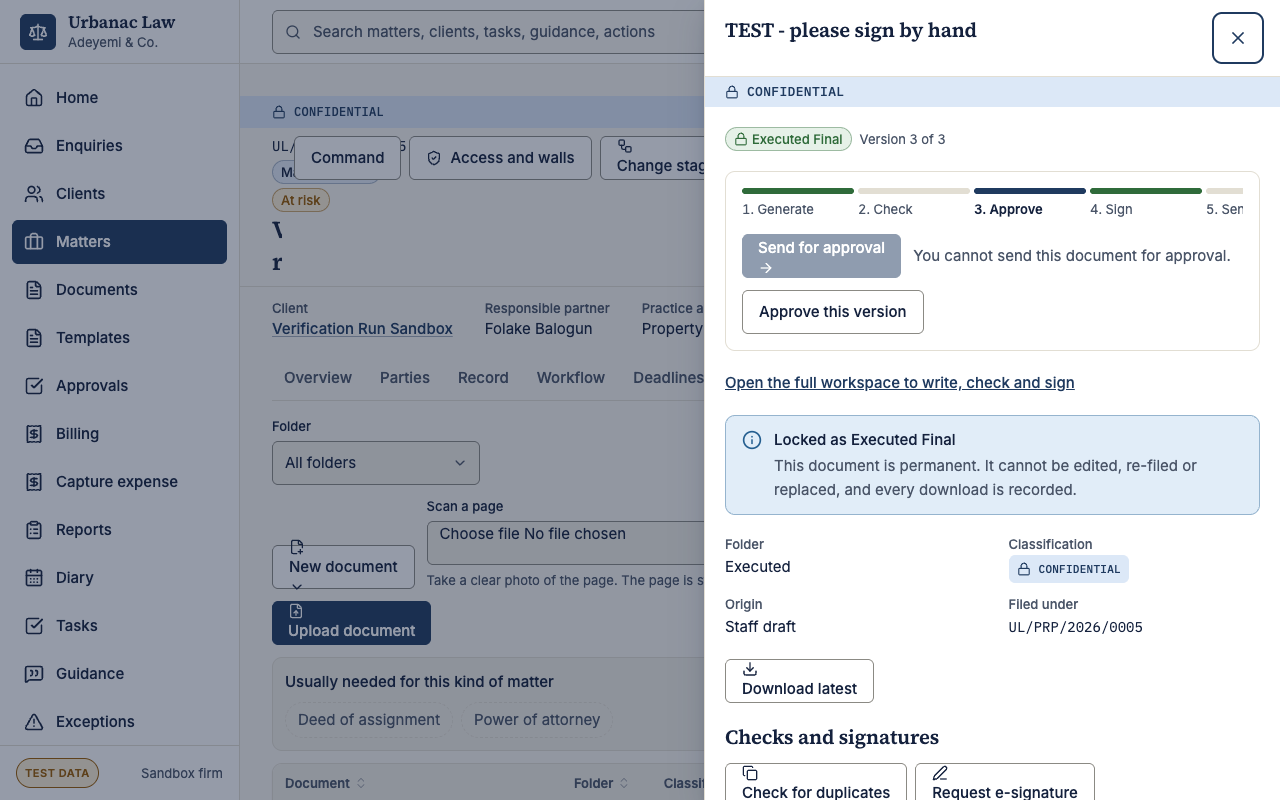
Buttons on a request#
- Resend link: sends a fresh link to a signer. Earlier links stop working when a new one is sent. Use this when a message did not go out or the signer lost the email. It also lifts the limit on signing codes, so a signer who asked for too many codes, or was locked out after wrong codes, can carry on.
- Correct details: fixes a signer's name, email or mobile number (a typing mistake, or a different person at the client). Their earlier link stops working at once; if it is their turn a new link goes to the corrected address straight away. They agree to sign electronically and confirm a code again. Someone who has already signed cannot be changed.
- Send reminder now: reminds the signers who have not signed. Reminders also go automatically three days and one day before the link expires.
- Give more time: moves the expiry to 7, 14, 30 or 60 days from today. The same links keep working and the automatic reminders start again before the new date.
- Send again: on an expired, declined or voided request. Opens a new request with the same signers and message filled in; check the signature boxes and send. The document must still be approved.
- Void request: opens Void this request. Type Why is it being voided? and click Void request again, or Keep it to go back. Every signing link stops working at once. Signatures already given are not used.
- Download signed copy and Download certificate: appear when everyone has signed.
- Public verify page: shows the page where anyone can check the signed PDF. The PDF can be up to 25 MB.
- Verify code: the code shown on the certificate.
What the signer sees#
The signer opens the link in the email. They do not need an account. The page is titled Sign a document and walks through three steps: Read and agree, Confirm it is you, Sign.
- Read the document. They can scroll the page or choose Read it as text. If it will not show, Open the PDF in a new tab.
- Agree to sign electronically. They tick the statement and click Agree and continue. Their name, contact details, IP address and the time of each step are recorded.
- Confirm it is you. They choose how to get a 6-digit code (Email or Text message) and click Send me a code. The code works for 10 minutes. They type it and click Confirm code. After five wrong codes they see Too many wrong codes; they are locked out for 15 minutes and can then ask for a new code, or ask the firm for help. Send a new code is available after a short wait.
- Add your signature. They Draw it with finger or mouse, Type their full name, or Upload a picture of a signature (PNG or JPEG). They tick the confirmation and click Sign the document.
- They see You have signed. When everyone has signed, a signed copy and a certificate are emailed to them.
A signer who does not want to sign can click I do not want to sign this, explain why under Why are you declining?, and click Decline to sign. The firm is told and the request closes for everyone.
Other messages a signer may see:
- This signing link is not valid any more. Ask for a new one.
- This link has expired. Ask the firm to send a new one.
- This request was withdrawn. The firm cancelled it.
- It is not your turn yet. Signing is in order; the signer gets a link when the person before them has signed.
- This request was stopped. Another signer declined.
The certificate and checking a signed PDF#
The certificate of completion lists the signers and times and carries a code that looks like UL-ABCD-EFGH-JKLM. Anyone can open the firm's check page, Check a signed document. They either type the code and click Look up, or drop the PDF they received and click Check this file. The page says whether the file is Authentic, Code recognised or Altered or not recognised, or Not found. It never shows the contents or the parties.
Common problems#
- Could not load signing requests. Reload; if it persists tell your administrator.
- A message did not go out. Check the address and resend. The email may be mistyped. Use Correct details, or ask the signer to check spam.
- A signer sees Too many codes were requested. Click Resend link for them; the new link lets them request codes again.
- A request expired before everyone signed. Use Send again. For a request still open, use Give more time before it runs out.
- A signer says the code never came. Use Send a new code, or choose the other channel.
- Some links did not go out. Use Resend link for the signers named.
- Nobody can tell whether a PDF is the signed one. Use the check page above.
Something unclear or out of date? Tell your Operations Administrator, or go back to the manual home.