Getting started as an Operations Administrator
A 10-minute path: sign in, secure your account, check failed jobs and set your first work SLA.
Last updated 2026-10-03
Sign in (minute 0). Type your email address or username in Email or username and the six-digit temporary PIN in PIN, then press Sign in.
Choose your own PIN (minute 1). On Choose your sign-in PIN, type the temporary PIN in Temporary PIN, then six digits of your own in New PIN and Confirm new PIN, and press Set PIN. Avoid runs such as 123456, repeated digits and dates people could guess.
Turn on your second sign-in step (minutes 2 to 4). Account menu, Profile and sessions, Sign-in security. Press Add a passkey or Add an authenticator app, save your recovery codes with Copy codes or Print codes, then press I have saved them.
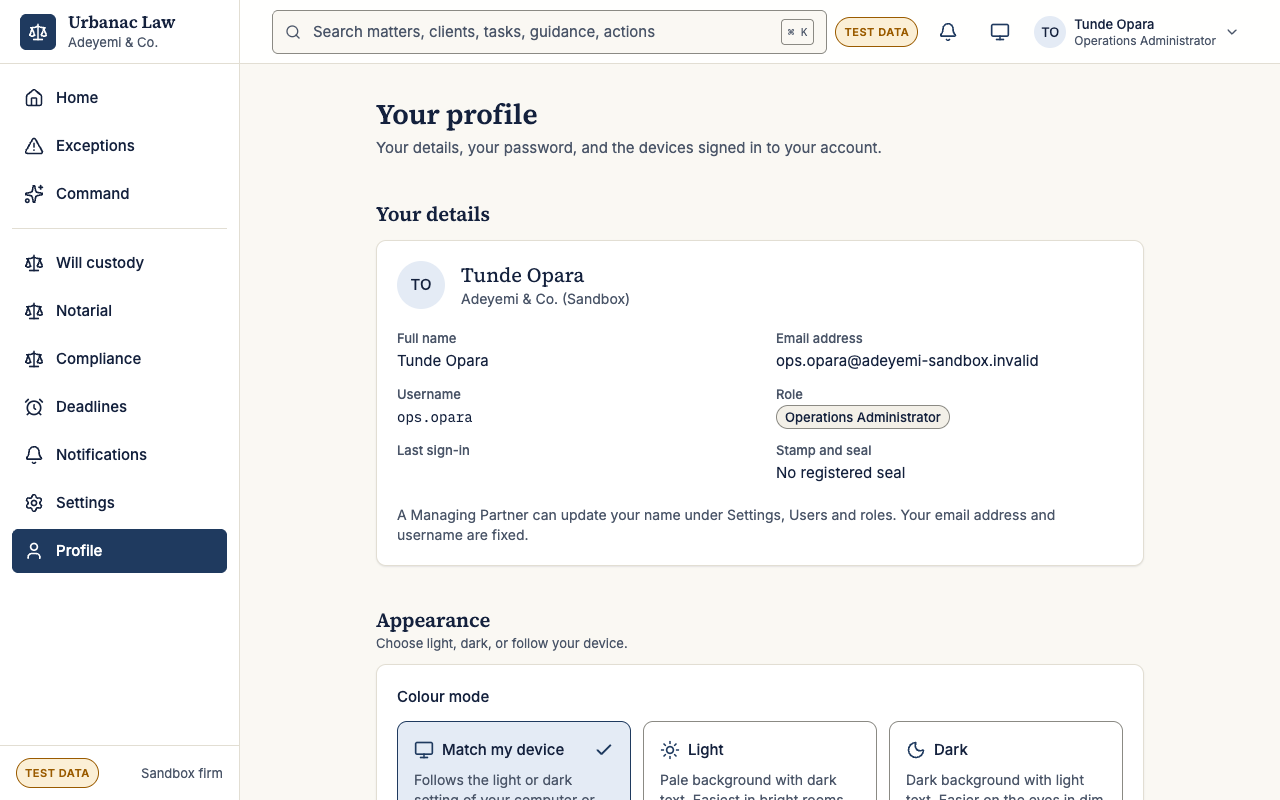
Sign-in security on the Profile page Find your work (minute 5). Your role has no Home dashboard; Home says so. Open Settings: your pages are Matter access, Work SLAs, Webhooks and API, Audit log, Failed jobs and Appearance.
Check for failed jobs (minutes 6 to 7). Open Failed jobs. The tiles show how many reminders and checks are waiting, and Needing attention. For each failed item, press Run again, or Discard and give a reason of at least 3 characters.
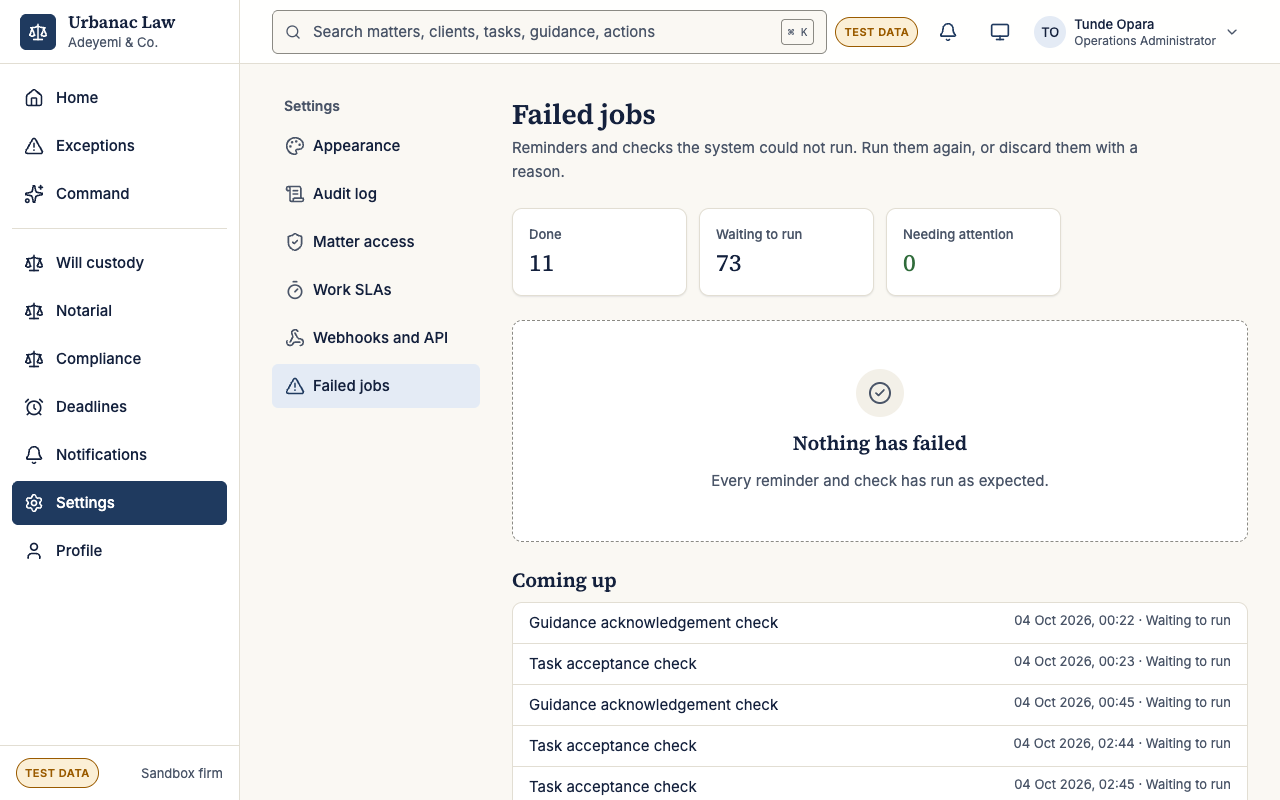
Failed jobs Review the work SLAs (minutes 8 to 10). Open Work SLAs. For each priority, leave a box empty to use the standard value, or type the target in hours or minutes shown on the box. Save your changes. See Integrations for Webhooks and API.
Next: Operations Administrator role page, Integrations, Backup and recovery.
Something unclear or out of date? Tell your Operations Administrator, or go back to the manual home.