Integrations
How the system sends email, WhatsApp and text messages, takes online payments, links calendars, mail, accounting and e-signature, and sends signed webhooks to your own systems.
Last updated 2026-11-25
On this page
Who sees this#
The Managing Partner opens Settings, Integrations. Others cannot. Webhooks (Settings, Webhooks and API) are for the Managing Partner and the Operations Administrator. Connecting an outside service uses secret keys that are kept on the firm's server by the system administrator; they are never shown on screen and never go to the browser.
The service cards#
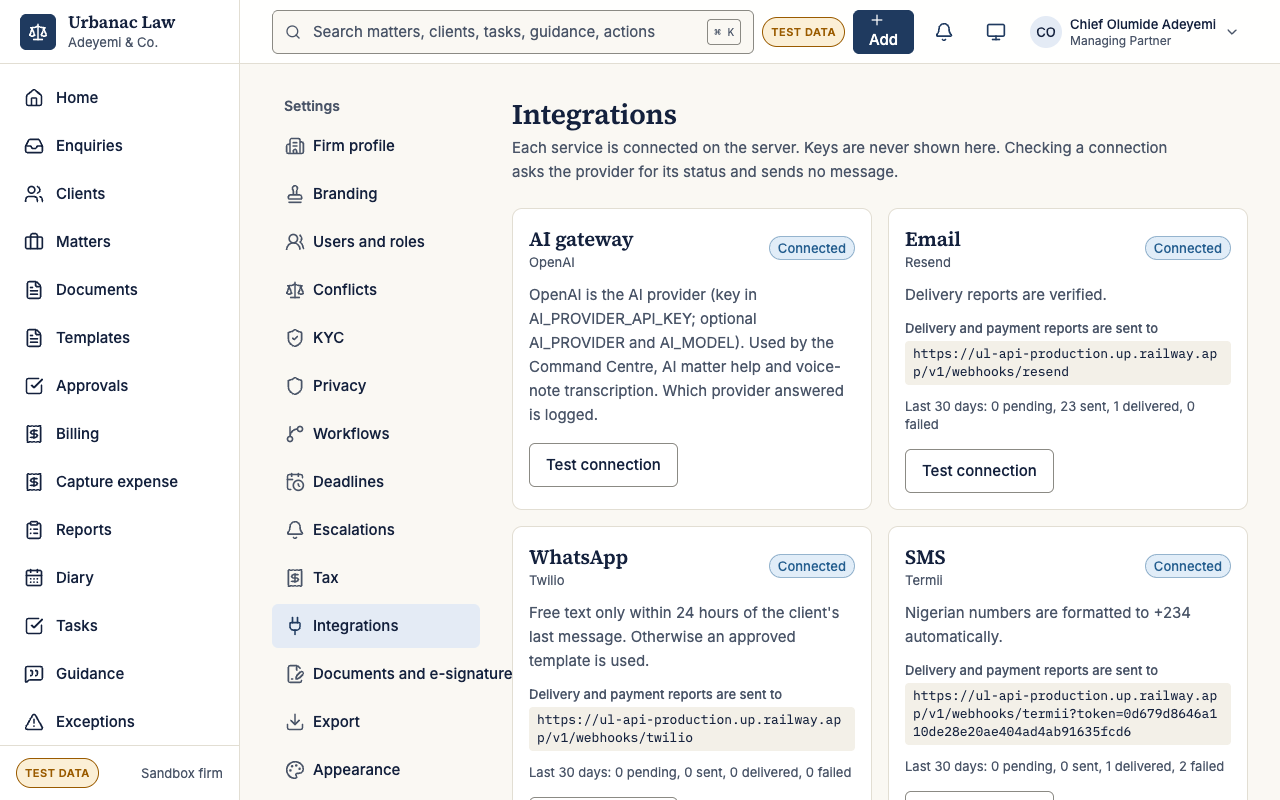
Each card on Integrations shows its name, the provider and a status: Connected, Connected and verified, Connected, not verified, or Not connected. Choose Test connection to check one.
- Email. Sent through Resend. Used for invitations, sign-in codes, invoices and notices.
- WhatsApp. Shows Connected once the firm's WhatsApp sender is configured, and Not connected until then. Free text can only be sent within 24 hours of the client's last message; after that an approved template is used.
- SMS. Sent through Termii. Nigerian numbers are changed to +234 format automatically. Also needed for text message sign-in codes. See Sign-in and two-factor.
- Online payments. Paystack. Adds a payment link to issued invoices and marks them paid once Paystack confirms. See Billing and expenses.
- AI gateway. Powers the assistant features. Which provider answered is logged.
Message log#
Under the cards, Message log lists the messages sent and whether each was Pending, Sent, Delivered or Failed. You can filter by Status and Channel. Click Retry on a failed message to send it again.
To send a message yourself, use the form below the log: choose a Channel, pick a client (their saved contact and consent are used) or type an email address or Nigerian phone number, add a Subject (email only) and the Message, then click Queue message. It is sent within a few seconds.
Enquiries and inbound email#
Further down, Enquiries and inbound email is where the Managing Partner creates the links and addresses prospects use. Under Create a new choose Public enquiry form link or Email forwarding address, optionally add a Label such as "Website", and click Create. Click Copy to copy the link or address, or Revoke to stop one that was shared too widely. Recent inbound email lists mail received and what happened to it. If the firm has no receiving domain set up, forwarding addresses say Not connected. See Enquiries.
Push notifications#
The Push notifications card says whether alerts to phones and browsers are Connected or Not connected, and how many devices and waiting or failed alerts there are. Each person turns them on from their own Profile. If it says Not connected, ask the person who looks after the firm's server to set it up.
Linked services#
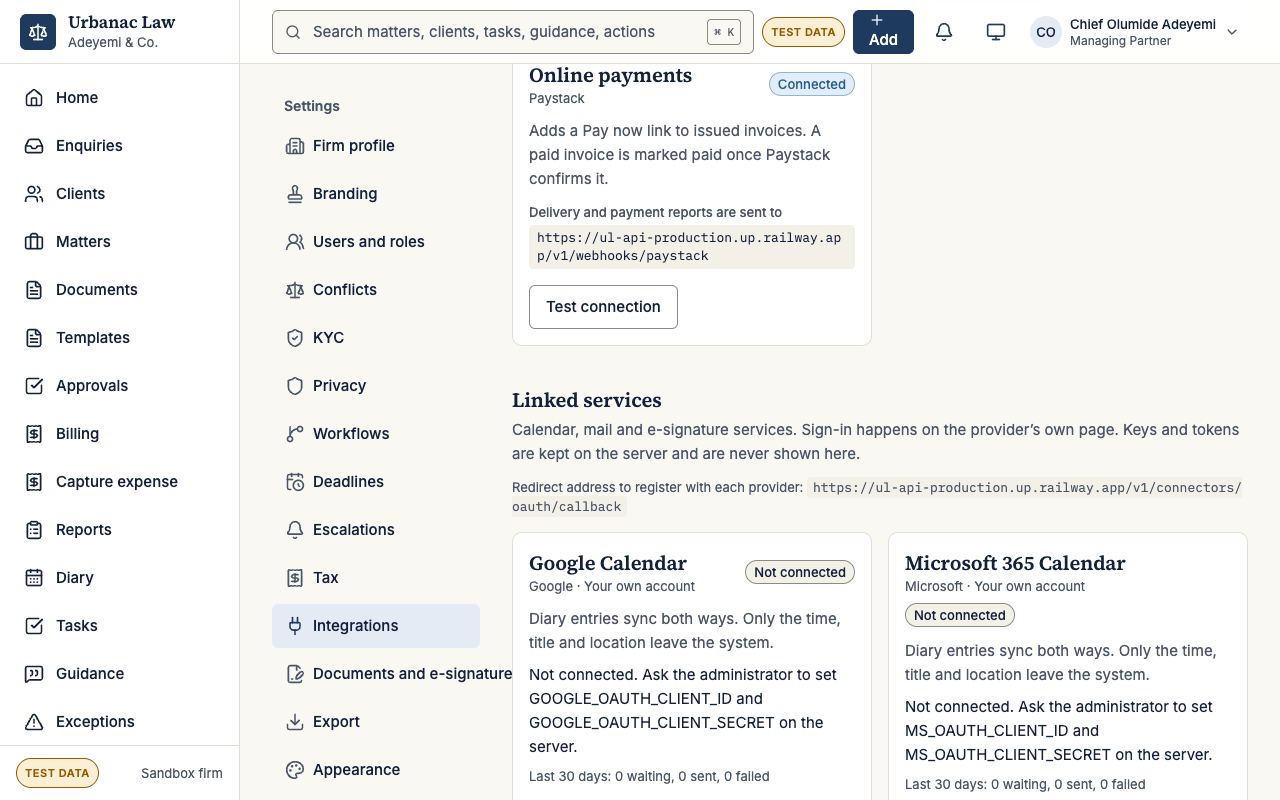
Under Linked services are connections that save time:
- Google Calendar and Microsoft 365 Calendar. Diary entries sync both ways. Only time, title and place leave the system. These links are personal: each person connects their own.
- Gmail / Google Workspace mail and Microsoft 365 mail. Email whose subject carries a matter number is filed to that matter.
- Accounting (Xero). Issued invoices are sent to the accounting package. Firm-wide.
Electronic signature is built in and needs no linked service. See E-signature.
- Open Settings, Integrations, Linked services.
- Choose Connect on the service and sign in with the provider.
- Choose Test to confirm it works.
A card says Not connected until the firm's administrator has supplied the keys the provider needs; the card lists what is missing. Work that fails is retried; see Linked-service outbox and Failed jobs.
Webhooks#
A webhook tells your own system when a task or guidance request changes.
- Open Settings, Webhooks and API and choose Add a webhook.
- Enter a Name and an Address (a secure web address), choose the events, and choose Add webhook.
- Copy the signing secret from the box Copy your signing secret and choose I have saved it. It is shown once.
- Choose Send test on the webhook to check it.
Each request is signed so your system can verify it came from here. The Delivery log shows what was sent and whether it arrived.
Related#
Something unclear or out of date? Tell your Operations Administrator, or go back to the manual home.