Doing the work on a task
Accept a task, start it, say when you are blocked or waiting, tick the checklist, log time, attach documents and talk to colleagues in comments.
Last updated 2026-10-03
On this page
Open the task#
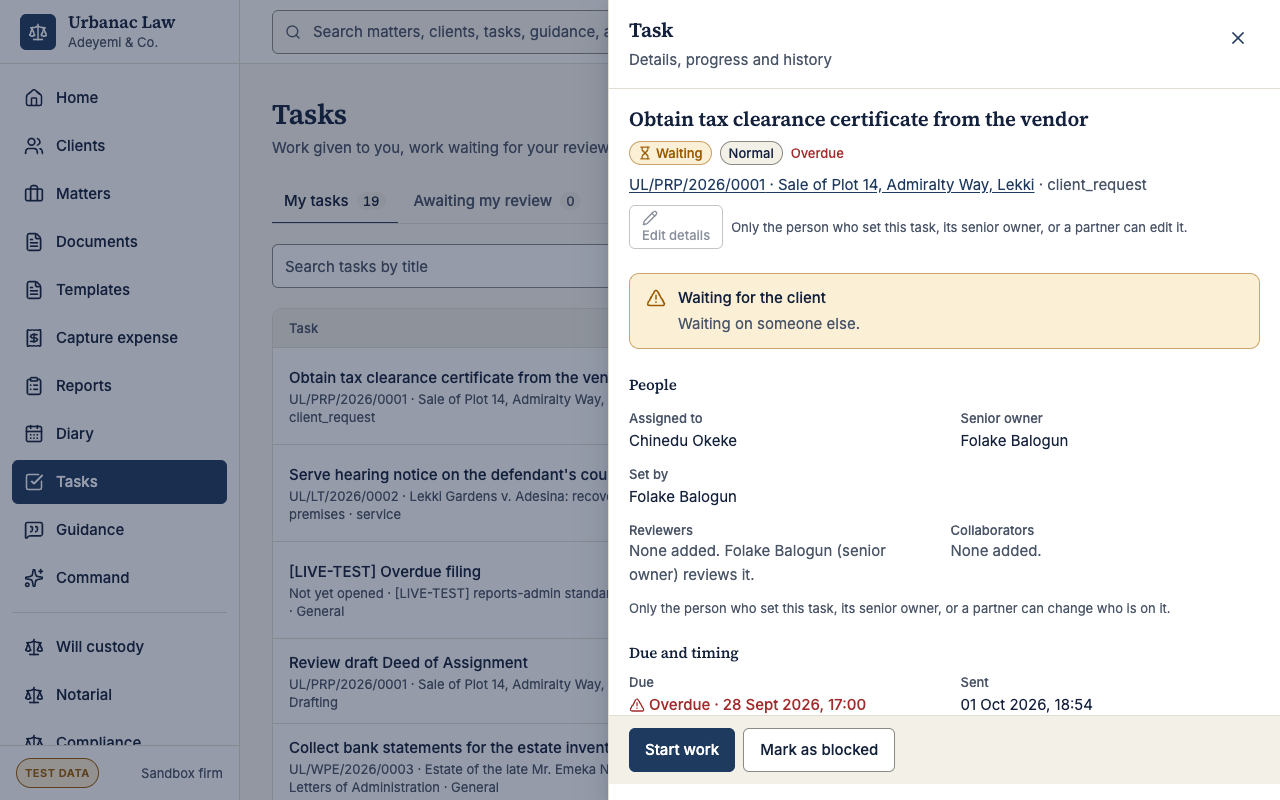
Open Tasks, then My tasks, and click the task. A side panel opens with these sections: People, Due and timing, Settings, Instructions, Checklist, Deliverables, Time spent, Closure, Comments and History. The buttons you can use sit at the top of the panel. You only see a button when you are allowed to use it right now.
Step by step: the assignee#
- Accept. When a task is first sent to you, press Accept to confirm you have seen it and will do it. Do this promptly: the system chases you if you do not, and for critical work it tells the responsible partner.
- Start work. Press Start work when you begin.
- Tick off the checklist as you go (see below).
- When it is finished, press Submit for review (see Review and closing).
You can press Start work straight from Assigned, Accepted, Reassigned, Returned for rework, Reopened, Blocked or Waiting. You do not have to press Accept first.
When you cannot move on#
Two buttons pause a task. Both ask for a reason, and your senior owner can see it.
- Mark as blocked is for when something is stopping you. The box asks "What is stopping you?". The task shows a Blocked banner.
- Waiting on someone is for when you need something from another person. Choose who in "Who are you waiting for?" (the client, the registry, a third party, or just Waiting) and say in "What are you waiting for?". The task shows a Waiting banner.
Both are found under Waiting / Blocked on the Tasks page. When the problem is solved, press Start work again.
Each of these windows has a Back button if you change your mind.
The checklist#
The Checklist shows how many steps are done ("N of M done"). Tick a step when it is done.
- The assignee, collaborators and managers can tick steps while the task is open.
- Only the person who set the task (or a partner) can add steps. They type under New checklist item, choose Required if needed, and press Add item.
- The same people can switch a step between "Make optional" and "Make required".
You cannot submit the task until every required step is ticked, unless you explain why in the note to the reviewer.
Recording time#
In Time spent, enter the number of Minutes (1 to 1,440 each time) and what it was for in What was it for, then press Add time. The panel shows your total against the estimate. Only the assignee and collaborators can add time, and only while the task is open and not a draft.
Deliverables#
A deliverable is a document that is the result of the task, such as a signed agreement or a filed form.
- In Deliverables, press Add a document.
- In the "Attach documents" window, pick On this matter to choose a document already filed, or Upload a file to add a new one. A file can be up to 5 MB. For anything larger, upload it first in the matter's Documents tab, then attach it here.
- Press Add as deliverable (for existing documents) or Upload and attach (for a new file).
Each deliverable shows where it came from: Deliverable, "Linked when the task was made", or "Attached in a comment". Removing a deliverable takes it off the task only; the document stays on the matter. The assignee, collaborators and managers can add or remove deliverables, only on matter tasks and only until the task is closed. Internal tasks cannot hold documents.
Comments#
Use Add a comment to talk to everyone on the task. Comments are internal; the client never sees them.
- Type your message. Type
@and a name to mention a colleague. You can only mention people who have access to the task. - Press Attach a document to attach files from the matter (matter tasks only).
- Press Post comment.
A person you mention gets a "You were mentioned" notification. A comment can be up to 4,000 characters, with up to 10 attachments and 20 mentions.
On your own comments you can use Edit (then Save change), Remove (you are asked to confirm), and View history, which shows earlier wordings. A person who can close the task can remove other people's comments too. A removed comment leaves a note that it was removed.
What you cannot do#
- If you are not the assignee, you do not see Accept.
- If the task is closed or cancelled, no work buttons appear. A senior must press Reopen.
- If another person changed the task while you had it open, you see "Someone else changed this task". Refresh and try again.
Something unclear or out of date? Tell your Operations Administrator, or go back to the manual home.