Security and privacy
Who can see what, how confidential matters are protected, how every action is recorded, and what each person must do to keep client data safe.
Last updated 2026-10-03
On this page
The idea in one paragraph#
Every action in the system is checked in layers: which firm you belong to, your role, whether you are on the matter, the matter's access mode, any ethical wall, the kind of document, the state of the work and, for sensitive actions, whether you have just re-entered your PIN. If any layer says no, you cannot do it, and the screen tells you why.

What each person can see#
- Your role decides which screens and buttons you get. See your page under Roles.
- Most staff see only matters they are assigned to. Partners and the Managing Partner see more, subject to access modes.
- Clients see only their own matters, in the client portal. See Client portal.
- Client information is never shared between firms.
Matter access modes#
Each matter has one of four modes. A partner sets it on the matter.
- Standard. The people on the matter, plus partners, can see it.
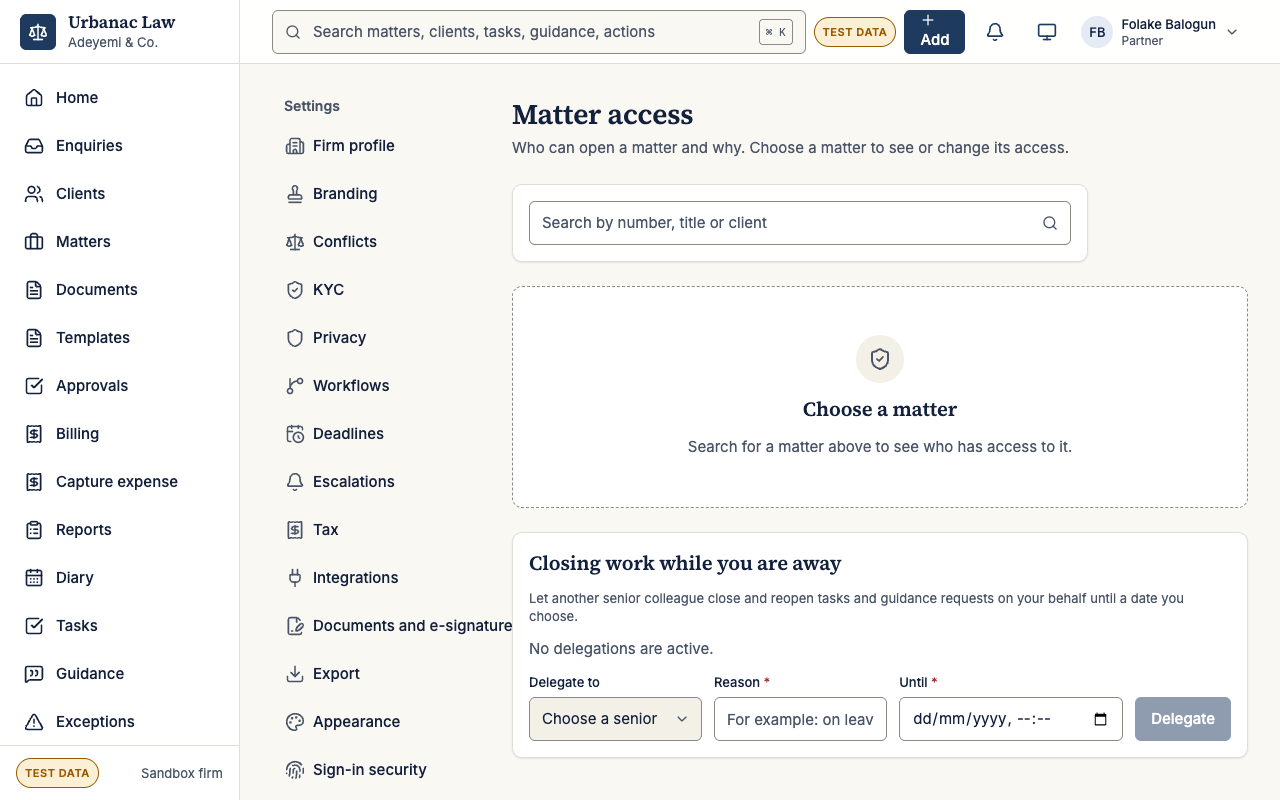
- Restricted. Only the people named on the matter and the partners who run it.
- Highly restricted. Only the named people. Even partners need to be named.
- Ethical wall. Named people or teams are blocked completely, for example when the firm acts for two sides in related work. Blocked people do not see the matter in lists, search or notifications.
Documents#
Documents carry a confidentiality class. An Executed Final document is locked and cannot be edited. Downloads and shares are recorded.
The audit log#
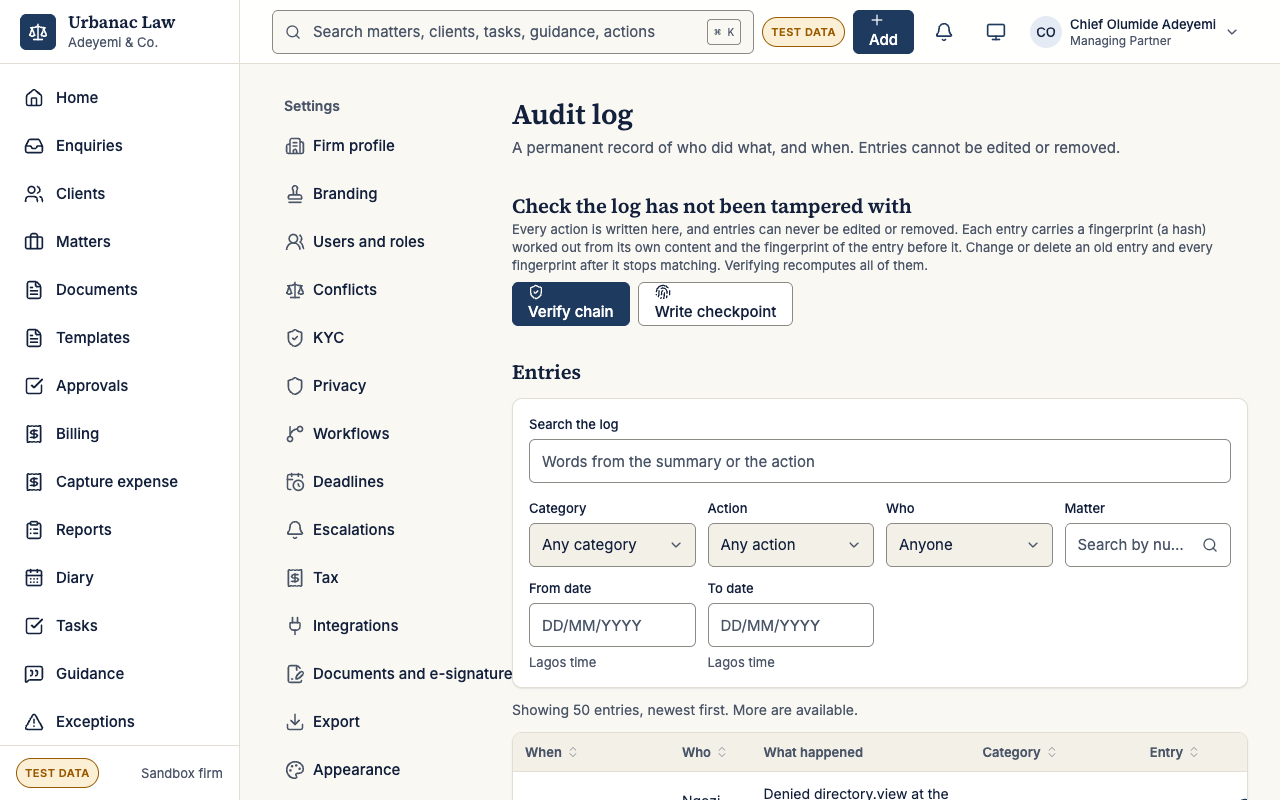
Every important action is written to a log that cannot be edited or deleted: who did it, what, when, and from where. Each entry is chained to the one before, so changing an old entry would be detected.
- The Managing Partner, the Partner, the Operations Administrator and the Auditor can open Audit log (under Settings).
- To find an entry, use Search the log and the filters Category, Action, Who, Matter, From date and To date (Lagos time). Clear all filters starts again. Click an entry to open its details.
- Verify chain checks the whole chain and reports Chain verified or Mismatch found.
- Write checkpoint saves a fingerprint of the log at that moment. The system also does this every day.
- Export audit trail is on the Governance tab of Exceptions, not on the Audit log. Only the Managing Partner and the Auditor can use it. It downloads the log with a fingerprint so an outside reviewer can confirm it was not changed.
Access review#
Each quarter the Managing Partner goes through every user's access and confirms or removes it. This is under Settings, Access review. See Settings and users.
Keeping records#
The Managing Partner can publish a retention schedule (how many years each kind of record is kept) and place a legal hold on a matter. These are shown under Compliance, in Retention and legal holds. Be clear about what the system does and does not do. It does not delete anything by itself when a retention period ends: the Managing Partner reviews records against the schedule at least once a year and decides what to dispose of. A legal hold stops that matter's documents from being moved to the recoverable bin or deleted permanently. A document marked Executed Final can never be deleted. Deleted documents wait in a recoverable bin until a partner deletes them permanently, and even then the system keeps a destruction certificate and older backups can still hold the content for up to 14 days. The audit log is never deleted.
What every person must do#
- Keep your PIN to yourself, choose one that is not a date or a pattern, and set up a second step. See Sign-in and two-factor.
- Do not share your account. Everything you do is recorded under your name.
- Lock your screen when you step away.
- Only send documents through the system, not through personal email or chat.
- Report anything odd at once: an email you did not expect, a sign-in alert you did not cause, a document sent to the wrong person.
Related#
Something unclear or out of date? Tell your Operations Administrator, or go back to the manual home.