Getting started in the Client Portal
A 10-minute path for clients: accept your invitation, sign in, find your matter, upload a file and message your lawyer.
Last updated 2026-10-03
Open your invitation (minute 0). Your lawyer sends a personal link. It opens a page titled Accept your invitation that names the firm. If it says the invitation is not valid or has expired, ask your lawyer for a new one.
Create your account (minutes 1 to 2). Check Your name, choose Choose a username and Choose a password, and press Create account.
Sign in (minute 3). On Sign in, type Email or username and Password, then press Sign in. You land on Your matters.
Find your matter (minute 4). Each card shows the matter title, number, stage and what is waiting for you. Press the card to open it.
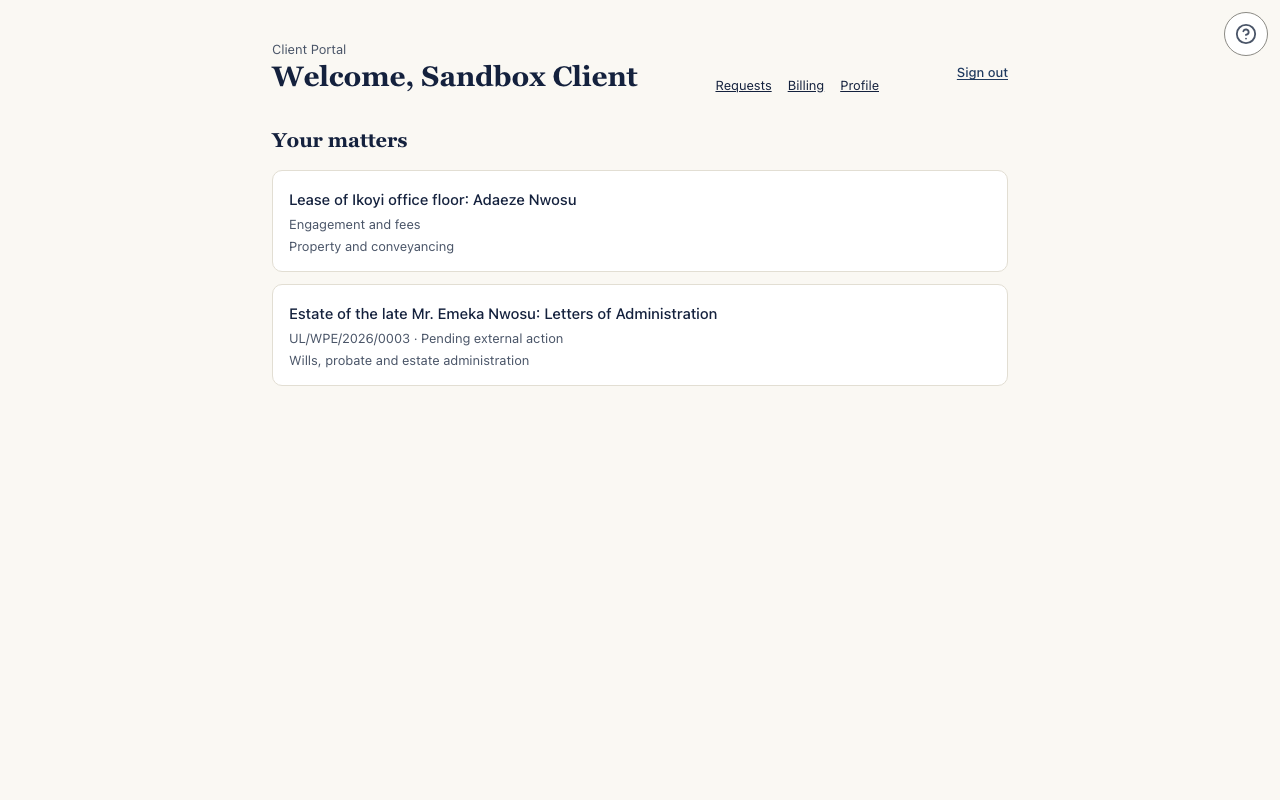
Your matters in the Client Portal Send a file the firm asked for (minutes 5 to 7). Press Requests. Under Files we need, choose the file (a photo of a document works) and press Send file.
Message your lawyer (minutes 8 to 10). Open the matter, scroll to Messages, type in Your message and press Send message. Check Billing for Invoices, Receipts and your Statement.
For the full tour, read Client portal.
Something unclear or out of date? Tell your Operations Administrator, or go back to the manual home.