Clients
Keep one record for every person and organisation the firm acts for, with their KYC, relationships and matters.
Last updated 2026-10-03
On this page
What this is for#
Clients is the firm's directory of people and organisations. Each person or company has one record that holds their contact details, other names, relationships, KYC (know-your-client) checklist, communications and every matter they are connected to. Keeping one record per client stops the firm opening two files for "Chief A. Adesina" and "Ayodele Adesina", and makes conflict checks reliable.
Who can use it#
- Everyone on the staff roles can open the directory and read records.
- The Managing Partner, Partner, Senior Associate, Junior Associate and Administrative Staff can add and edit clients.
- A Paralegal can read records but the New client and Edit buttons are not shown.
- Only the Managing Partner, Partner and Administrative Staff see the Duplicates and merge tab.
- Revealing a full NIN or BVN is limited to the Managing Partner, Partner, Senior Associate and Junior Associate.
- Inviting a client to the portal is limited to partners.
- The Auditor and Operations Administrator do not have the client directory. They see a message that says their role does not include it.
Find a client#
- Open Clients from the menu.
- Type in the search box (Search name, alias, email or RC number). The search also matches alternative names, so "Chief A. Adesina" finds Ayodele Adesina.
- Narrow the list with Type (All types, People, Organisations) and Client status.
- Click a name to open the record. Use Load more at the bottom when there are more than 25 results.
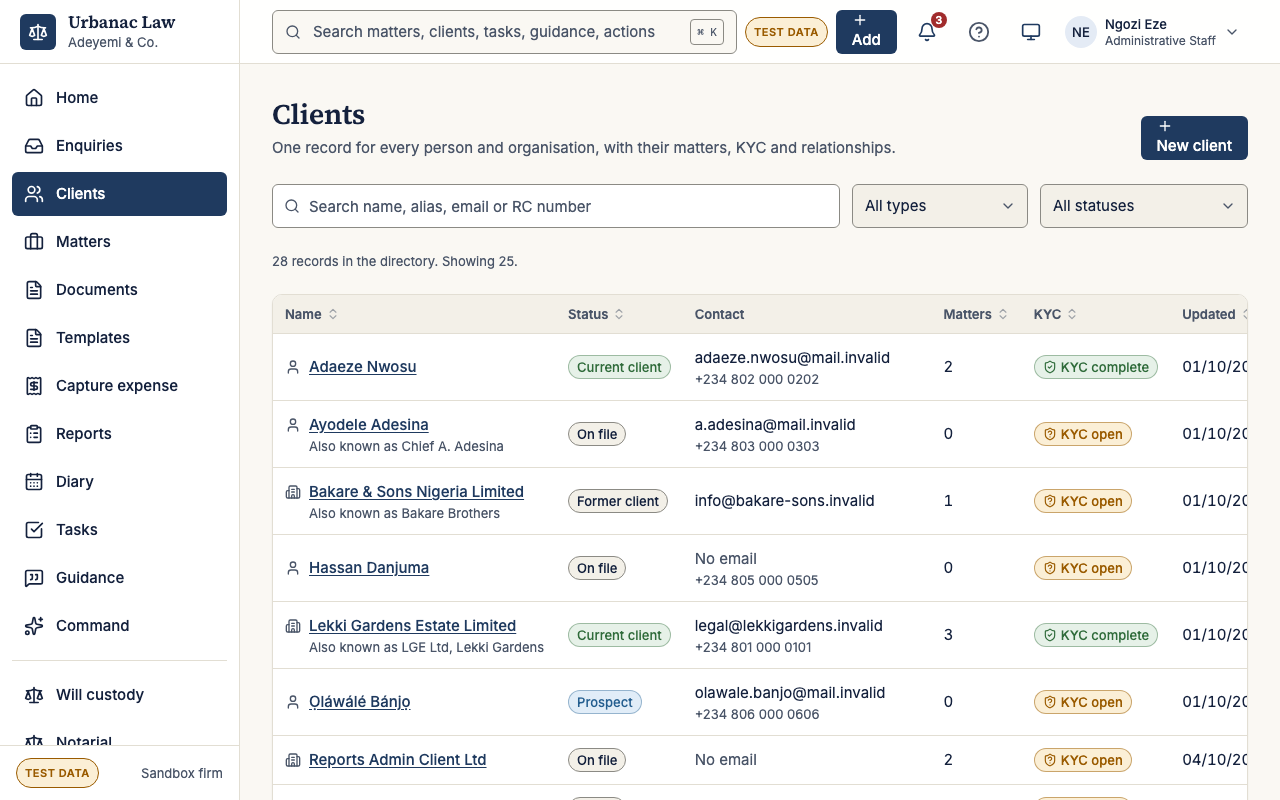
The columns are Name, Status, Contact, Matters, KYC and Updated. Click a column heading to sort.
Client statuses#
- Prospect: someone the firm may act for, for example after an enquiry.
- Current client: the firm has an open matter for them.
- Former client: the firm acted for them before.
- On file: known to the firm, for example as an opposing party, but never a client.
The KYC column shows KYC complete or KYC open, and High risk where the client is rated high risk.
Add a new client#
- Click New client. A side panel opens.
- Choose A person or An organisation under Is this a person or an organisation?
- Fill in Name (or Organisation name). This is the name the firm uses day to day.
- Optionally add Full legal name, Type of organisation (for an organisation, for example Company or Trust), Email, Phone, Address, Date of birth (or Date of incorporation), Nationality, RC number and Tax identification number (TIN).
- Under Also known as add every spelling, nickname or trading name using Add alias. Under Former names use Add former name for maiden names or earlier company names. Every one of these is searched in conflict checks, so add them.
- Click Save client. The new record opens.
NIN and BVN are not entered on this form. They are recorded on the client's profile (see below).
If the system thinks the client already exists#
If the name, phone, email, RC number or TIN looks like someone already on file, a box titled This looks like someone already on file (or This looks like an organisation already on file) lists the likely matches.
- Click Open record next to a match to check it.
- If it is the same person, close the box and use the existing record.
- If it really is a different person, click This is a different person: save them (or This is a different organisation: save it).
- Click Go back and edit to change what you typed instead.
The client record#
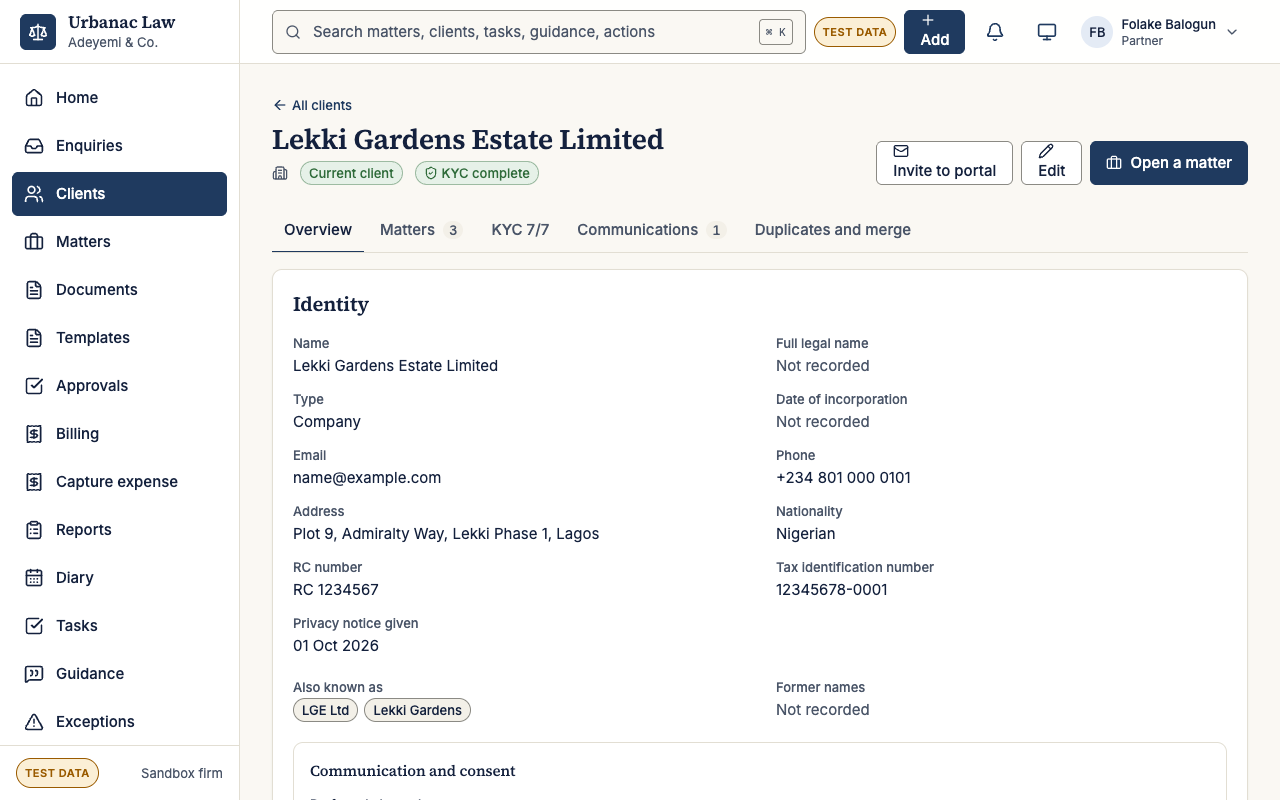
Open a client to see the header with their status, KYC state and, if different, their legal name. The buttons at the top are Open a matter (starts a new matter for this client), Edit, and Invite to portal.
The tabs are Overview, Matters, KYC, Communications and, for those allowed, Duplicates and merge.
Overview#
The Identity card lists the name, legal name, type, date of birth or incorporation, email, phone, address, nationality, RC number, Tax identification number and Privacy notice given, with Also known as and Former names underneath.
Communication and consent holds:
- Preferred channel (Email, Phone, SMS, WhatsApp, Post or Not recorded).
- Consent to SMS and Consent to WhatsApp tick boxes. Click Save preferences after changing them.
- The firm's current privacy notice. Click Record consent to version (with the version number) once the client has been given the notice. The date is then shown.
Relationships shows how this client is linked to others, for example a director of a company. Click Add relationship, choose how they are related in Relationship, pick the Other person or organisation, then click Add relationship again. Conflict checks look one step along these links, so a director or parent company is not missed.
Identity numbers (NIN and BVN)#
For a person, the Identity numbers box shows the NIN and BVN with only the last four digits visible.
- Click Record numbers (or Update numbers if one is already stored). Enter 11 digits for NIN and/or BVN and click Save numbers. Leave a field blank to keep the number already recorded.
- To see a full number, click its reveal button. You must type a Reason (at least 5 characters, for example the Ikoyi lease filing) and click the reveal button (it names the number of seconds). The number hides itself again after 30 seconds and the reason is written to the audit log.
Matters#
The Matters tab lists every matter the client is connected to that you are allowed to see, with the matter number, practice area, whether they are the client or another party, the classification and the stage. If it says No matters yet, the client is not on any matter you can see.
KYC#
The KYC tab is the client's checklist. It shows how many required items are verified or waived, for example "3 of 5".
- Click Update next to an item. Choose its Status:
- Verified: the firm has seen and checked the evidence.
- Pending: still to be done.
- Waived: not needed for this client. A reason in Note is required.
- Rejected: the evidence was not acceptable. A reason in Note is required.
- Add an Evidence reference such as the document name. Never type an ID number there.
- Click Save.
- To file the scan of an identity document, use the file chooser next to that item; each one is named for its item (for example Upload a document for: Passport photograph).
- Use Risk class to set Standard risk or High risk. A completed KYC needs to be confirmed again after you change the risk class.
- Under Screening and source of funds, click Edit to record PEP screening result, Sanctions screening result, Screening evidence and Source of funds or wealth.
- When every required item is verified or waived, click Complete KYC.
If something is missing you see KYC could not be completed yet with the list of missing items. For a high-risk client, you see A partner must confirm this client's KYC: only a Partner or Managing Partner can complete it. Once complete, the badge shows KYC complete with the review date.
Communications#
Communications on file lists the latest calls, emails, meetings and letters logged for this client on their matters. Click Open the matter to go to the entry. Nothing is logged here directly; see Matters.
Duplicates and merge#
Open Duplicates and merge to see Possible duplicates: records sharing this client's name, phone, email, RC number or TIN.
- Next to a duplicate click the button that begins with Keep and the name of the record you want to keep, for example Keep Ayodele Adesina.
- Read the summary in Merge these records? The other record's enquiries, matters, relationships and conflict history move across, and its old name is kept as an alias.
- Click Merge records.
The merged-away record is archived, not deleted, and the merge is recorded in the audit log. You cannot undo it, so check carefully first.
Invite a client to the portal#
- On the client record click Invite to portal. The button is hidden for a record whose status is On file and for anyone who is not a partner.
- Check the Email address and click Create invitation.
- Copy the link shown ("Share this link with the client") and send it to the client yourself. It is valid for 7 days and the client chooses their own username. Email is not sent from this screen.
See also Billing and expenses for what the client sees in the portal.
Common problems#
- Your role does not include the client directory. Your role cannot view clients. Ask the Managing Partner if you think you need it.
- Enter a valid email address, or leave it blank. The email field is checked for shape only.
- A NIN has 11 digits. and A BVN has 11 digits. Type exactly 11 digits, no spaces.
- Enter a NIN or a BVN. You clicked save with both blank.
- The records were not merged. The reason is shown in the box; read it before trying again.
- No matters yet on a client you know has matters: you may not be assigned to them. Matters you cannot see are hidden, not missing.
Something unclear or out of date? Tell your Operations Administrator, or go back to the manual home.