Conflict checks
Search the firm's records for a possible conflict of interest, read the matches and have a partner record the decision.
Last updated 2026-10-03
On this page
What this is for#
Before the firm acts for anyone it must be sure it is not acting against an existing or former client, or someone connected to them. A conflict check searches every name you give it against all clients, former clients, opposing parties, aliases, former names and related companies. A partner then reads the matches and records a decision. The decision is permanent and is kept with the partner's name, the time and the reason.
Who can use it#
- The Managing Partner, Partner and Administrative Staff can run checks and read the results.
- Only a Partner or the Managing Partner can record the decision.
- Other roles see Conflict checks are handled by the partners and the intake assistants.
- Some matches may be hidden from you by an information barrier or your clearance. They are counted, not shown (see Restricted matches below).
The Conflict checks page#
Open Conflict checks. Two lists sit in tabs:
- Awaiting decision: checks with matches (or without) that no partner has decided yet. The count shows beside the tab.
- Decided: checks that have an outcome, with the reason.
Each row shows the names that were searched, what the check is for (an enquiry, a matter, or Free search), when it was Run on, how many Matches were found and the Decision. Click a row to open it. Use Load more for older checks.
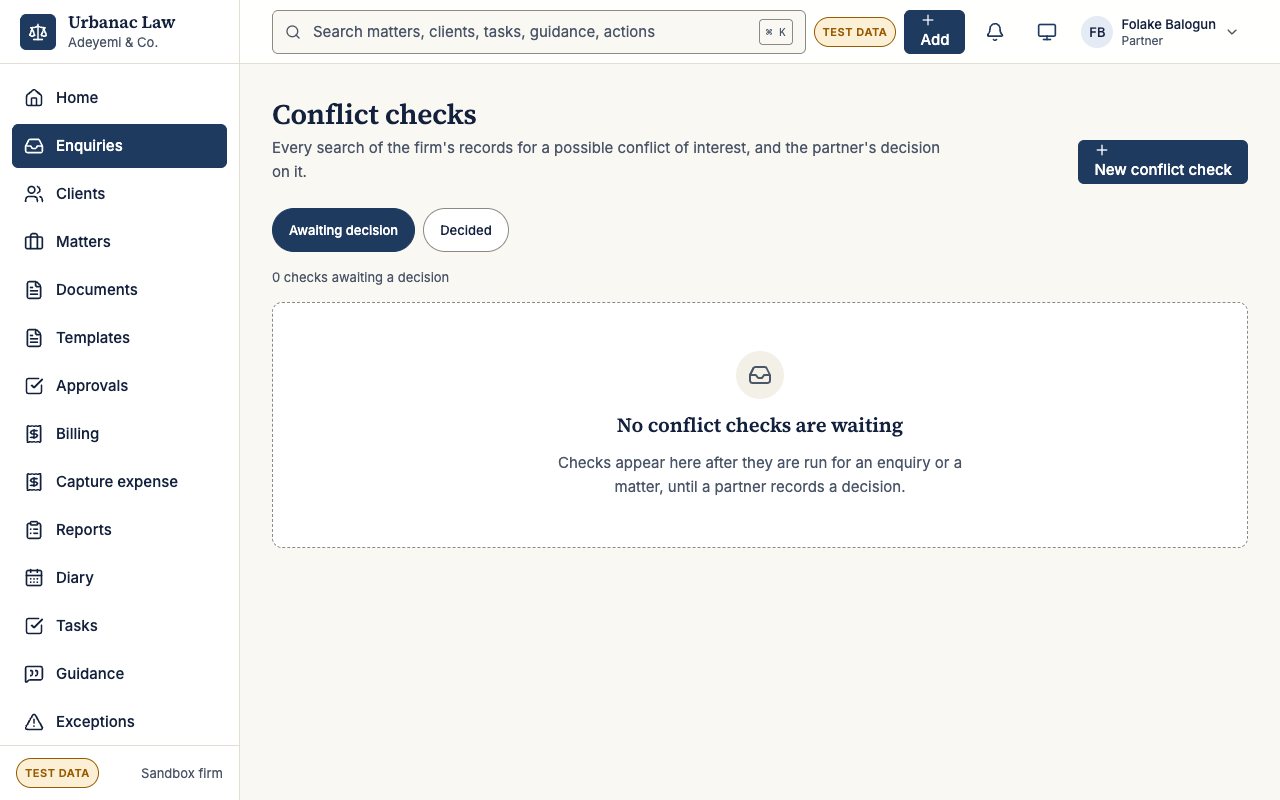
An empty list says No conflict checks are waiting or No decisions recorded yet.
Run a check#
You can start a check in three places:
- From an enquiry: Run conflict check (see Enquiries).
- From a matter's opening screen: Run a conflict check for this matter (see Matters).
- From this page: New conflict check, for a free search that is not tied to anything.
In the New conflict check panel:
- Under Names to search, type each name. Use Add a name for more. A check can cover up to 20 names; each must be at least 2 characters.
- Choose the role of each name: Prospect or client, Opposing party or Related party. An opposing party is treated more strictly than a prospect.
- When the check is for an enquiry or a matter, the panel shows which one and starts with the prospect, the opposing parties, the client's other names and the other parties on the matter. If you leave a matter check empty, the client's name and aliases are searched.
- Click Run conflict check.
You see Conflict check run. Review the matches below. and the result opens. Add at least one name to search means the list was empty.
Read the result#
A result page, Conflict check, shows:
- A line saying when it ran, who ran it and the algorithm version.
- Search terms: exactly what was searched and in what role. Edit names and run again starts a new check from the same list.
- What the check belongs to: Enquiry, Matter, or A free search, not tied to an enquiry or a matter.
- Possible matches, grouped by type (people and organisations).
For every match you see:
- Severity: High severity, Medium severity or Low severity.
- The record's relationship to the firm, for example Current client, Former client, Has been an opposing party, Prospective client, Other party on file or Related to a matched party.
- Confidence, as a percentage.
- Why it matched, in plain words. The reasons can be: Exact name, Same words, different order, Alias or former name, Initials, Sounds alike, Similar spelling or Related through a relationship (a director, shareholder, parent, subsidiary, spouse or agent of someone matched; shown as Found through a relationship).
- Related matters you can see, each a link to that matter. No matters you can see means they exist but are hidden from you or there are none.
Click the name to open the client record in the directory.
If nothing matched you see No matches found: none of the names sound like, spell like or are related to anyone on file. A partner still has to record the decision.
Restricted matches#
Restricted: a record you cannot see matches means a match exists but an information barrier or your clearance hides it. A partner can open it. Do not try to guess who it is.
Record the decision#
Only a Partner or the Managing Partner sees the form. Everyone else sees Waiting for a partner's decision: the enquiry cannot be accepted and no matter can be opened from this check until someone decides.
- In Record your decision, choose the Outcome:
- No apparent conflict: the matches are unrelated or harmless. The firm may go ahead.
- Potential conflict — partner review required: needs a further look. This does not clear the check.
- Conflict confirmed — do not act: the firm must not act.
- Waived or consented: everyone affected has consented. Record the conditions under Consent or waiver conditions.
- Information barrier created: the firm may act with named colleagues screened off.
- More information required: more details are needed from the prospect.
- Type the Reason (at least 10 characters, up to 1,000). It is kept with the decision and in the audit log.
- For a waiver, record the conditions. For an information barrier give a Barrier name, choose People to exclude (they will no longer see the screened matter or party in lists, search or reports) and say What the barrier protects: This matter, or A client or party.
- Click Review and record decision, check the summary and click Record decision.
Three outcomes let the enquiry be accepted and a matter open: no apparent conflict, waived or consented and information barrier created. The others do not.
Once recorded, the decision shows Decision, Reason, Conditions, Decided by and Decided on, and cannot be edited: Recorded, cannot be changed. To revisit it, run a new conflict check. The older record stays as it is.
Checks that run by themselves#
- When a new party is added to an open matter, the system runs a re-check for that name. A banner, A conflict re-check ran for the new party, links to it with Review the re-check. A partner reviews it if there are matches.
- When someone asks to reactivate an archived matter, a fresh conflict check runs automatically.
Is there an override?#
There is no override for the conflict check. The urgent override used when opening a matter applies only to the KYC and fee-engagement checks (see Matters). To proceed after a Potential conflict or More information required outcome, run a new check and have the partner record a decision that allows the firm to act.
Common problems#
- Enter at least 2 characters. A name is too short.
- A check can cover up to 20 names. Split the list into two checks.
- Please explain the decision (at least 10 characters). Add more to the reason.
- Choose an outcome to record. No outcome was selected.
- Name at least one person to exclude. An information barrier needs someone to screen.
- The decision was not recorded or The check was not run: the box underneath gives the reason, with a reference to quote to your administrator.
Something unclear or out of date? Tell your Operations Administrator, or go back to the manual home.