Client portal
What a client sees in the Client Portal: signing in, matters, requests, billing, profile and signing documents.
Last updated 2026-10-03
On this page
Who this is for#
The Client Portal is a separate, simple site for the firm's clients. A client sees only their own matters and what the firm has chosen to share. The firm's staff never share a staff password with a client. Staff who invite clients should read the first section; clients can read from "Signing in".
For the firm: inviting a client#
Partners (and the Managing Partner) can invite a client from the client's record.
- Open Clients and open the client's record.
- Press Invite to portal. The window is titled Invite to the Client Portal.
- Check the client's email address and send the invitation. The client receives a personal link that expires.
- When the client accepts, they appear as a portal user. Their matters then show in the portal.
The button is only shown to a Managing Partner or Partner, and only when the person is a client (not just an enquiry).
Signing in#
- Open the link in your invitation. The page is titled Accept your invitation and says which firm invited you.
- Fill in Your name, Choose a username and Choose a password, then press Create account.
- You are taken to Sign in. Type Email or username and Password, then press Sign in.
- Next time, go straight to the sign-in page and use the same details. If the invitation link says it is not valid or has expired, ask your lawyer to send a new one.
The portal does not use a second sign-in step today. If you forget your password, ask your lawyer.
What you see on Home#
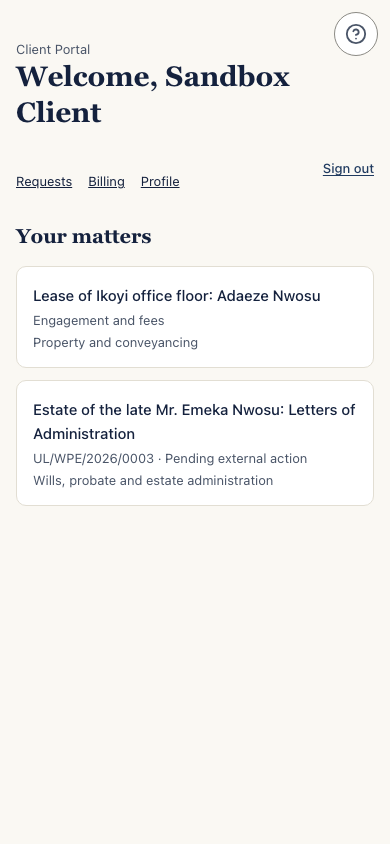
You land on Your matters: one card for each matter with the matter title, number, plain-language stage and practice area. A card also lists what is waiting for you, for example new messages from the firm, items for you, files to send, consents to answer, documents to approve and unpaid bills. The next appointment is shown too. Email is not sent for these: open the portal to see them.
At the top are three links: Requests, Billing and Profile, and Sign out.
A matter#
Press a matter to open it. It shows:
- What we need from you: tasks the firm has given you. Press I have done this when finished; the firm sees it in its Notifications.
- Appointments: dates and places.
- Documents: approved documents you can Download. Press I have read this document to acknowledge one.
- Messages: write in Your message and press Send message to write to your lawyer. Replies appear in the same list.
Requests#
Open Requests for three lists.
- Files we need: choose the file (a photo or a PDF) and press Send file.
- Documents to approve: press Open the document to read it, then I approve.
- Consent: read the request and press Accept or Decline.
After each one the page says it went through, for example Thank you. Your file has been sent to the firm. If something goes wrong it says so; try again, or send the firm a message.
Billing#
Open Billing and choose the matter, then press Show this matter. Three sections: Invoices, Receipts and Statement. An unpaid invoice shows Pay now when the firm has online payments switched on; the button opens the payment provider's page, and the invoice is marked paid once the provider confirms.
Profile#
Profile shows your name and email address and lists any Consents waiting for you. You cannot change your details yourself; ask your lawyer.
Signing documents#
When the firm sends you a document to sign, you get a link by email. The page opens without a portal account.
- Press Read the document if you want to read it first.
- Tick the consent box and press Agree and continue.
- Under Send the code by, choose how to receive a code, press Send me a code, type the 6-digit code and press Confirm code.
- Add your signature by drawing it, typing your name, or choosing a photo of your signature, tick the confirmation and press Sign the document.
- If you do not want to sign, press I do not want to sign this and say why, then Decline to sign.
If the link has expired, was withdrawn or it is not yet your turn, the page says so. Ask the firm for a new link. For how the firm sends documents, see E-signature.
What clients cannot do#
- See any other client's matters, or anything the firm has not shared.
- Change the firm's records, or invite other people to the portal.
- Use the staff application.
For staff: related pages#
Clients · E-signature · Billing and expenses · Security and privacy
Something unclear or out of date? Tell your Operations Administrator, or go back to the manual home.