Searching
Find matters, clients, documents, tasks and guidance requests from the search bar, including words inside comments, and jump to pages or start new items.
Last updated 2026-10-03
On this page
Open the search#
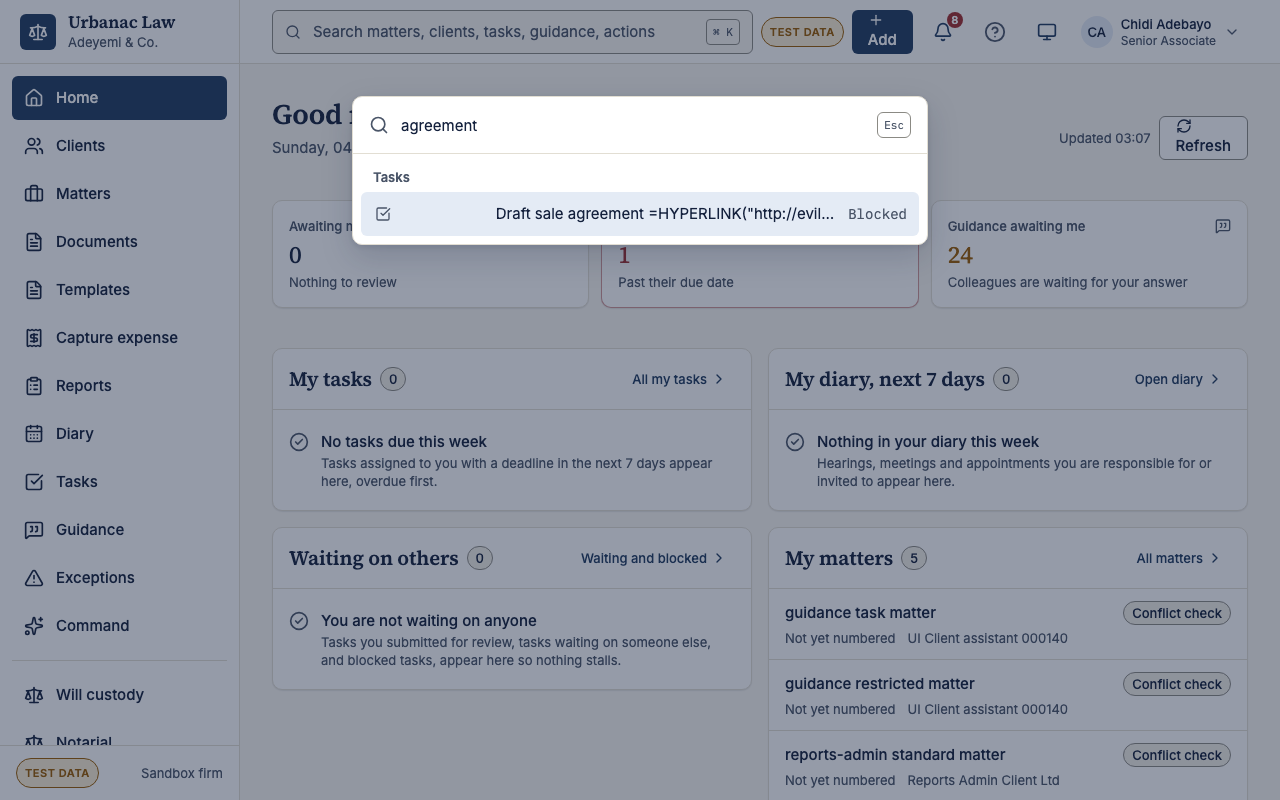
Click the bar at the top of any page that says "Search matters, clients, tasks, guidance, actions". Or press Ctrl+K (Cmd+K on a Mac). Press the same keys again to close it.
Step by step#
- Open the search.
- Type at least two characters. Results appear after a short pause.
- Use the arrow keys or the mouse to pick a result and press Enter.
You are taken straight to it.
What it finds#
Results are grouped:
- Matters: by matter title, number or the client's name.
- Clients and parties: by name, alias or email.
- Enquiries: by reference or prospect name (for roles that can see enquiries).
- Documents: by title, and by words found inside scanned documents ("OCR match").
- Tasks: by words in the title, instructions or "How will we know it is done?". It also finds words inside comments. A task found that way shows "comment match" beside its status.
- Guidance requests: by title or question, and also by words in their comments, again shown as "comment match".
A short list is shown for each group (up to 8 tasks and 8 guidance requests).
Only what you may see#
Search never shows you something you are not allowed to open. A task you are not involved in, a matter that is restricted or walled off from you, and a draft that is not yours do not appear, even if the words match exactly. If a colleague tells you a task exists and you cannot find it, ask them to give you access (see Matter access, teams and ethical walls).
Go to pages and start new things#
With nothing typed, or while typing, the search also lists:
- Go to shortcuts: Home, Enquiries, Clients, Matters, Diary, Tasks, Guidance requests, Deadlines, Exceptions, Notifications, Profile and sessions, and Settings. You only see the pages your role can open.
- Actions: New enquiry, New client, New matter, New task and New diary entry, again only if your role may do them.
Type part of a name, such as "task", to filter these.
Something unclear or out of date? Tell your Operations Administrator, or go back to the manual home.