Compliance
Track the firm's and lawyers' compliance items, data-subject requests, breaches, retention, legal holds, processors and impact assessments.
Last updated 2026-11-26
On this page
What this is for#
Compliance is one screen for the firm's compliance registers: yearly firm and lawyer obligations (for example practising fee renewals and CAC filings), requests from people about their personal data, data breaches, how long records are kept, legal holds, the outside services that handle data, and data protection impact assessments. It helps the firm answer to the Nigeria Data Protection Commission and the Nigerian Bar Association.
Who can use it#
Managing Partner and Partners. Everyone else sees Compliance records are for the partners.
Firm and lawyer items#
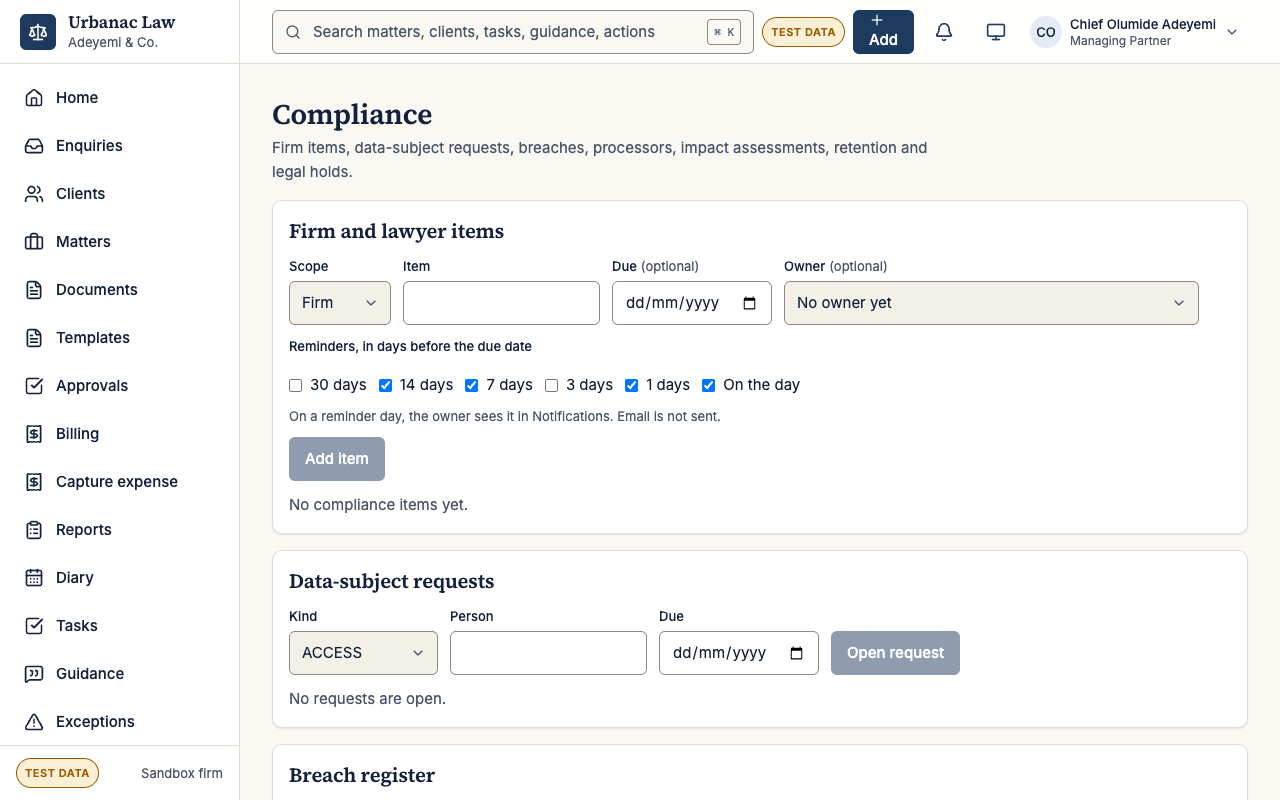
Under Firm and lawyer items:
- Choose the Scope: Firm (an obligation of the firm) or Lawyer (an obligation of one lawyer).
- Type the Item, set the Due date and choose an Owner (or leave No owner yet).
- For something that comes round again, choose Repeats: Every month (for example VAT and PAYE) or Every year (for example the Bar practising fee and CPD). A repeating item needs a due date.
- Under Reminders, in days before the due date tick the days on which the owner should be reminded, from On the day to a number of days before.
- Click Add item.
Each item shows when it is due, who owns it and whether it repeats. On a reminder day the owner sees it in Notifications. Email is not sent. An item with no due date sends no reminders, so add the date once you know it.
To change an open item (for example to add its due date once confirmed, give it to another lawyer, or make it repeat), click Edit, make the change and click Save. Items already marked done cannot be changed.
To finish an item, add an Evidence note and optionally an Evidence file (PDF, PNG, JPEG or text), then click Mark done. If the item repeats, the next one is added straight away with the same owner and reminders, due a month or a year later on the same day (in a shorter month, the last day of that month).
Data-subject requests#
A data-subject request is when a person asks the firm about their personal data.
- Under Data-subject requests, choose the Kind: access, correction, deletion, objection or portability.
- Choose the Person and the Due date.
- Click Open request.
- When you have answered, click Record response, write what was sent or done for the person (at least 5 characters) and click Record response again. Your note stays on the request.
If none are open it says No requests are open.
Breach register#
- Under Breach register, enter a Title, the Discovered date and an Assessment of what happened.
- Click Record breach.
- When it is resolved, click Close with lessons, write the lessons and what has changed since (at least 5 characters) and click Close breach. The lessons stay on the register.
Retention and legal holds#
Retention and legal holds shows the schedule: how many years each kind of record is kept by practice area. If none is published it says No retention schedule is published. Where the schedule covers documents, a document older than its period is moved to the Recoverable bin automatically (never deleted outright), unless a legal hold covers it; the move is recorded in the audit log.
- Legal hold: when a dispute, investigation or claim is expected, under Place a legal hold choose the Matter to hold, write Why this hold (at least 5 characters) and click Place legal hold. A matter can have only one active hold. Each active hold shows the matter, the reason, and when and by whom it was placed. While it stands nothing on the matter can be moved to the bin or deleted, by hand or by the retention schedule. It does not stop the matter being archived.
- To end a hold, click Release, write Why it is released and click Release hold. Retention and deletion can then go ahead again; the release is recorded with your name and reason.
- Recoverable bin: documents that someone deleted, or that the retention schedule moved, wait here. Click Delete permanently when you are sure (a partner, and it asks for your PIN again). A box asks Why it is being destroyed; write the reason and click Delete permanently. Nothing is deleted on a single click. A permanent deletion hides the document from every list and records a destruction certificate with your name and reason. Backups can still hold the content for up to 30 days.
Processors#
Processors records each outside service that handles personal data, such as the hosting provider or an email service. Fill in Name, Role (controller, processor or sub-processor), Purpose, Hosting region, Transfer basis and Review due, then click Add processor.
Impact assessments#
Impact assessments record data protection impact assessments for processing that could put people at risk, such as the AI assistant or the client portal. Fill in Title, The processing, Why it is needed, Risks to the people concerned and How the risks are reduced, then click Save draft. Click an assessment to read it in full. While it is a draft, Edit draft lets you correct it (then Save changes). When satisfied, a partner clicks Approve and confirms: the assessment then shows who approved it and when, and can no longer be edited; a later change needs a new assessment.
Common problems#
- Compliance records are for the partners. Your role cannot see this screen.
- No compliance items yet. Add the first item above.
- Nothing is sent by email for reminders. Reminders appear in Notifications for the owner.
Something unclear or out of date? Tell your Operations Administrator, or go back to the manual home.