Getting started as a Junior Associate
A 10-minute path: sign in, secure your account, find your tasks, submit your first piece of work and ask for guidance.
Last updated 2026-10-03
Sign in (minute 0). Type your email address or username in Email or username and the six-digit temporary PIN in PIN, then press Sign in.
Choose your own PIN (minute 1). On Choose your sign-in PIN, type the temporary PIN in Temporary PIN, then six digits of your own in New PIN and Confirm new PIN, and press Set PIN. Avoid runs such as 123456, repeated digits and dates people could guess.
Turn on your second sign-in step (minutes 2 to 4). Account menu, Profile and sessions, Sign-in security. Press Add a passkey or Add an authenticator app, save your recovery codes with Copy codes or Print codes, then press I have saved them.
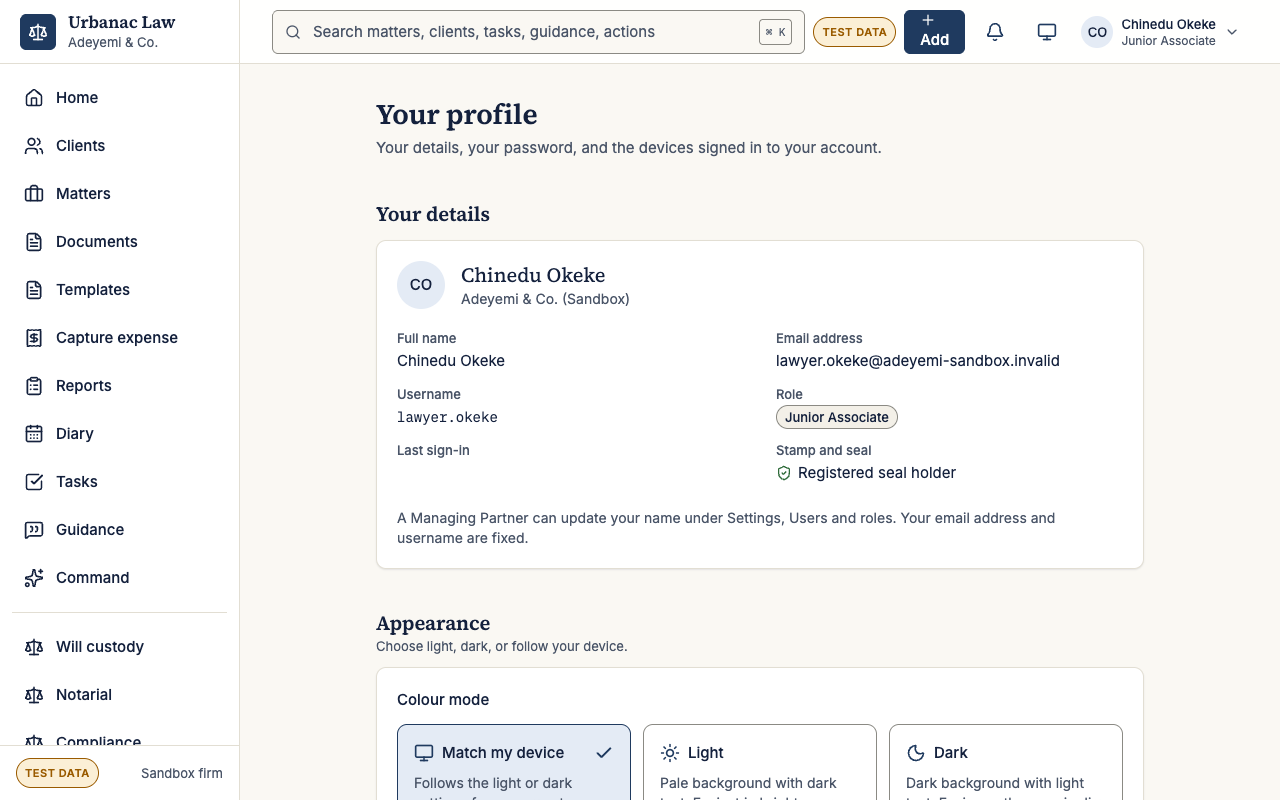
Sign-in security on the Profile page Find your work (minutes 5 to 6). Press Home. My tasks lists what is yours, overdue first, then due today, then later this week. My matters lists the matters you are assigned to.
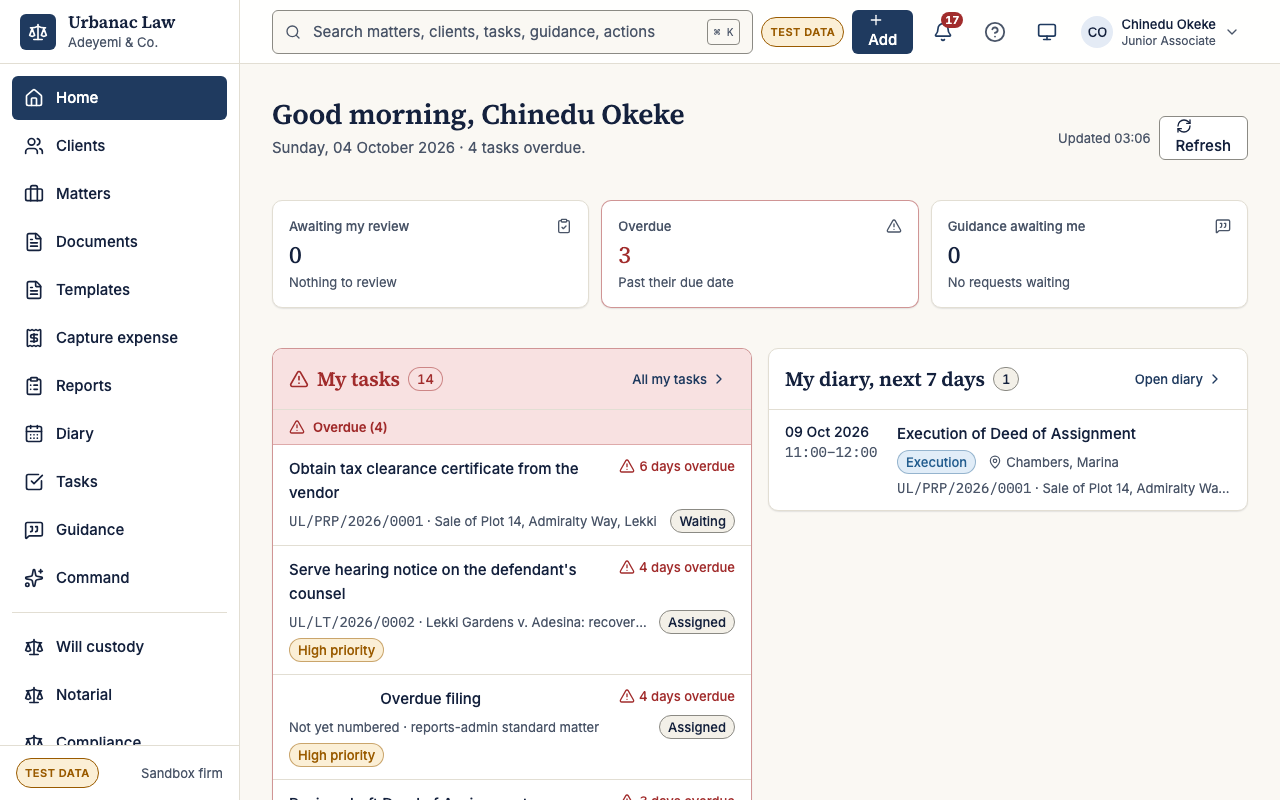
Staff Home for a Junior Associate Do your first task (minutes 7 to 9). Press Tasks (the tab My tasks) and open a task. Press Accept to confirm you have seen it, then Start work. Tick the checklist as you go, attach your draft, and log your time. When finished, press Submit for review, confirm the checklist and deliverables, and press Submit for review again in the window. You cannot close the task yourself: a senior approves and closes it. If something stops you, press Mark as blocked or Waiting on someone and say why.
Ask for help (minute 10). Press Guidance, then New request. Choose the matter, What kind of help do you need?, a Short title, Your question, and Who should answer?, then press Send request. The answer shows in the tab Sent by me; press Confirm the answer when you have what you need.
Next: Junior Associate role page, Tasks, Guidance requests, Time.
Something unclear or out of date? Tell your Operations Administrator, or go back to the manual home.