Guidance requests
Ask a senior colleague a question, follow the answer, and answer questions sent to you.
Last updated 2026-10-03
On this page
What it is for#
A guidance request is a written question to a senior colleague, with a record of who answered and when. Use it when you need a decision, an approval, or help with a legal or practical point, and you want it on the record rather than lost in a chat message.
Examples: "Which court registry handles this?", "May I tell the client the fee is waived?", "Can you check my draft before it goes out?"
Who can do what#
- Everyone on the staff can open the page and send a request.
- Senior roles (Senior Associate, Partner, Managing Partner) can answer, ask for more information, pass on, escalate and close.
- Requests can only be sent to a Senior Associate, Partner or Managing Partner, and never to yourself.
You see requests you sent, requests sent to you, and, if you are a partner, requests on matters you supervise. The Managing Partner sees everything. Staff roles can see their own.
The page#
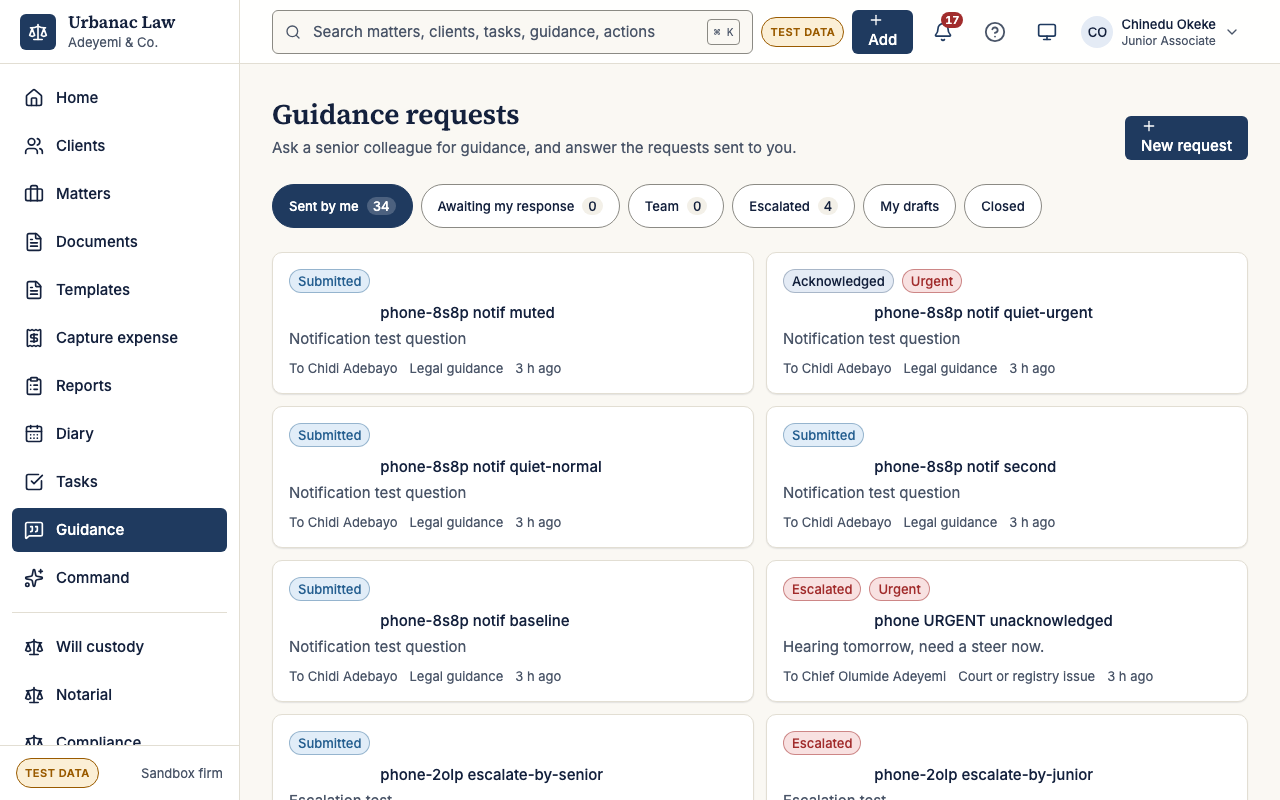
Open Guidance in the menu. The page is titled Guidance requests: "Ask a senior colleague for guidance, and answer the requests sent to you." The tabs are:
| Tab | What is in it |
|---|---|
| Sent by me | Requests you asked. |
| Awaiting my response | Requests waiting for you to answer. |
| Team | Requests inside your team's reach. |
| Escalated | Requests that were passed up to a partner. |
| My drafts | Requests you saved but did not send. |
| Closed | Finished requests. |
If an answer is waiting for you, a banner says "Open the request and choose Confirm the answer."
Send a request#
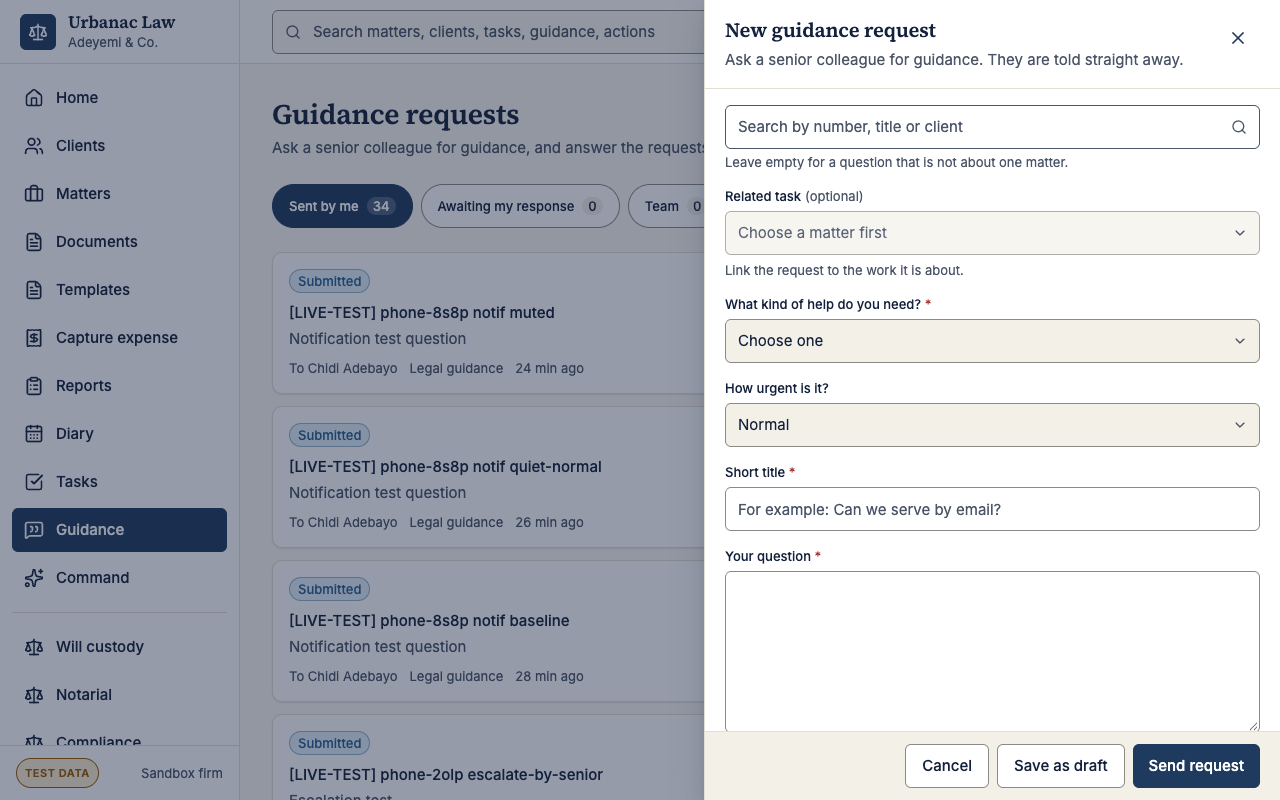
- Press New request.
- Optionally choose the Matter (optional) and a "Related task".
- Choose "What kind of help do you need?": Legal guidance, Approval request, Client decision required, Document review, Procedural question, Court or registry issue, Conflict or risk concern, Operational issue, or Billing or administrative issue.
- Choose "How urgent is it?".
- Write a "Short title" and your question under "Your question".
- Under "Who should answer?" choose "Whoever is free first" ("Any senior associate or partner" or "Any partner"), or a named senior.
- Optionally set "Answer needed by".
- Press Send request, or Save as draft. A draft needs a recipient too, because drafts cannot be edited afterwards.
The senior is told straight away. Urgent and critical requests are marked critical in notifications.
After you send it#
Open the request to follow it. The panel shows who it is from and to, when it was sent, "Answer needed by", the matter, your question, the replies, and a History of every step.
- If the senior asks for more information, you see "More information needed". Open the request and press Provide information.
- If the senior answers and asks you to confirm, press Confirm the answer.
- Use Add comment to talk about the request. You cannot mention people here. A closed request says "Reopen it to add comments".
Answer a request (senior)#
Open Awaiting my response, click the request, and follow the steps on Guidance: every action.
Something unclear or out of date? Tell your Operations Administrator, or go back to the manual home.