Getting started as a Partner
A 10-minute path: sign in, secure your account, find what needs your decision and clear a review.
Last updated 2026-10-03
You will need a browser, your phone, and the temporary PIN the Managing Partner gave you.
Sign in (minute 0). Type your email address or username in Email or username and the six-digit temporary PIN in PIN, then press Sign in.
Choose your own PIN (minute 1). On Choose your sign-in PIN, type the temporary PIN in Temporary PIN, then six digits of your own in New PIN and Confirm new PIN, and press Set PIN. Avoid runs such as 123456, repeated digits and dates people could guess.
Turn on your second sign-in step (minutes 2 to 4). Account menu, Profile and sessions, then Sign-in security. Press Add a passkey or Add an authenticator app. When Save your recovery codes opens, press Copy codes or Print codes and then I have saved them.
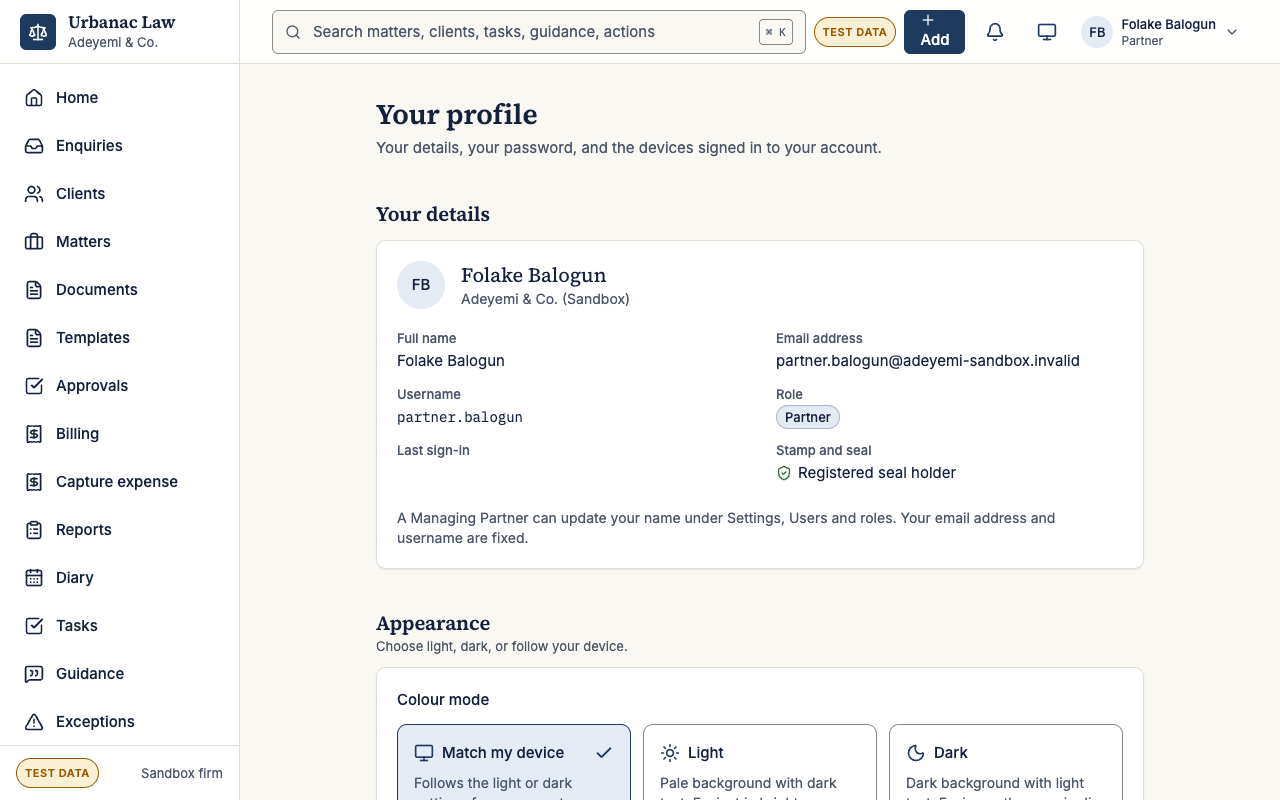
Sign-in security on the Profile page Find your work (minutes 5 to 6). Press Home. Start with the counters: Conflict checks awaiting decision, Tasks awaiting your review, New enquiries. Needs your action below them lists each item; pressing one opens the record.
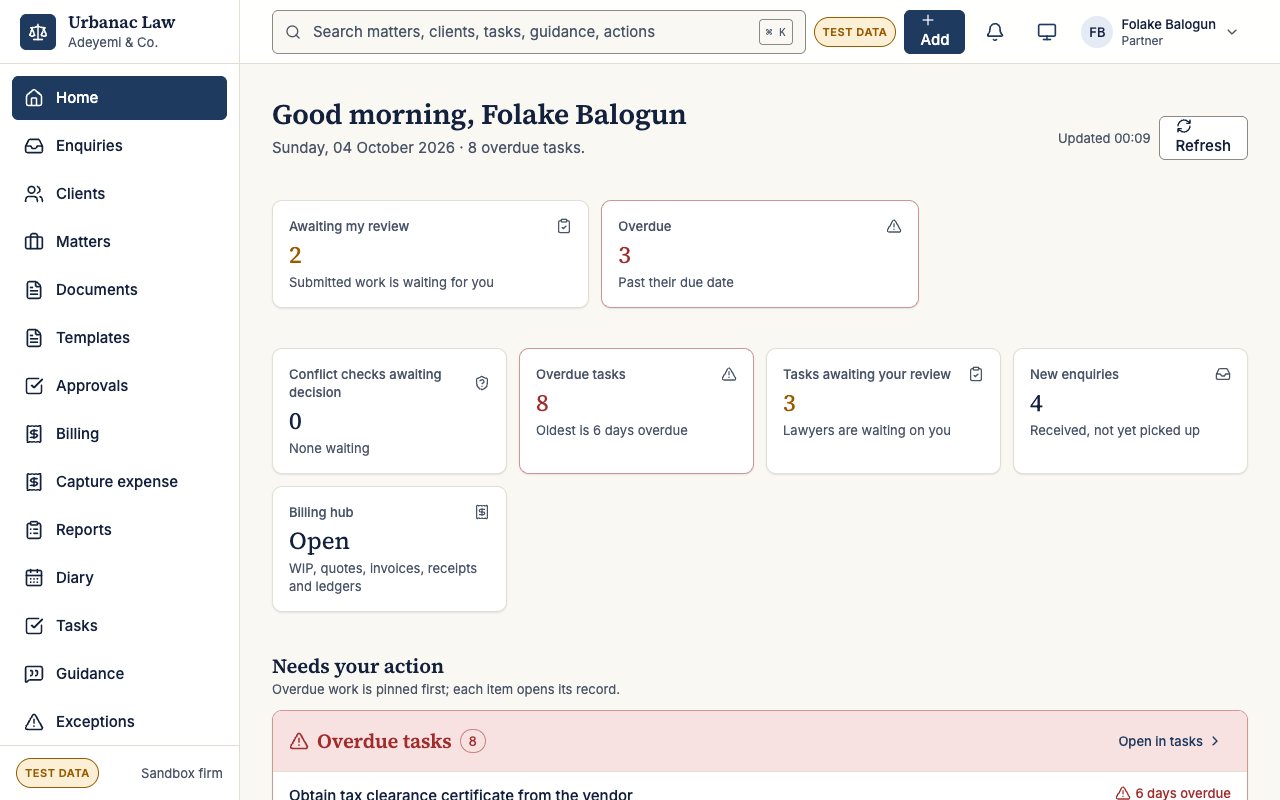
Partner Home Do your first typical job: review a submitted task (minutes 7 to 9). Press Tasks, then the tab Awaiting my review. Open a task, read the deliverables and checklist, then press Approve (or Return for rework and say what must change). After approving, press Close task to record the outcome. If you are asked for your PIN, type it and press Confirm.
Check your notices (minute 10). Press the bell at the top right. Press See all notifications and settings to choose how you want to hear about overdue work.
Next: Partner role page, Tasks, Conflicts, Notifications.
Something unclear or out of date? Tell your Operations Administrator, or go back to the manual home.