Enquiries
Capture a prospective client's approach, run the conflict check, record the decision to act and start the matter.
Last updated 2026-10-03
On this page
- What this is for
- Who can use it
- Where enquiries come from
- What the prospect sees on the public form
- The Pipeline and List views
- Lead statuses
- Conflict badges on a card
- Capture a new enquiry
- Work an enquiry
- Run the conflict check
- Accept an enquiry
- Link or create the client record
- Convert to a matter
- Engagement letters
- Common problems
What this is for#
Enquiries is the firm's intake pipeline. Every prospective client, from the first phone call to the decision to act, is a card here. The page makes sure the conflict check comes before the firm accepts anyone, and carries the details forward so nobody retypes them when the matter is opened.
The path is: capture the enquiry, check for a conflict, move it along, accept it, link or create the client record, then open a matter.
Who can use it#
- The Managing Partner, Partner and Administrative Staff can see, capture, edit and move enquiries and run conflict checks.
- Only a Partner or the Managing Partner can record the conflict decision that allows an enquiry to be accepted.
- Everyone else sees Enquiries are handled by the partners and the intake assistants and is asked to speak to the Managing Partner.
Where enquiries come from#
- Entered by hand when someone phones or walks in (the New enquiry button).
- Web form: the firm can give out a public enquiry link. A prospect fills in the form without an account and the enquiry arrives here automatically.
- Email: mail sent to the firm's forwarding address is filed as an enquiry.
- Referral: recorded when a colleague or client recommends someone.
The Managing Partner creates and revokes the public form link and the forwarding address under Settings, Integrations (see Integrations).
What the prospect sees on the public form#
The prospect opens the link and sees Make an enquiry. They fill in Your name, Email address or Phone number (at least one of the two), Who is the enquiry for?, Type of matter, Describe your matter (at least 10 characters) and Other people or companies involved. They click Send enquiry and see Thank you and a reference number to quote. If the link has been withdrawn they see This form is not available and are told to contact the firm directly.
The Pipeline and List views#
Open Enquiries. The three tabs are:
- Pipeline: a board with a column for each lead status. Drag a card to a new column, or use the keyboard.
- List: a table with Reference, Prospect, Matter type, Status, Urgency, Estimated value, Owner and Received.
- Conflict queue: the conflict checks waiting for a partner (see Conflicts). Shown to those who can run conflict checks.
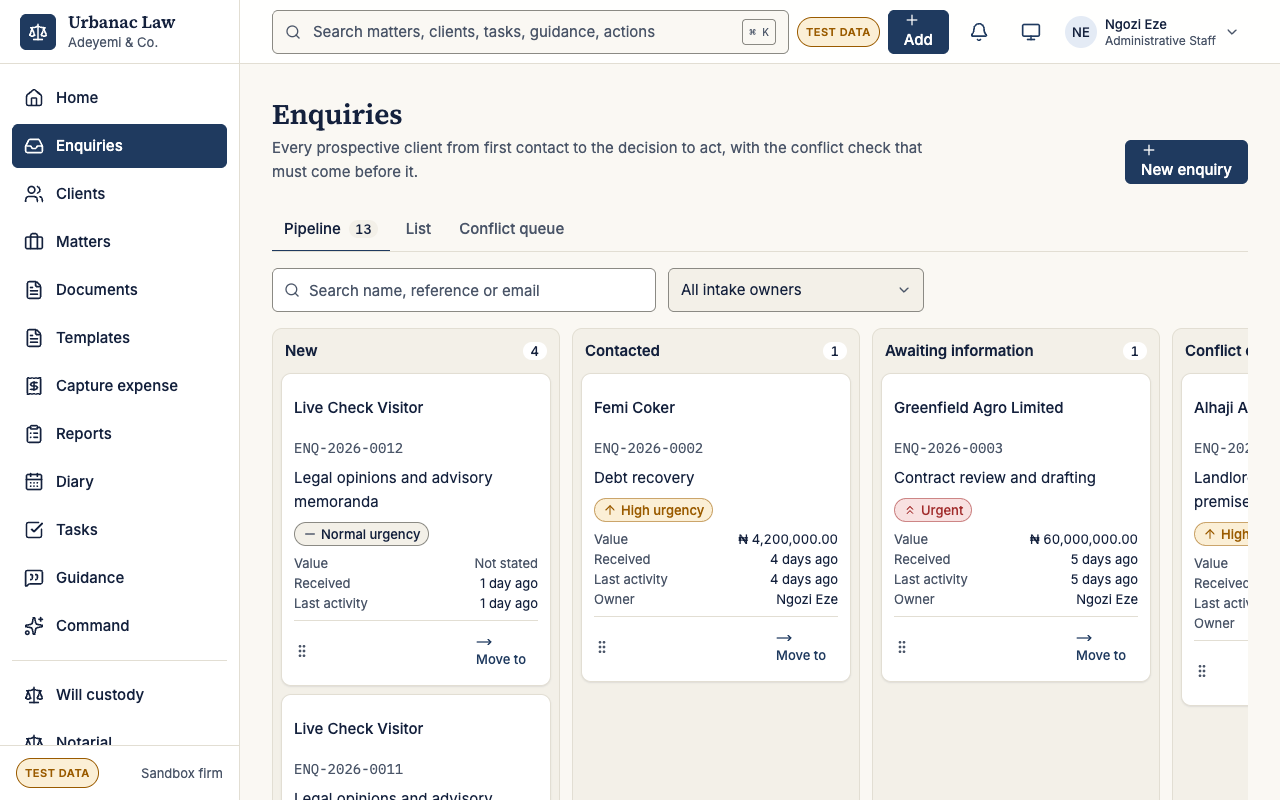
Use Search name, reference or email and Filter by intake owner to narrow the view. A card also shows the urgency (Low urgency, Normal urgency, High urgency, Urgent), the value, the owner and a conflict badge.
Lead statuses#
- New: just arrived.
- Contacted: someone has spoken to the prospect.
- Awaiting information: waiting for the prospect to send details.
- Conflict check pending: a check has been requested or run and is not yet decided.
- Consultation scheduled: a meeting is in the diary.
- Proposal sent: the engagement terms or quote have gone out.
- Accepted: the firm will act. Needs a cleared conflict check.
- Declined: the firm will not act. A reason is required.
- Referred elsewhere: the firm passed the prospect to another firm. A reason is required.
- Dormant: set automatically after 30 days (unless the firm changed this) with no activity, for enquiries that are not yet finished. A line such as Dormant · no activity since shows on the card.
Conflict badges on a card#
- No conflict check yet
- Awaiting partner decision
- Conflict cleared
- More information needed
- Conflict not cleared
Capture a new enquiry#
- Click New enquiry.
- Fill in Prospective client (the only essential field apart from the matter type), Client type, How it reached us, Email, Phone and Referral source.
- Under The matter choose the Matter type (for example Property and conveyancing or Litigation) and describe What they need.
- Add each name under Opposing parties. Press Enter after each to add it (the button reads Add party). Each name is searched in the conflict check.
- Set Urgency and Estimated value or exposure (in naira).
- Under Follow-up choose the Intake owner, write the Next action and set Due on.
- Click Save enquiry.
You see Enquiry captured with the reference, for example ENQ-2026-0001. If the system found people who look similar, a Possibly already on file list appears. Click Open the enquiry to link one of them, or Capture another to carry on.
Work an enquiry#
Click a card or a row to open the side panel. It shows the reference, when it was received and the sections below.
- Edit details reopens the form; click Save changes to keep your edits.
- Lead status lets you move the enquiry. Choosing Declined or Referred elsewhere opens a box titled Mark as declined (or Mark as referred elsewhere). Type the Reason for the decision, then Save and move. The reason stays in the enquiry history and the audit log. Moving a card on the board shows a message with Undo for a few seconds.
- Conflict check shows the state of the check (see below).
- Details lists client type, matter type, email, phone, source, referral source, estimated value, intake owner, next action and opposing parties.
- Client record says whether the enquiry is linked to a client.
- History lists every step taken on the enquiry.
Run the conflict check#
- In the Conflict check section click Run conflict check. If a check already exists the button reads Run a new conflict check.
- The system searches the prospect, the opposing parties you listed and the linked client's aliases.
- Click Open the check to see the matches, or View the decision once decided. A partner then records the decision. See Conflicts.
Accept an enquiry#
An enquiry can only be moved to Accepted after a partner records one of the three decisions that allow the firm to act: no apparent conflict, waived or consented, or information barrier created.
If you try sooner, a box titled This enquiry cannot be accepted yet appears with A partner must clear the conflict check first. The enquiry stays where it was. Use Run conflict check or Open the conflict check from that box, then try again after the partner decides.
Link or create the client record#
A matter needs a client record. In the Client record section:
- Click Create client from this enquiry. It starts as a Prospect. If someone similar is already on file, the box Someone like this is already on file lists the matches. Click Link to this record to use an existing one, or This is a different person: create a new record if you are sure.
- Alternatively search under Link an existing client and click Link client.
Until this is done, the section Create the client record first stops you from opening a matter.
Convert to a matter#
When the enquiry is Accepted and linked to a client, click Open a matter for the client. This starts the New matter form with the client and enquiry already filled in, and any conflict decision recorded for the enquiry carries over. Once the matter exists, the enquiry shows Open the matter. An enquiry can become only one matter. See Matters.
Engagement letters#
If an approved engagement-letter template exists, the Engagement letter section lets you choose an Approved template and fill in the details it asks for (with the template author's own labels and hints; amounts are written as naira and dates in words). The prospect's name, reference and practice area are filled from the enquiry. Click Generate engagement letter or Generate non-engagement letter; it asks for any required detail you missed. The letter is saved as a PDF in the Engagement folder; click Open the letter to see and download it. Editing, checking and e-signing it open once the enquiry is opened as a matter.
Common problems#
- Enter the prospect's name (at least 2 characters). The name is too short.
- Choose the type of matter. The matter type is required.
- Please record why, so the decision can be defended later. Declining or referring elsewhere needs a reason.
- This enquiry has already become a matter. You cannot open a second matter from the same enquiry.
- This enquiry is already linked to a client record. Use the existing link.
- Someone like this is already on the system. Link to the existing person, or confirm this is a new person.
Something unclear or out of date? Tell your Operations Administrator, or go back to the manual home.