Reports
Run the firm's financial and operations reports, export them, schedule them, and find the work-in-trouble view under Exceptions.
Last updated 2026-10-03
On this page
What this is for#
Reports answers questions such as "how many matters are open in each practice area?", "which invoices are overdue?" and "which enquiries turned into matters?". Each report is a table that you can download. Exceptions is a separate view of everything that is late or stuck, and how fast work is moving.
Who can use it#
You see only the reports your role may run. If none apply, the page says No reports are available for your role.
- Matters reports (Matter status, Workload, Practice-area performance), Litigation (Court outcomes) and Deadlines (Deadline compliance): every staff role, limited to matters they can see.
- Time (Time and activity): roles that can see WIP, which means partners.
- Finance (Revenue, Receivables ageing, Disbursements, Client profitability): Managing Partner and Partners only.
- Intake (Lead conversion, Referral sources): Managing Partner, Partner and Administrative Staff.
- Documents (Document activity): staff who can see documents.
- Audit (Audit and access): Managing Partner, Partners, Operations Administrator and Auditor.
- Exceptions: partners, senior associates, the Operations Administrator and the Auditor. The Governance tab on it is for partners and the Auditor. Others see Exceptions are for senior roles.
Run a report#
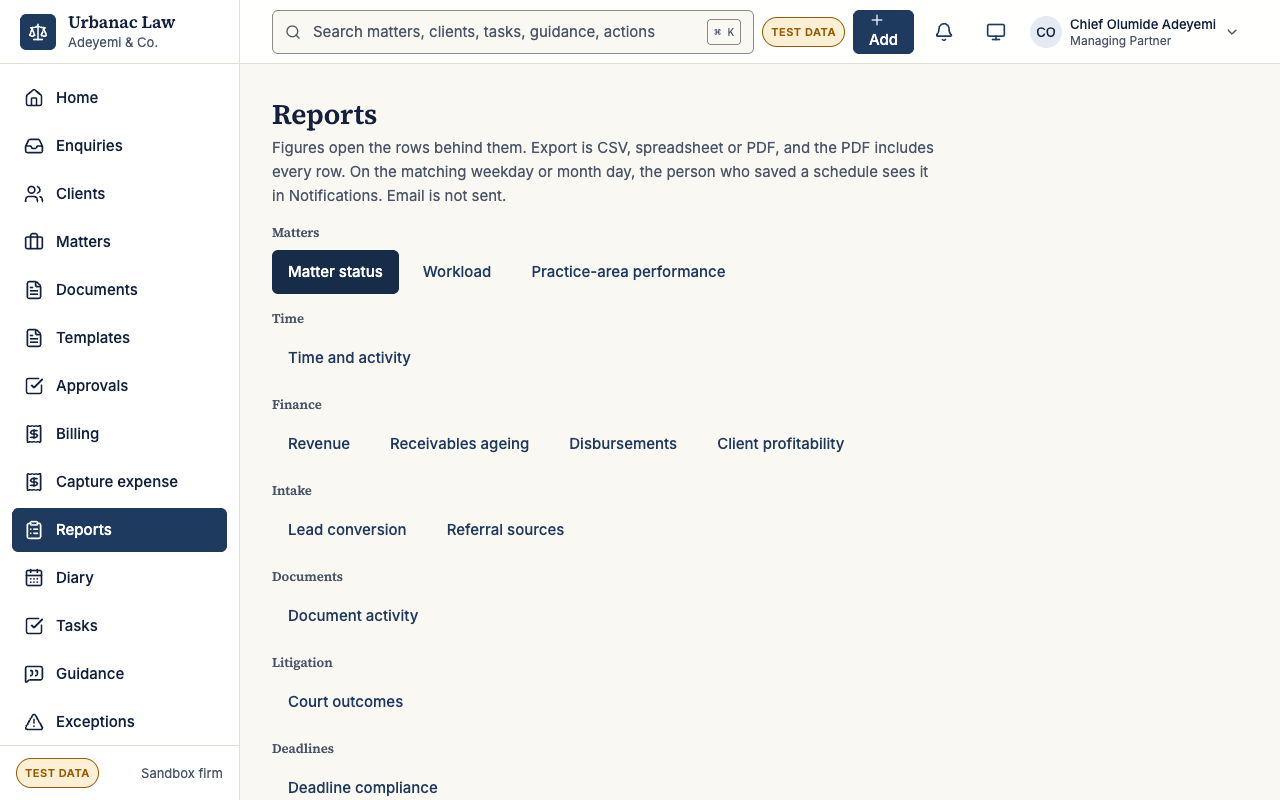
- Open Reports. Reports are grouped under headings such as Matters, Time, Finance, Intake, Documents, Litigation, Deadlines and Audit.
- Click a report's name. The table appears beneath.
- Use Practice area to limit it to one area, such as Litigation or Property and conveyancing. All practice areas shows every area.
- Read the one-line summary above the table. In most reports the first column is a link that opens the matter, client or document behind the row.
Download#
- Download CSV: opens in Excel or any spreadsheet.
- Download spreadsheet: an .xlsx file.
- Download PDF: includes every row.
Downloads are recorded in the audit log.
Schedule a report#
- Open the report.
- Under Remind me of this report, choose How often: Every week, on today's weekday or Every month, on today's date (in a shorter month, its last day).
- Click Save reminder. It appears in the list, for example Weekly, every Friday. The same reminder cannot be saved twice.
On its day the report appears in your Notifications with a link that opens it. When the firm's email is switched on, an email with the link (never the figures) also goes to your own address; the page says which applies. Each person sees only their own reminders. Click Stop to end one.
Reports at a glance#
- Matter status: every matter you can see with its number, title, stage and practice area.
- Workload: open assignments per person.
- Practice-area performance: matters and recorded value (₦) per area.
- Time and activity: units and value (₦) per person.
- Revenue: billed by status and by client.
- Receivables ageing: each outstanding invoice, its age and the amount owing.
- Disbursements: expenses by matter, payee and category.
- Client profitability: what each client has been billed.
- Lead conversion: each enquiry and whether it became a matter.
- Referral sources: enquiries per source of referral.
- Document activity: documents added and their status.
- Court outcomes: litigation matters with suit number and settlement.
- Deadline compliance: each matter deadline, when due and its state.
- Audit and access: recent audit events.
Exceptions#
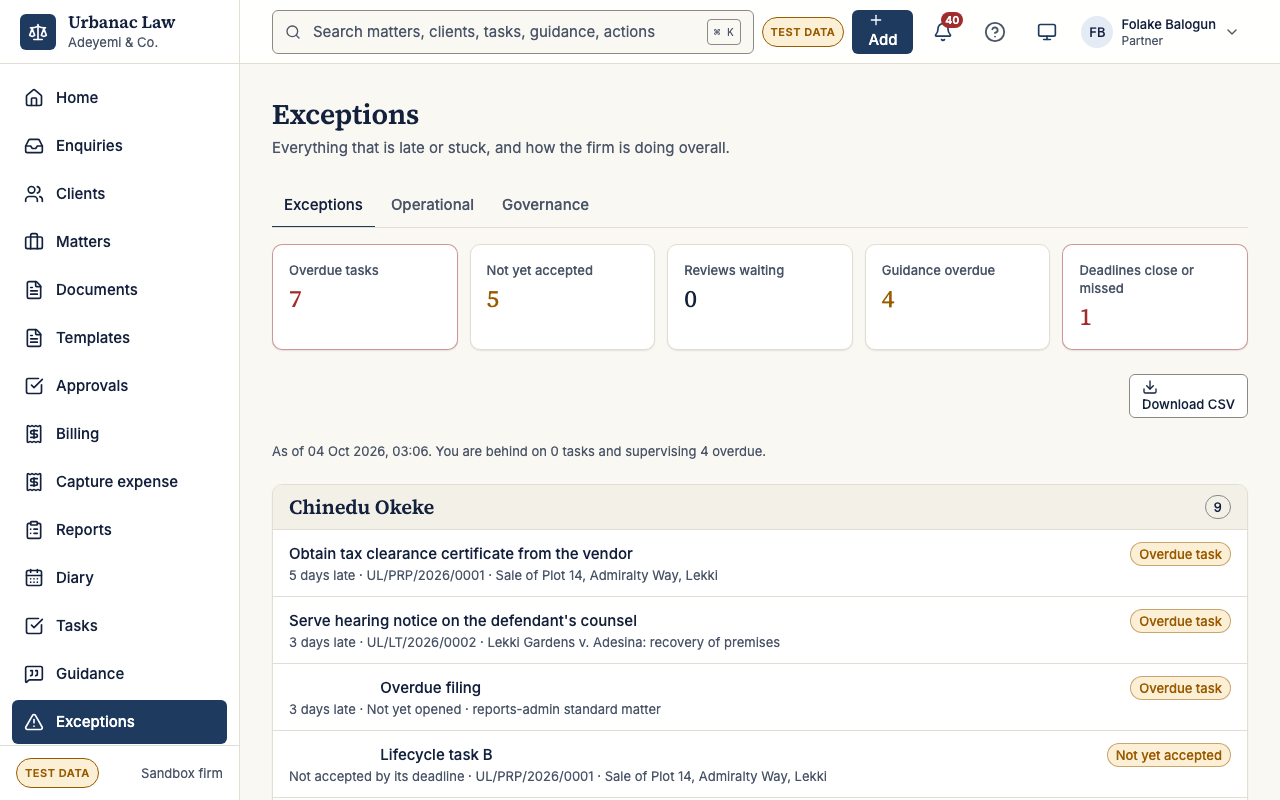
Open Exceptions for everything that is late or stuck. It has three tabs.
- Exceptions: a list of items someone has to act on. The counters are Overdue tasks, Not yet accepted, Reviews waiting, Guidance overdue and Deadlines close or missed. Each line shows Who has to act, Kind, Item and Detail. If everything is on track it says Nothing is late or stuck.
- Operational: a summary of a recent period. Tasks shows Created, Overdue and Reopened; How fast work moves shows Average time to accept, Average time to submit and Average time to close; Guidance requests shows Sent, Still open, Escalated, Average time to acknowledge and Average time to respond.
- Governance: Who can see what (how many matters are Standard, Restricted, Highly restricted or walled, and Active ethical walls and Active closure delegations); counts of Access changes, Role changes, Denied attempts, Document downloads, PIN re-checks and Audit exports; and Audit trail with the message The audit trail is intact or The audit trail failed its check. If it fails, tell the Managing Partner at once and do not change any records.
On the Governance tab the Export audit trail button (Managing Partner and Auditor only) downloads a signed file of audit events with a fingerprint, after asking for your PIN. The page then shows how many events were checked and Download again.
For tasks and guidance requests themselves, see the task pages of this manual. For deadlines see Diary and deadlines.
Common problems#
- No reports are available for your role. Your role has no report permissions. Ask the Managing Partner.
- A finance report is missing from your list: finance reports are for partners only.
- The numbers look too low: reports include only matters you are allowed to see.
- Chain FAILED or The audit trail failed its check: do not change anything and tell the Managing Partner now.
Something unclear or out of date? Tell your Operations Administrator, or go back to the manual home.