Sign-in and two-factor
How to sign in, set up a second step (passkey, authenticator app, email code), keep recovery codes, trust a device and what to do when you are locked out.
Last updated 2026-10-03
On this page
Why there is a second step#
You sign in with your email address (or username) and a six-digit PIN of your own. A PIN can be guessed or seen over a shoulder. A second step proves that the person signing in also holds something only you have: your phone, your device or a code sent to your email. Client files are confidential, so the firm treats this seriously.
The Managing Partner decides, in the firm's sign-in policy, whether a second step is required and which methods are allowed. See Settings and users.
The methods#
- Passkey. Face ID, a fingerprint or your device lock. The quickest and the hardest to steal. Best choice.
- Authenticator app. A 6 digit code that changes every 30 seconds, from Google Authenticator, Microsoft Authenticator, Authy or similar.
- Email code. A code sent to your work email. Good as a fallback.
- Text message code. Off unless the firm has switched it on and connected its SMS provider. See Integrations.
- Recovery codes. Ten one-time codes for the day you lose your phone. Each works once.
Sign in#
- Open the firm's web address. On the sign-in page type your email address or username in Email or username and your six-digit PIN in PIN, then press Sign in.
- If asked, choose your second step and enter the code or approve the passkey.
- Tick Trust this device only on your own computer or phone.
- You land on your home screen.
Set up your second step#
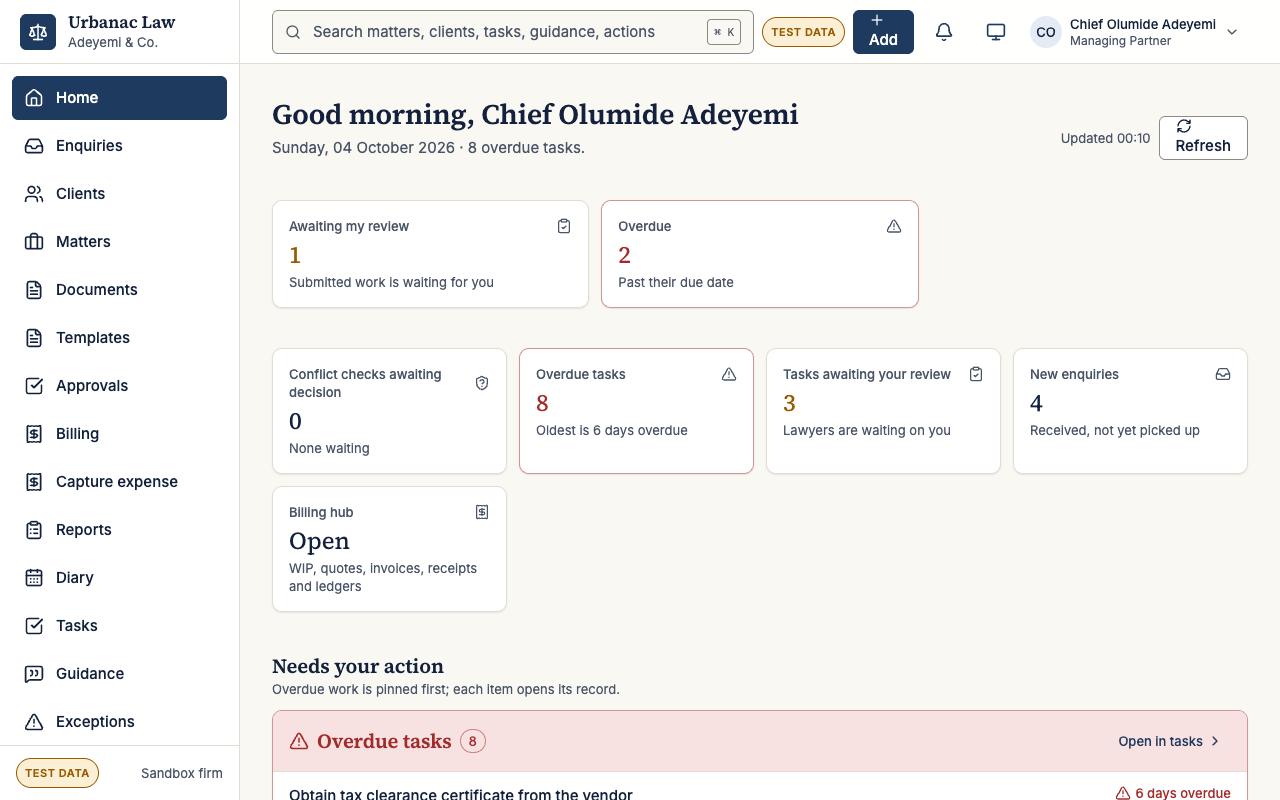
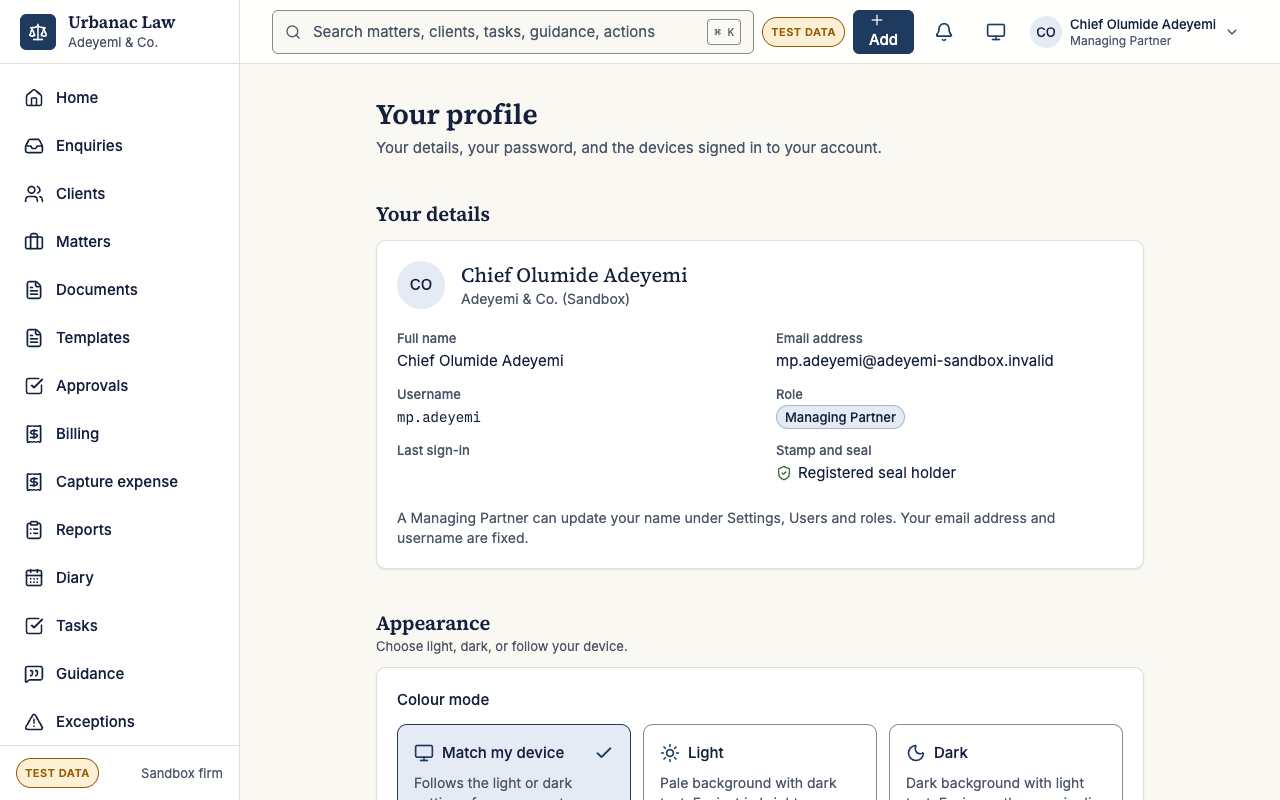
- Click your name at the top right and choose Profile and sessions.
- Find the Sign-in security section.
- Choose Add a passkey and follow your device prompt, or choose Add an authenticator app, scan the picture with the app and type the 6 digit code it shows.
- Choose Save your recovery codes, then download, print or copy them and keep them somewhere safe and separate from your phone.
Trusted devices#
When you tick Trust this device, the system asks for the second step less often on that device. The firm sets how long this lasts (by default 14 days or 20 sign-ins, whichever comes first) and the system never trusts a device for longer than 30 days. Remove a device you no longer use from your profile. A trusted device never skips the PIN re-check for sensitive actions.
PIN re-check for sensitive actions#
Some actions ask for your PIN again, in a box titled Confirm it is you, even though you are signed in. Examples are approving a final document, changing a person's role, exporting data, creating an ethical wall, issuing an invoice and changing the sign-in policy. Type your PIN and choose Confirm, or Cancel to stop. A second-step prompt may follow if the firm requires it. Once confirmed, you are not asked again for ten minutes (fifteen when approving a final document).
Your sessions#
Behind the scenes the system renews your access every 15 minutes while you work, so you are not interrupted. A sign-in lasts at most 7 days; after that you must sign in again.
On Profile and sessions you can see where you are signed in. Sign out a device you do not recognise, or sign out everywhere else. Being issued a temporary PIN signs you out on every device.
If something goes wrong#
- Forgot your PIN. Click Forgot your PIN? on the sign-in page. It tells you to ask a Managing Partner, who opens Settings, Users and roles, your name, and chooses Issue temporary PIN. You sign in with it once and choose your own. There is no reset email. If no Managing Partner can sign in, the firm's technical lead can issue one.
- Lost your phone. Sign in with a recovery code, then add a new authenticator app or passkey and save new recovery codes.
- No recovery codes either. Ask the Managing Partner. They can reset your second step and issue you a temporary PIN from the Users and roles page, with their own PIN re-check. You then set everything up again.
- Locked after too many wrong attempts. Five wrong PINs in a row lock the account for 15 minutes. Each further lockout in a row doubles the wait, and the fifth stays locked until a Managing Partner presses Unlock sign-in or issues a temporary PIN from Users and roles. A sign-in code allows five wrong tries; after that sign in again to get a fresh code. Email and text codes work once and expire after 10 minutes.
Related#
Something unclear or out of date? Tell your Operations Administrator, or go back to the manual home.