Matters
Create and open a matter, work in its tabs, move it through its stages, close it, and control who can see it.
Last updated 2026-10-03
On this page
- What this is for
- Who can use it
- The Matters list
- Create a matter record
- Open a matter: the four checks
- Open urgently
- The team
- The matter workspace
- Tabs
- Parties
- Change the stage
- Notes and comments
- Correspondence
- Close or archive a matter
- Access modes and ethical walls
- Specialist screens
- Notarial register
- Will custody register
- Common problems
What this is for#
A matter is one piece of work for one client: a sale of land, a recovery of premises, an estate, a company restructuring. The matter workspace holds everything about it in one place: parties, documents, tasks, notes, correspondence, diary dates, deadlines, billing and a full audit trail. A matter receives its official number only when it is opened, after four checks have passed.

Who can use it#
- The Managing Partner and Partners can open every matter in the firm, unless it has been restricted or walled off from them.
- Other staff see only the matters they are assigned to. A Partner or the Managing Partner assigns people to a matter.
- Creating a matter record is limited to the Managing Partner, Partners and Administrative Staff. Anyone else sees You cannot create matters.
- Opening a matter (giving it its number) is limited to a Partner or the Managing Partner.
- Concluding a matter is limited to Partners and the Managing Partner. Archiving needs a partner's sign-off.
- The Auditor and the Operations Administrator do not use the matter workspace, apart from the access screen described below.
The Matters list#
- Open Matters.
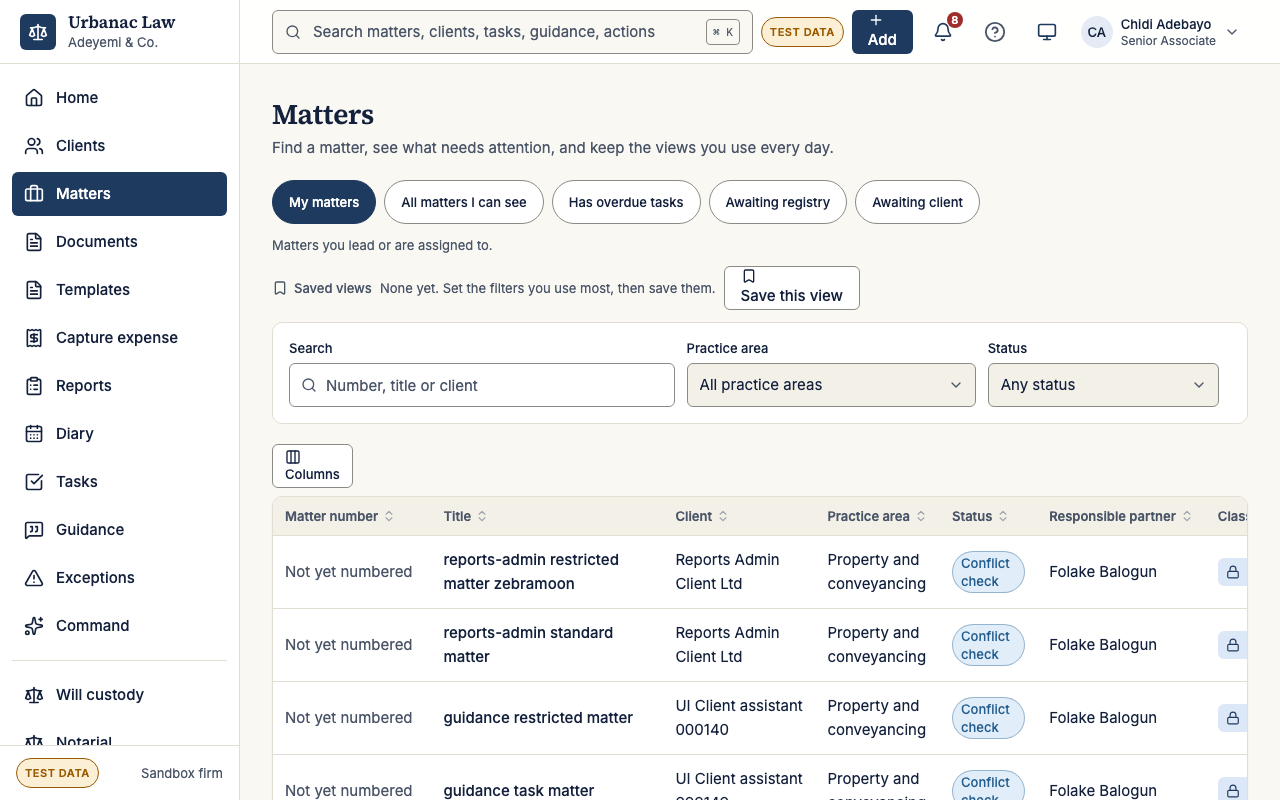
- Choose a view above the table under Matter views:
- My matters: matters you lead or are assigned to.
- All matters (partners) or All matters I can see (others).
- Has overdue tasks: at least one task is past its deadline.
- Awaiting registry: a task is waiting on a registry, such as the Lagos Lands Registry or a probate registry.
- Awaiting client: waiting for the client to act or send something.
- Narrow with Search (number, title or client), Practice area and Status. Click Clear filters to start again.
- Click a column heading to sort. The columns are Matter number, Title, Client, Practice area, Status, Responsible partner, Classification and Deadlines. A matter opened under an urgent override shows Gate overridden. Use Load more matters for the rest.
- To keep a combination you use often, click Save this view, type a View name and click Save view. Saved views appear under Saved views, for you only, and you can have a limited number. The small delete button removes one (Delete view); the matters themselves are never affected.
Create a matter record#
- Click New matter (or Open a matter on a client's record, or Open a matter for on an accepted enquiry). The form is titled New matter.
- Under About the matter: enter the Title (how the matter is known inside the firm, for example "Lease of Ikoyi office floor"), choose the Practice area, set the Classification (Confidential is the usual choice; it controls who can see the matter) and add a Description.
- Under Client and partner: choose the Client. If they are not listed, add the client first under Clients. Choose the Responsible partner, who answers for the matter and is added to the team as lead.
- Under Team: you and the responsible partner are added automatically. Click Add a team member, choose the person and their Role for anyone else.
- Click Create matter record.
You see Matter record created and are taken to the opening screen. If you came from an enquiry, its conflict decision carries over when the client is the same. If you chose a different client from the enquiry's, a notice says This is not the client on the enquiry and a new conflict check will be needed.
Open a matter: the four checks#
A matter has no number until a partner opens it. The opening screen, Open matter, lists four checks under Opening checks. Each shows what is missing and who can clear it.
- Conflict check: a conflict decision that allows the firm to act. Click Run a conflict check for this matter, or View the conflict decision once it exists. A partner records the decision (see Conflicts).
- Client acceptance: a recorded decision, with a reason, that the firm accepts this client for this matter. A partner clicks Record acceptance decision, chooses Accept this client or Do not accept, types a Reason (at least 10 characters) and clicks Record decision.
- KYC and AML: the client's checklist must be completed. Click Open the client's KYC checklist (see Clients).
- Engagement and fees: a partner clicks Record scope and fees and fills in Scope of work, Fee arrangement, Retainer required, Estimated disbursements, Exclusions, Assumptions and Consultation notes, then clicks Record engagement.
Each check is Passed, Blocked or Opened urgently.
When all four are clear, All checks are clear appears. A Partner or the Managing Partner then clicks Open matter and confirms Open matter and allocate number. The number is allocated at that moment and cannot be changed or reused. You then see Matter opened, the number, and Go to the matter.
Open urgently#
If the KYC or engagement check cannot wait, a partner can click Open urgently on that check.
- Type Why this cannot wait (at least 15 characters).
- Set Override ends on (DD/MM/YYYY). An override can run for 14 days at most.
- Click Record override.
The matter is then marked Gate overridden until the check is completed, and the reason is kept in the audit trail. The conflict and client-acceptance checks cannot be overridden. An expired override shows as (expired) until someone completes the check.
The team#
On the opening screen and in the workspace, the Team card lists who is assigned. A Partner can click Add someone, pick the Person and Role on this matter, and click Add to team. The remove button asks Remove from the team?; the person no longer sees the matter unless assigned again.
The matter workspace#
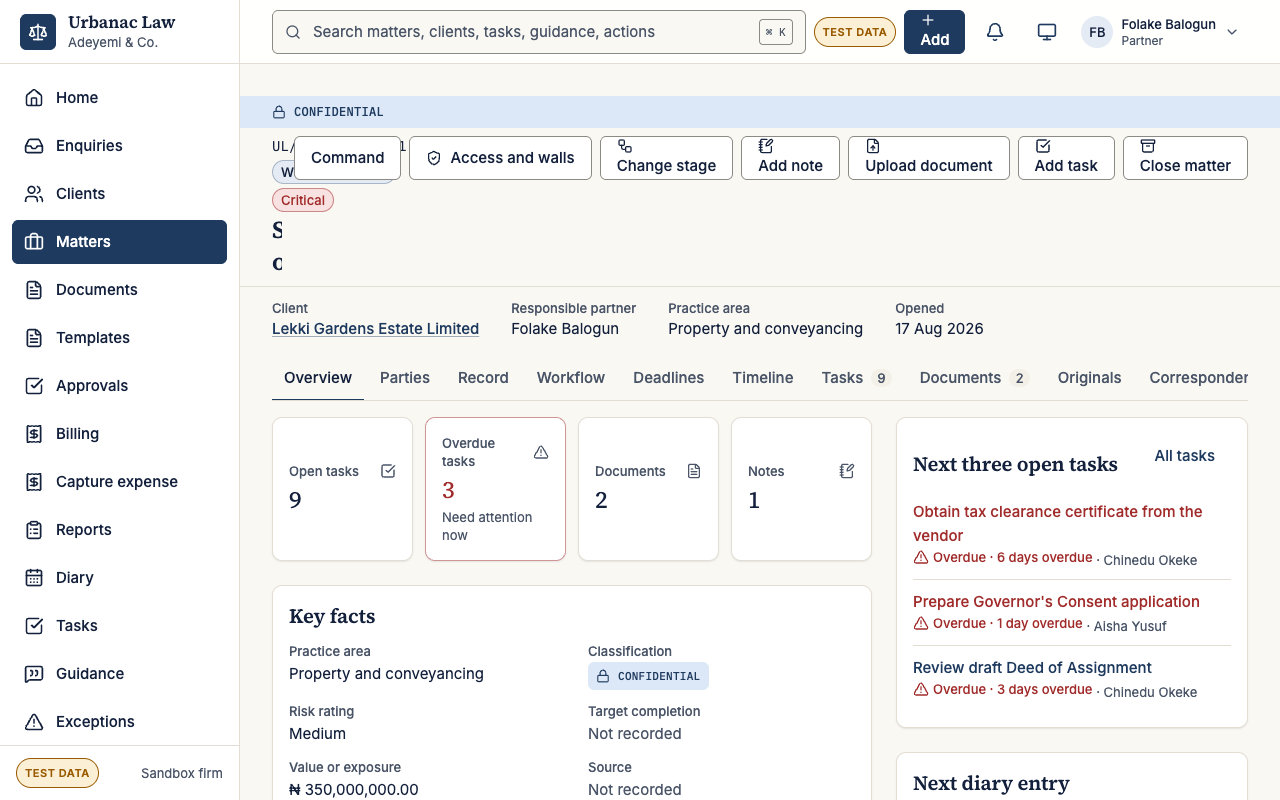
Open a matter from the list. The header shows the number (or Not yet opened), title, status and the Client, Responsible partner, Practice area and Opened date. Until the matter is opened it shows This matter is not open yet, what is still needed, and Go to the opening steps.
Buttons in the header's Matter actions menu appear only for people allowed to use them: Change stage, Add note, Upload document, Add task and Close matter (or Reactivation on an archived matter). There are also links to Command and Access and walls.
Tabs#
Tabs you are not allowed to use, or that do not apply to the matter's practice area, are not shown. On a phone they appear as chips.
- Overview: counts of Open tasks, Overdue tasks, Documents and Notes; Recent activity; Next three open tasks; Key facts; the Opening gates; the Next diary entry; Key parties; the Team; and the AI help panel when AI is connected. Edit identifiers records the court, registry, property, probate and arbitration references, a Sub-status and Related matter ids.
- Parties: everyone connected to the matter (see below).
- Record: for property, land documentation and landlord-and-tenant matters only (see the specialist screens below).
- Estate: wills, probate and estate administration only.
- Litigation: litigation only.
- ADR: arbitration and mediation only.
- Company: commercial and corporate advisory only.
- Ledger: debt recovery only.
- Retainer: general legal retainers only.
- Workflow: the practice-area workflow. Click Start workflow when the matter is ready, then Move to the next stage as it progresses.
- Deadlines: calculated deadlines (see Diary and deadlines).
- Timeline: everything done on the matter, newest first. Filter by Type, Person, Classification and From and to dates. Click Load older entries for more.
- Tasks: the matter's tasks grouped as Overdue, Open and Finished, with New task on this matter. Click a task to open it in the tasks screen.
- Documents: see Documents and templates.
- Originals: the register of original paper documents held for the matter. Click Register to record one, and Move after typing a New location when it changes hands. The column Now at shows where it is.
- Correspondence: calls, emails, meetings and letters, plus the client portal panel (see below).
- Notes: file memos and comments (see below).
- Billing: invoices, expenses, time and the statement of account for this matter (see Billing and expenses and Time).
- Audit: every change and every view of restricted material, chained so tampering shows.
Parties#
- Open Parties and click Add party.
- Choose the Person or organisation (add them under Clients first if they are not listed), their Role on this matter (for example Opposing party, Opposing counsel, Witness, Beneficiary, Executor, Vendor, Purchaser) and an optional Note.
- Click Add party.
On an open matter, adding a party starts an automatic conflict re-check. A banner reads A conflict re-check ran for the new party and links to Review the re-check.
Change the stage#
A matter moves through 14 stages. Before it is opened they are: Enquiry received, Preliminary screening, Conflict check, Client acceptance, KYC and AML and Engagement and fees. After opening: Matter opened, Work in progress, Pending external action, Awaiting client action, Awaiting partner review, Concluded or settled, Archived and Reactivated.
- Click Change stage in Matter actions.
- Choose the New stage and optionally write a Note (why it is changing; shown in the audit log).
- Click Change stage.
Only a partner can choose Concluded or settled. Reactivated is offered only for a concluded matter. Archiving is separate, through Close matter.
Notes and comments#
- On the Notes tab type your note, choose its Classification (who can read it), and click Save note. A note cannot be edited or deleted once saved. Write the first one above, and older ones load with Load older notes.
- Matter comments below the notes are internal discussion. They are never visible to the client. Type under Add a comment and click Add comment. You can Remove your own.
- Voice notes: record or upload audio, then Turn into text and Accept as a note after reading the transcript. This works only when the Managing Partner has connected the AI service; otherwise it says Not connected and recordings are saved only.
Correspondence#
- Click Log correspondence.
- Choose the Type (phone call, email, meeting, WhatsApp, SMS, letter, in person) and Direction (Received (from the other person) or Sent (by us)).
- Fill in Date, Time (24-hour), From, Purpose, Summary and optional Attachments (document ids already filed on the matter) and Classification.
- Tick Create a follow-up task if something must happen next, then fill in What needs to happen and Due date.
- Click Log correspondence.
This only keeps a record; nothing is sent from here.
Client portal panel: send a Message to client with Send to portal, ask the client for a file with Ask the client, and ask for consent with Request consent. Under Ask the client for consent, write What you are asking and, if useful, The details the client reads (who receives what, and why), then click Request consent; it goes to this matter's client, who accepts or declines in the portal. Documents the client approved and files they sent also appear. Email is not sent: the client sees these when they sign in, and you see replies in Notifications.
Close or archive a matter#
- Make sure the work is finished. A partner uses Change stage to set the stage to Concluded or settled.
- Click Close matter. The window Close and archive this matter opens. If the matter is not concluded yet it says Conclude the matter first.
- Complete the Closure checklist: mark each required step Mark done, adding a reference or evidence note if useful. The bar shows how many required steps are complete.
- A partner clicks Sign off closure checklist. A non-partner sees Only a partner can sign off the closure checklist.
- Settle the money. Under Money to settle before archiving the window lists what stops the archive: client money still held for the matter (return it or apply it to an invoice), invoices not paid (record the payment or write the balance off) and invoices not yet issued (issue or cancel them). Unbilled time is shown too, but does not stop the archive: bill it from the Billing tab first if it should be billed.
- Type a Reason for archiving and click Archive matter.
An archived matter is read-only: you can still open its overview, timeline, tasks, documents and billing, but nothing can be added or changed, so Add note, Upload document and Add task are not offered. To bring it back, click Reactivation, then Request reactivation, explain under Why should this matter reopen? (at least ten characters), and click Submit reactivation request. A fresh conflict check runs automatically, and the Principal Partner gets a notification. Only one request can wait at a time.
The Principal Partner opens the matter (the notification links to it), clicks Review the request, and sees who asked, why, and what the fresh conflict check found, with a link to Open the conflict check to decide any match first. They can add a Note and click Approve and reopen or Decline. The person who asked is notified either way. A reopened matter shows the stage Reactivated and its closure checklist starts again.
Access modes and ethical walls#
The Access and walls link in the matter header (shown to partners and the Operations Administrator) opens the matter-access screen, Matter access. You can also reach it from the Settings menu and choose the matter.

- Access mode shows how widely the matter is shared. Choose a new value under Change to and a Reason (at least 3 characters, kept in the audit trail), then click Change mode.
- Standard: the assigned team can open it.
- Restricted: named people only, plus the Managing Partner.
- Highly restricted: named people and the responsible partner. Only the Managing Partner or the responsible partner can set this mode. Adding someone later needs a second person's approval.
- Teams with access: give a whole team access with Give access, or take it away with Remove.
- Ethical walls block a person or team from the matter completely, whatever their role. Under Block a choose Person or Team, pick who, give a Reason, and click Create wall. You are asked for your PIN. To end a wall click Lift wall and confirm. The person can open the matter again.
- Access requests: on a highly restricted matter, use Ask for access for a person with a Reason, then Send request. The Managing Partner or the responsible partner reviews it with Approve or Decline (with a Note for your decision).
A person who is walled off or not named sees the matter missing from lists and search. See Access and ethical walls for the firm-wide picture and Security and privacy.
Specialist screens#
Some matters have an extra tab. All of them start empty, with a button to open the record. All amounts are in naira.
- Record (property, land documentation, landlord and tenant): Open property record with Title reference and Property address, status lanes for Governor's Consent, Stamping and Registration (Not started, In progress, Complete), and Requisitions (type the Requisition and the Received date, click Add, and Resolve it when answered). For recovery of premises, Open recovery record takes the Premises address and tracks the Recovery status: Notice, Suit, Possession and Closed.
- Estate: Open estate vault records Assets and Liabilities (each with a Kind, Description and Value (₦)) and Beneficiaries (Name and Share %) with a distribution status per beneficiary (Not started, In progress, Distributed). A link goes to the Will-custody register.
- Litigation: Open litigation record with Court and Suit number. Then Process lists the court papers (pleadings, motions, affidavits, judgments and so on): choose the Kind, Title and Filed date and click Add, and use Change date if a date moves. Sittings lists court dates: enter the Date and Purpose and click Add sitting, or type the Reason for the adjournment and click Adjourn. Under the sittings enter the Judgment, Judgment date and Appeal date and click Save judgment and appeal. Date history shows every change, and Court directory keeps the registries, judges and opposing counsel you meet most (a Kind, a Name and the Verified date).
- ADR (arbitration and mediation): Open ADR record. Arbitration details (or Mediation details) show who administers it, the seat or place, the venue, the tribunal or mediator and when they were appointed; click Edit details, change what you need and click Save details. The Written record has six free-text sections, each with Write (or Edit) and Save: for an arbitration, Arbitration agreement, Terms of reference, Submissions, Procedural orders, Award and Enforcement; for a mediation, Agreement to mediate, Mediation terms, Position papers, Session record, Outcome and settlement and Follow-up. Below them: Hearings (called Sessions on a mediation; a Date and Title, Add); the settlement notes, which stay hidden until you are added (type a Note and click Add note; someone already in them picks a person and clicks Grant access); keep without-prejudice settlement discussion there, never in the written record; and an evidence Bundle with Build index and Download PDF.
- Company: Open company record with the Company name; then Company details, CAC filings (Add filing, then mark each filed), Statutory registers (Add to a register for directors, shareholders, the secretary and people with significant control; Record share transfer), and Meetings and resolutions (Schedule a meeting, Record the outcome, Record a written resolution). See Company secretarial for the full steps.
- Ledger: Open debtor ledger records principal, interest, cost, recovered, remitted and fee movements, with the Interest basis.
- Retainer: Open retainer with Scope, Retainer fee (₦), a Monthly allowance and Call-off entries (an Amount (₦) and a Date) showing fee, used and remaining.
Notarial register#
Open Notarial from the menu. Entries are numbered in order and a voided entry stays on the ledger. To add one, fill in Requesting party, Instrument and Date, then click Record entry. To cancel an entry, choose it under Entry to void, give a Reason (at least 5 characters) and click Void. You need a role that can list matters (every staff role) and, for voiding, permission to update the entry's matter.
Will custody register#
Open Will custody from the menu. Original wills stay on this register. Receive will needs the Matter id (a wills, probate or estate matter), Received, Location and Condition. A will can be taken out with Record withdrawal and put back with Record return. To release one for good, one person clicks Request release and a different person clicks Approve release. Asking the same person to approve gives A second person must approve the release.
Common problems#
- This matter is not open yet. Finish the four checks; only a partner can open it.
- One or more gates are not yet passed. The server checked and one check is still blocked. Click the check name in the Outstanding list.
- An archived matter cannot be edited. Request reactivation.
- You are not assigned to this matter. Ask a partner to assign you.
- This matter is restricted to named people. or An information barrier excludes you from this matter. Your access has been limited on purpose. Speak to a partner.
- Only a partner can mark a matter concluded. Ask a partner.
- Programs and scripts (such as .exe or .js) are not accepted. Applies to uploads on the Documents tab.
Something unclear or out of date? Tell your Operations Administrator, or go back to the manual home.